
Note: This documentation covers both the Free and Pro versions of FundCollector. FundCollector Pro requires the Free version to be installed and kept active at all times. Sections that apply only to Pro are marked with PRO.
Donors Management
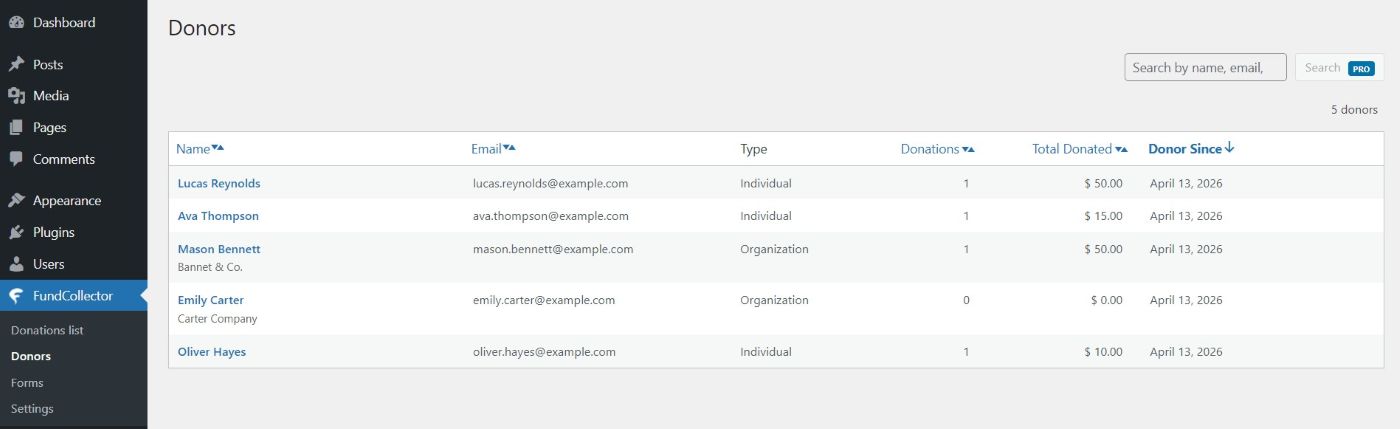
The Donors screen in the WordPress admin is a people-centric view: each row is one donor profile built from donations, so you can see who supports your campaigns, how often they give, and how much.Overview
On Donors you can:- Browse everyone the plugin recognizes as a donor, with paging when the list is long.
- Sort several columns to bring the most relevant donors to the top.
- Search by name, email, or company PRO.
- Open a donor’s detail page to see contact-style information and their recent donations.
Open the Donors page
- Log in to your site’s WordPress admin.
- In the left menu, open FundCollector.
- Click Donors.
admin.php?page=fundcollector-donors).
Search PRO
At the top right there is a search area labelled for finding donors.- The field suggests you can look up name, email, or company.
- With FundCollector Pro installed and active, you can type a term and press Search. When results are shown, a short summary appears with the term you used and how many donors matched, plus a Clear search link so you can return to the full list.
Sorting
Several column titles work as sort links. Click a title to change the order; click again to flip direction. The active column is shown more prominently and a small arrow icon indicates the direction. You can sort by:- Name – alphabetical order (A→Z or Z→A).
- Email – alphabetical order by address.
- Donations – by the number of donations recorded for that donor.
- Total donated – by the sum of amounts. Currency symbol and number formatting follow your Settings → Currency & location choices.
- Donor since – by when the donor record was first created.
What each row shows
Each row is one donor:- Name – the donor’s name and surname. The name is a link: click it to open that donor’s detail page. If a company name exists, it may appear on a second line under the person’s name. If no name was saved, the list may show a friendly “no name” placeholder.
- Email – the email address on file.
- Type – either Individual or Organization, depending on how the donor was recorded.
- Donations – the count of active, completed donations used for this donor’s aggregate statistics.
- Total donated – the sum of active, completed donations, formatted with your currency settings.
- Donor since – the date when this donor profile was created.
Donor detail page
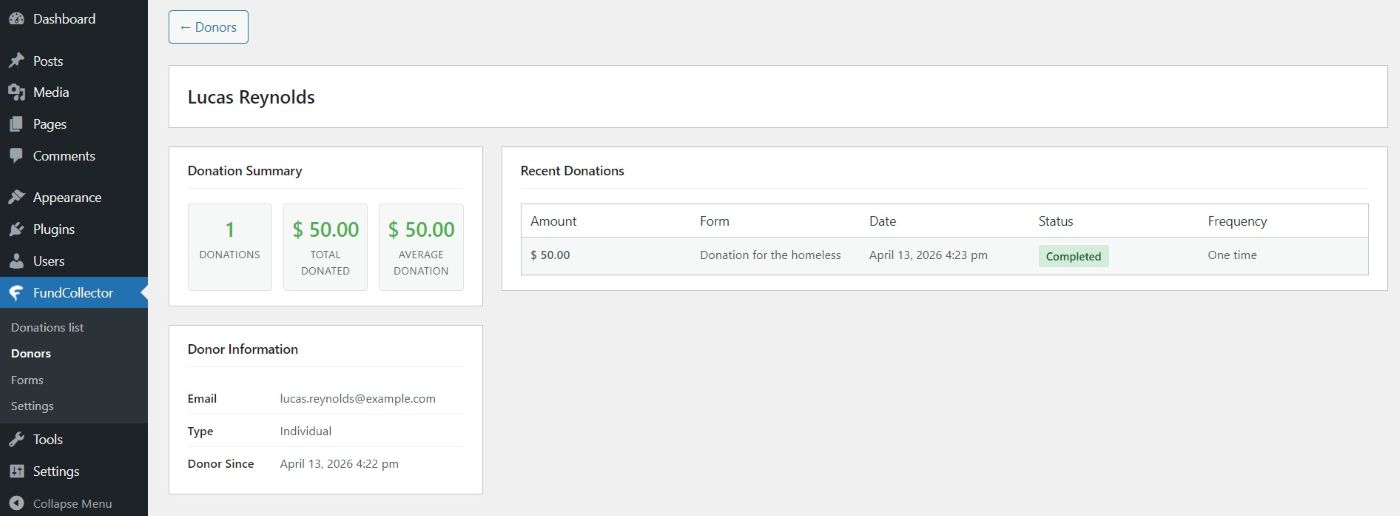
When you click a donor’s name, you leave the list and open a detail view for that person or organization.- At the top, a back style link returns you to the Donors list.
- The donor’s name appears as the main heading.
Donation summary (left side)
A compact Donation summary area highlights:- Donations – the count of active, completed donations.
- Total donated – the sum of active, completed donations, with your currency formatting.
- Average donation – the completed total divided by the completed count, or zero when there are no completed donations.
Donor information (left side)
Donor information lists what the plugin knows, such as:- Type (Individual or Organization)
- Organization name (only when it exists)
- Phone (only when saved)
- Address (only when any address parts exist: street, postal code, city, region, and country are combined into one readable line)
- Tax ID (only when saved)
- Donor since – creation time of the donor record.
Recent donations (right side)
The Recent donations block lists this donor’s gifts in a table-like layout. For each donation you typically see:- Amount – with the correct currency symbol when a per-donation currency exists.
- Form – the purpose or form name tied to the donation, or a dash when nothing is set.
- Date – date and time in the site’s usual WordPress date/time format.
- Status – a readable payment status, including special wording for bank transfer when relevant.
- Frequency – One time, Monthly PRO, or Annual PRO, matching how the gift was set up.