
Note: This documentation covers both the Free and Pro versions of FundCollector. FundCollector Pro requires the Free version to be installed and kept active at all times. Sections that apply only to Pro are marked with PRO.
Donations Management
Donations List
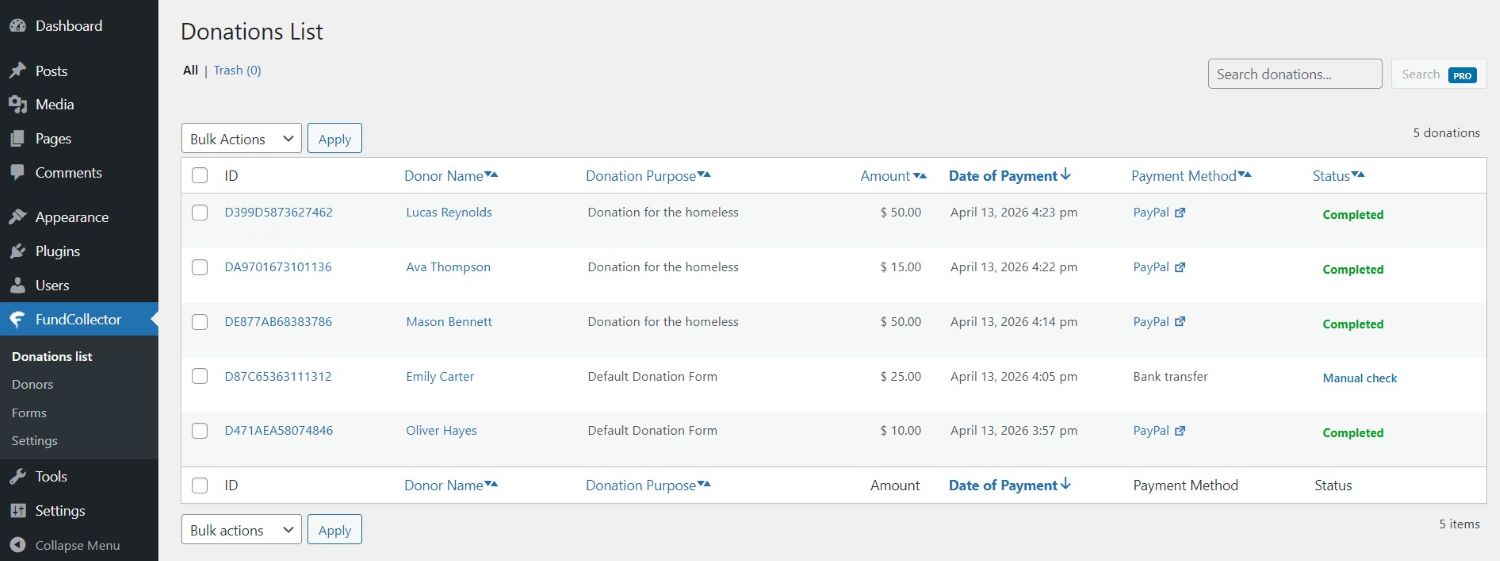
The Donations List is the main operational view for donations stored in the plugin database. Each row is one donation record. From here you can:- Review donor, amount, purpose, payment method, status, and donation frequency (one-time or recurring PRO).
- Search across donations using IDs, donor fields, amounts, dates, and more PRO.
- Open a Donation Details modal without leaving the page.
- Trash or restore donations (soft delete: records stay in the database but are hidden from the default list).
- Use bulk actions to trash or restore many rows at once.
manage_options capability (typically Administrators) can access this screen.
Open the Donations List
- Log in to the WordPress admin (
/wp-admin/). - In the left-hand menu, click FundCollector (the plugin uses this menu as the top-level entry; the first submenu item is Donations list).
- You land on FundCollector → Donations list (
admin.php?page=fundcollector-donations-list).
Search field PRO
With FundCollector Pro active, the Search donations… field and Search button at the top right let you filter the list. In Free, the control identifies search as a Pro feature. Pro search runs across multiple fields, including:- Public donation ID, donor name and surname (including full-name match), email
- Donation purpose, payment method, payment status
- Partial matches on stored amount text
- Smart amount matching using your Currency & Location separators (e.g. finding
50when the donor typed50,or50 $) - Date-oriented queries in common formats (e.g. day/month/year, ISO dates, month/year, year-only)
The donations table
Columns
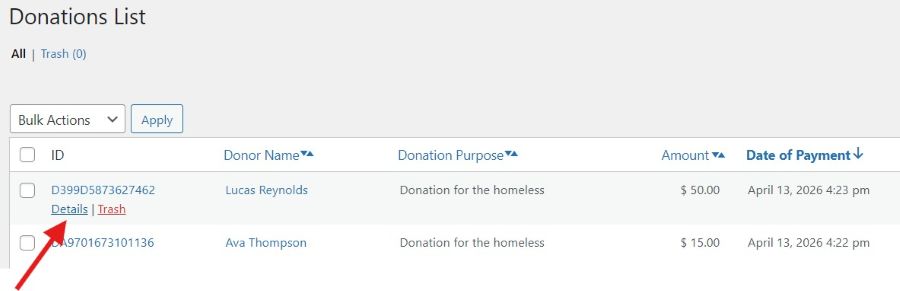
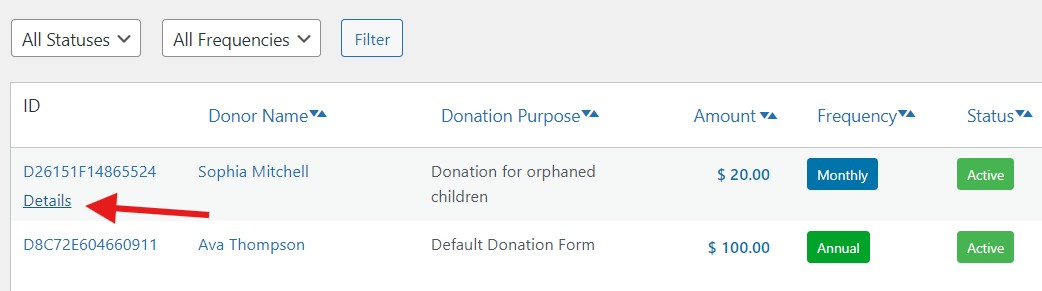
- ID: The donation identification code donation ID (clickable). Under it: Details, Trash or Restore, and sometimes Retry Subscription for eligible Mollie recurring rows PRO.
- Donor Name: Full name. If the donation is linked to a donor record, the name links to FundCollector → Donors. If empty, the UI shows Anonymous.
- Donation Purpose: Form name / purpose of the donation text.
- Amount: Formatted with your currency symbol and decimal / thousands settings from Settings → Currency & Location.
- Date of Payment: Shown in the site’s configured timezone/locale.
- Payment Method: e.g. Bank transfer, PayPal, Mollie PRO. For PayPal and Mollie, when a gateway payment ID exists, the label is a link that opens the provider’s dashboard for that payment.
- Status: Colour-coded payment status (Completed, Pending, Failed, Cancelled, Expired, Refunded, Declined). Bank transfer donations are labelled Manual check.
- Donation frequency: Badges One Time, Monthly PRO, or Annual PRO. If a recurring Mollie subscription failed to be created, a warning icon may appear; eligible rows show Retry Subscription.
Sorting
Click a sortable column header to change order. Active sort is indicated by bold header text and an arrow icon. Sorting resets to page 1 when you change column or direction.Row actions
Details (modal)
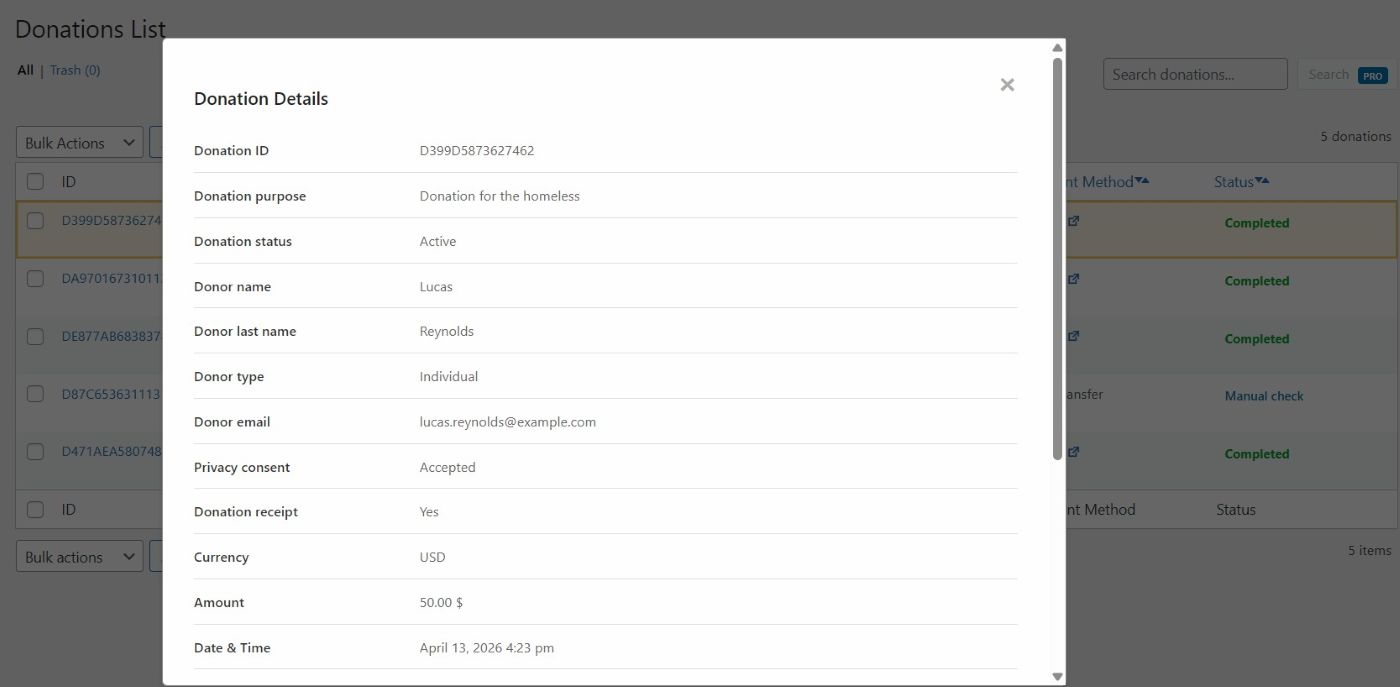
Click the donation ID or Details to open Donation Details in a modal. Content is loaded via AJAX. Close with ×, clicking the backdrop, or the Escape key. The modal lists fields in a fixed order. Typical sections include:- Donation ID, purpose, donation status (including trashed), donation frequency
- Recurring status when a subscription exists in the recurring table PRO
- Donor identity: name, surname, type, company (if applicable), email, privacy consent, receipt preference
- Currency, amount, date & time
- Payment method, PayPal transaction type, Payment ID, payment status
- Payer name / email when supplied by the gateway
--.
Trash
Clicking the Trash link marks the donation as “in the trash”; it is no longer visible in the default list but has not been permanently deleted from the database. Open the Trash page from the link at the top of the Donations List to view these rows. Use the Restore link below a trashed donation to return it to the list.Retry Subscription (Mollie recurring) PRO
For some completed recurring donations paid via Mollie where subscription creation failed, the Donations List shows Retry Subscription. This runs an admin action to attempt creating the subscription again in Mollie. The action is not available on the Recurring Donations screen and it is never available for PayPal. For a PayPal recurring donation, ask the donor to start a new recurring donation.Which donations appear in the list?
The list is not limited to “completed only”. It includes donations whose payment status is among:completed, Manual check, cancelled, failed, expired, refunded, declined, pending. This helps you audit abandoned checkouts and gateway outcomes.
Recurring Donations PRO
Overview
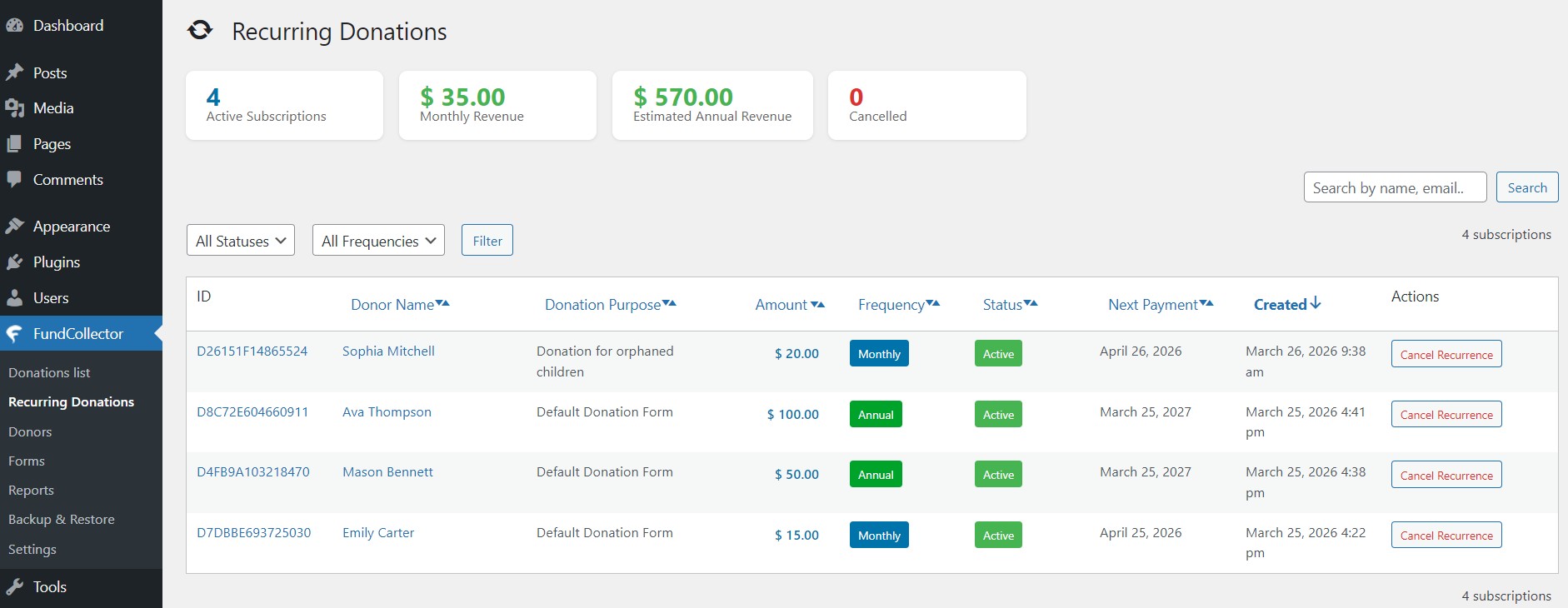
The Recurring Donations page lists Mollie- and PayPal-backed recurring subscriptions stored in the plugin’s recurring table, joined with the original donation and form data. From here you can:- See at-a-glance metrics: how many subscriptions are active, approximate monthly and estimated annual recurring revenue, and how many are cancelled.
- Search across donor fields, donation ID, form name, gateway subscription ID, and amount text.
- Filter by status and billing frequency (monthly / annual).
- Sort the table by donor, purpose, amount, frequency, status, next payment date, or creation date.
- Paginate results (20 subscriptions per page).
- Open the same Donation Details modal used on the Donations list.
- Cancel an active subscription: the site calls the Mollie or PayPal API (matching the subscription’s gateway) to cancel the mandate/subscription, then updates the local record.
Open Recurring Donations
- Log in to the WordPress admin (
/wp-admin/). - In the left-hand menu, open FundCollector.
- Click Recurring Donations.
Summary statistics (top cards)
Four cards summarize data from all subscriptions in the recurring table (not only the current filter):- Active Subscriptions: Count of rows whose status is active.
- Monthly Revenue: Sum of amount for active subscriptions with monthly frequency.
- Estimated Annual Revenue: (Monthly revenue × 12) plus the sum of amounts for active annual subscriptions. This is a planning figure, not a tax or accounting guarantee.
- Cancelled: Count of subscriptions with status cancelled.
Search
The backend matches partial strings against:- Donation ID
- Donor first name, last name, and full name
- Donor email
- Form name
- Gateway subscription ID (Mollie or PayPal)
- Amount (text
LIKEmatch)
Filters and pagination
The Filter form includes:- Status: All, Active, Pending, Cancelled, Suspended, Expired
- Frequency: All, Monthly, Annual
The Recurring Donations table
Columns
- ID: Public donation ID (click to open Details modal).
- Donor Name: First and last name; links to the donor profile if one exists.
- Donation Purpose: Form name, or N/A if missing.
- Amount: Recurring instalment amount in the subscription’s currency.
- Frequency: Monthly or Annual.
- Status: Active, Pending, Cancelled, Suspended, or Expired.
- Next Payment: For active subscriptions with a stored next payment date.
- Created: Subscription creation timestamp.
- Actions: For active rows only: Cancel Recurrence (red-styled button).
Sorting
Sortable fields: Donor Name, Donation Purpose, Amount, Frequency, Status, Next Payment, Created. Default sort is Created, newest first.Cancel Recurrence (active subscriptions only)
- Click Cancel Recurrence on an active row.
- The UI asks for confirmation (action cannot be undone).
- On confirm, a request runs; the server cancels the subscription via Mollie or PayPal (matching the subscription’s gateway), then marks it cancelled locally.
- Success or error is shown in the interface; on failure, logs may contain details for support.
Donation details
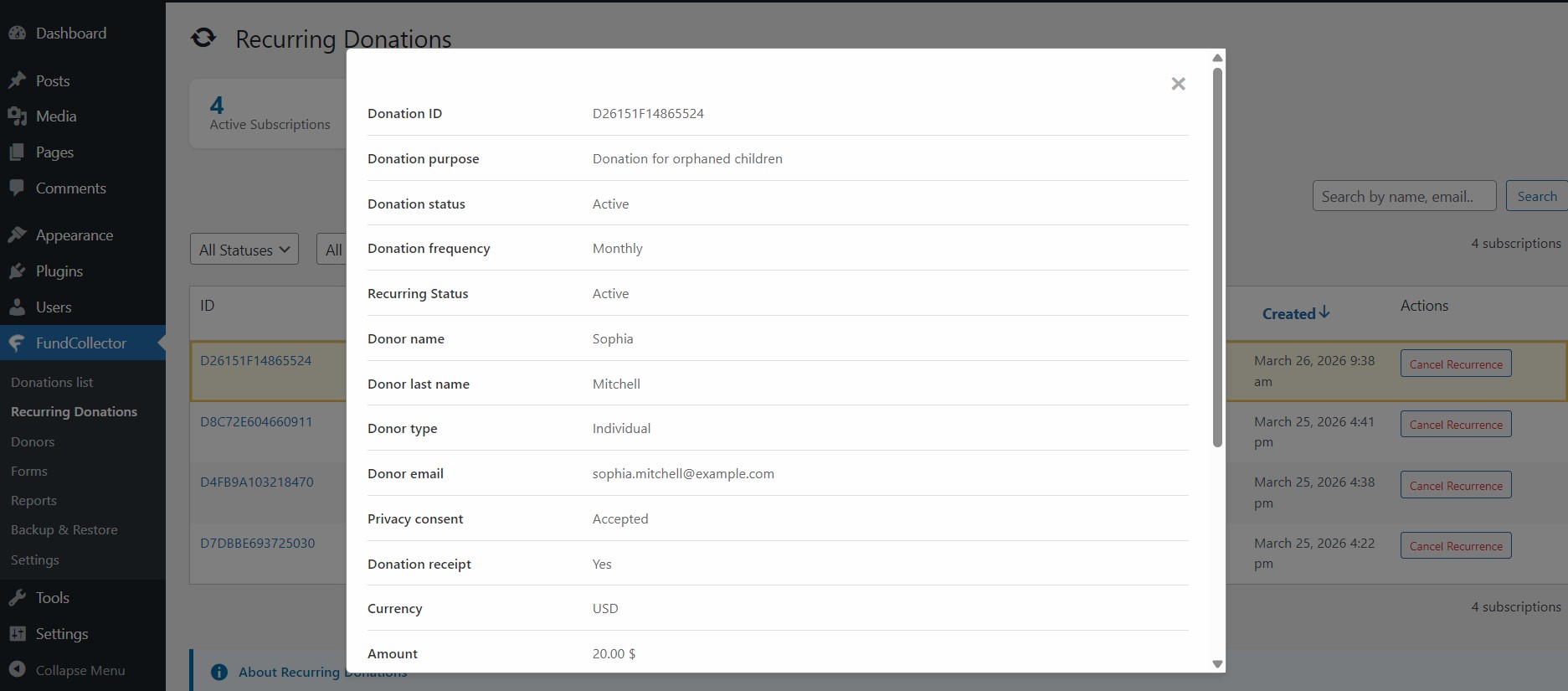
- About the gift: donation reference, purpose or campaign name, and whether the donation record is active or has been moved to trash.
- Recurring: how often the donor chose to give and, when applicable, the recurring subscription status.
- About the donor: name, whether they gave as a person or organisation, company or group name, email, consent options.
- About the payment: currency, amount, date and time, payment method, status, provider reference numbers.