
WordPress setup
WordPress Donation Form Not Working? How to Fix It
If your WordPress donation form is not working, the fault can sit at very different points: the form may not appear, reject a valid amount, fail during payment, or take the payment without sending a confirmation. Treat these as separate problems. A methodical check is faster and safer than changing several settings at once.
Find out why your WordPress donation form is not working
Start by reproducing the problem while logged out or in a private browser window. Write down the page URL, device, browser, date and any message you see. Then work out which stage fails:
- The form is missing, or shows a shortcode instead of fields.
- The form is visible but does not submit, or reports a validation error.
- The payment provider page fails, is cancelled or does not return to your site.
- The payment succeeds but the donor record, receipt or administrator email is missing.
Knowing the stage lets you test one link in the chain at a time: the page, the form, the payment provider or email delivery.
Check page display and browser conflicts
Confirm that the page is published, the form is active and the correct block or shortcode is on the page. Clear page, plugin and server caches after any change to the form. Then test with a standard WordPress theme, or switch off unrelated plugins on a staging site: security, caching, optimization and popup plugins can alter the JavaScript or block the requests a form needs.
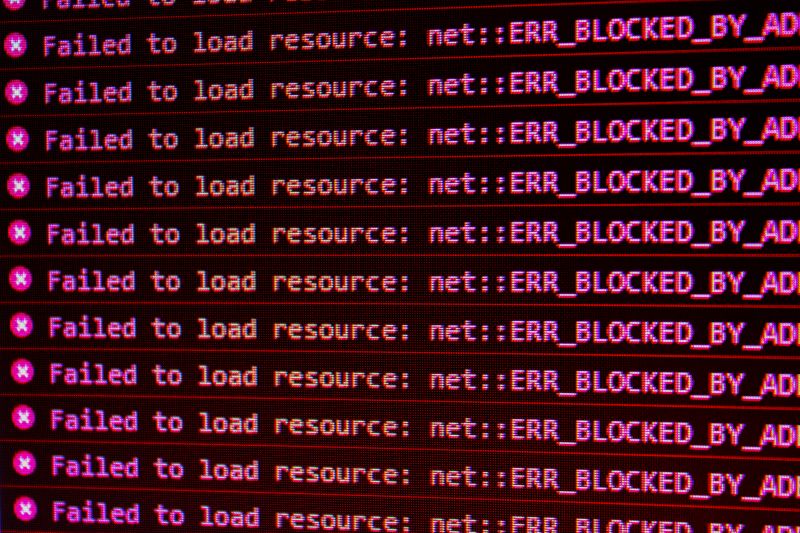
Open the browser developer tools only if you are comfortable reading them, or ask a developer to check the console and the network requests. A visible JavaScript error, a blocked request or a failed server response tells you far more than a guess based on how the page looks.
Verify payment settings and notifications
Check that the payment account is fully verified, that live and test credentials are not mixed up and that the chosen method is enabled for the currency and country involved. If your provider uses a webhook, confirm that it is configured. A webhook is a secure message the provider sends to tell your site that a payment status has changed.
For email problems, look in the spam folder first, then verify the sender address and the WordPress mail setup. A successful payment and a missing email are different issues. Do not ask a donor to pay again before you have checked the payment provider’s dashboard and your own donation records for the first attempt.
Test safely and keep a record
Use the provider’s sandbox or test mode whenever possible. Test the public page on desktop and mobile with an invalid field, a cancelled payment and a successful one, and note what you changed and what happened. If you ask for support, give the approximate time, the form page and any transaction reference, but never send donor card details or secret API credentials.
The donation form testing guide offers a full pre-launch sequence. Repeating it after a theme, payment or caching change prevents many avoidable incidents.