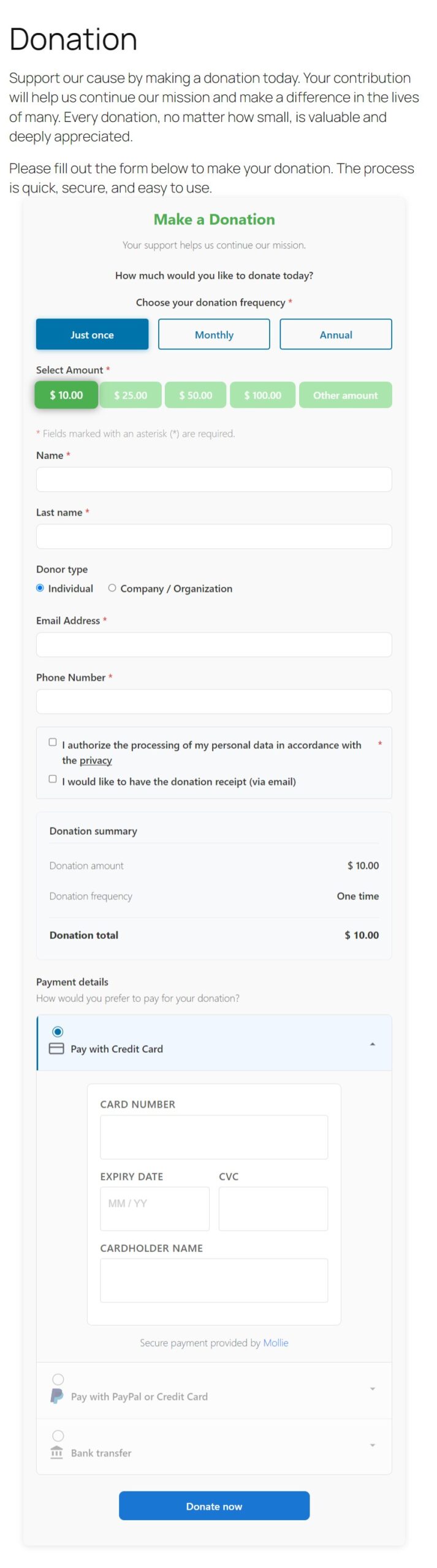
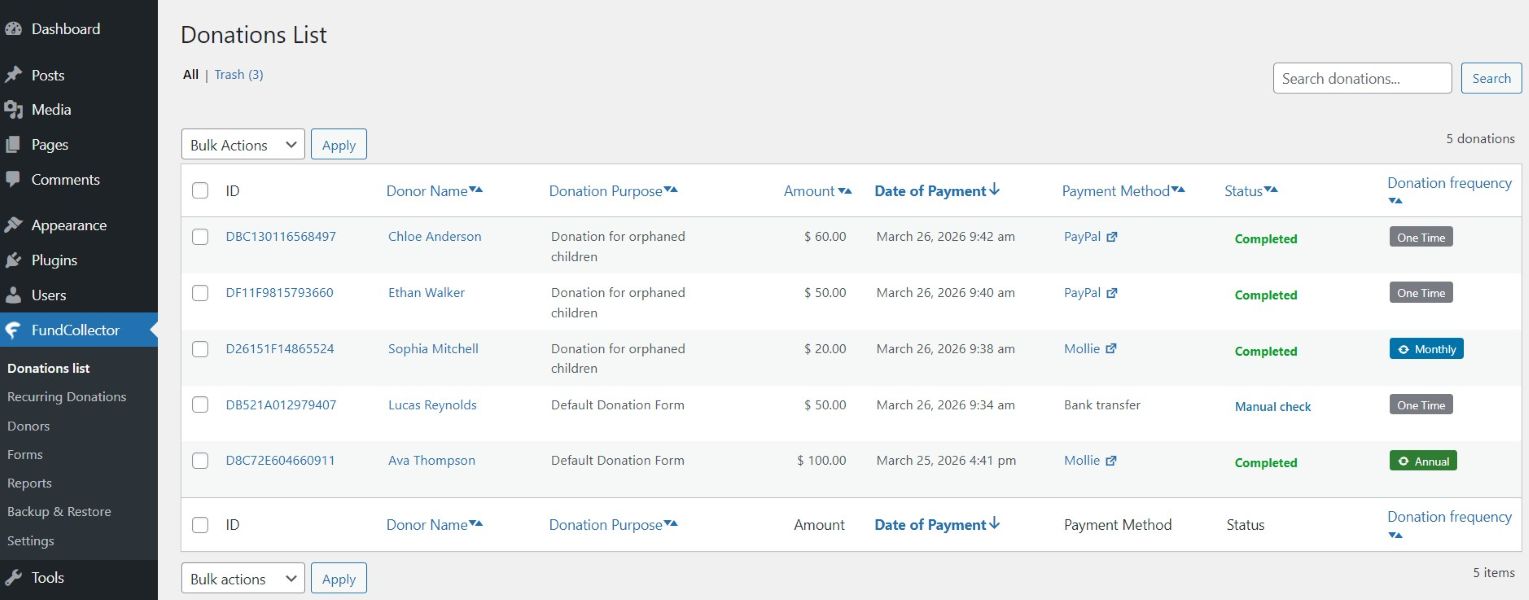
Welcome to FundCollector Pro! This comprehensive guide will walk you through setting up and configuring your advanced donation management system. FundCollector Pro extends the free version with powerful features including Mollie payment gateway, recurring donations, advanced reports, and backup & restore capabilities. Whether you are a small nonprofit or an established charity, you will be accepting one-time and recurring donations in minutes.
Prerequisites & Requirements
Before you begin, ensure your WordPress site meets these minimum requirements:
System Requirements
WordPress: 5.8 or higher
PHP: 7.4 or higher (PHP 8.0+ recommended for optimal performance)
Database: MySQL 5.6 or higher / MariaDB 10.0 or higher
cURL: Required for PayPal and Mollie integrations
SSL Certificate: Required for payment processing
FundCollector (free): Version 1.5.0 or higher must be installed and active
Mollie account (Europe only – for Mollie payments and recurring donations) – create one here
PayPal Business account (optional – for PayPal payments; recurring donations via PayPal are also supported worldwide) – create one here
Google reCAPTCHA v3 keys (optional – for spam protection)
SMTP credentials (optional – for reliable email delivery)
Quick Start Overview
Here is the high-level workflow to get your Pro donation system up and running:
Install & Activate – Install and activate FundCollector (free), then install and activate FundCollector Pro
Activate License – Enter your Pro license key to enable automatic updates
Complete the Setup Wizard – when you activate Pro as a single plugin, the wizard opens automatically and configures the Free and Pro essentials together (Basics, Payments, Notifications). You can close it and configure the same options manually, or reopen it anytime with Run Setup Wizard in Settings.
Configure General Settings – Set your currency, country, and essential pages (if you skipped the wizard)
Set Up Payment Methods – Configure PayPal, Mollie, and/or bank transfer
Customize Email Notifications – Personalize donor and admin email templates
Enable Security Features – Activate spam protection (honeypot/reCAPTCHA)
Create Your First Form or use the pre-filled default form
Add the form to a page on your website – use Gutenberg block or shortcode. If you want, you can use the pre-designed default pages.
Test & Launch – Make a test donation and go live!
Optional: use Settings → Logs for diagnostics or to generate a temporary support access link
Important: If you installed FundCollector Free first and then activate FundCollector Pro straight away, the automatic wizard opens after the Pro activation. It is therefore normal to complete the wizard only once, with the Pro payment options available. WordPress does not open it automatically when several plugins are activated together in a bulk action.
Now let us dive into each configuration section in detail.
1. Installation
FundCollector Pro requires the free version of FundCollector to be installed and activated first. If you have not done so, install it from the WordPress Plugin Directory as explained below.
Step 1: Install FundCollector (free)
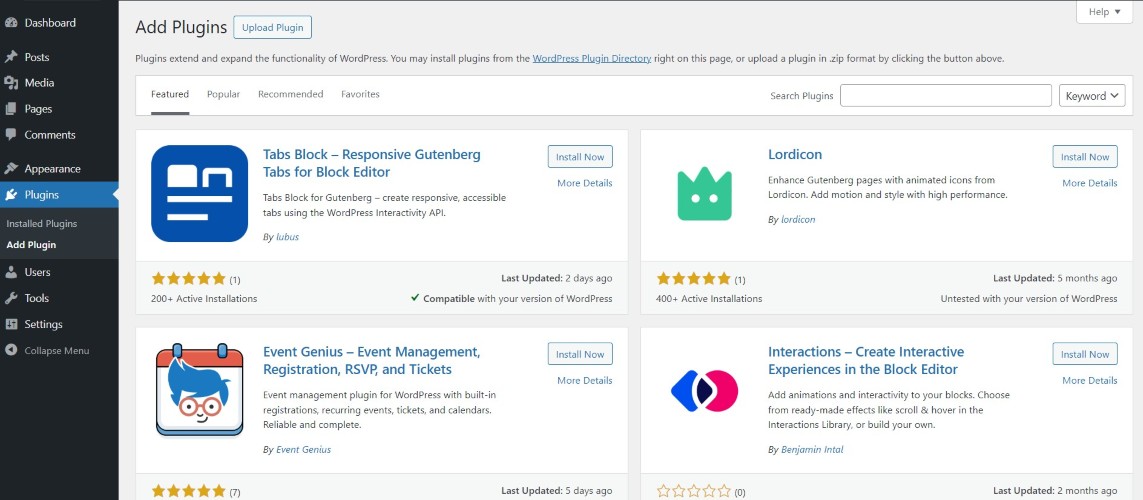
Log in to your WordPress dashboard, navigate to the Plugins menu and click “Add Plugin”.
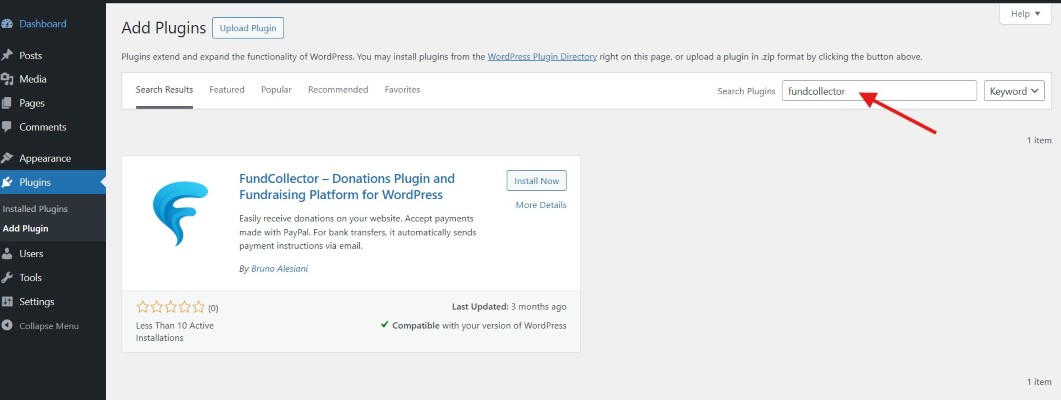
Type “fundcollector” in the search field. The FundCollector plugin box will appear.
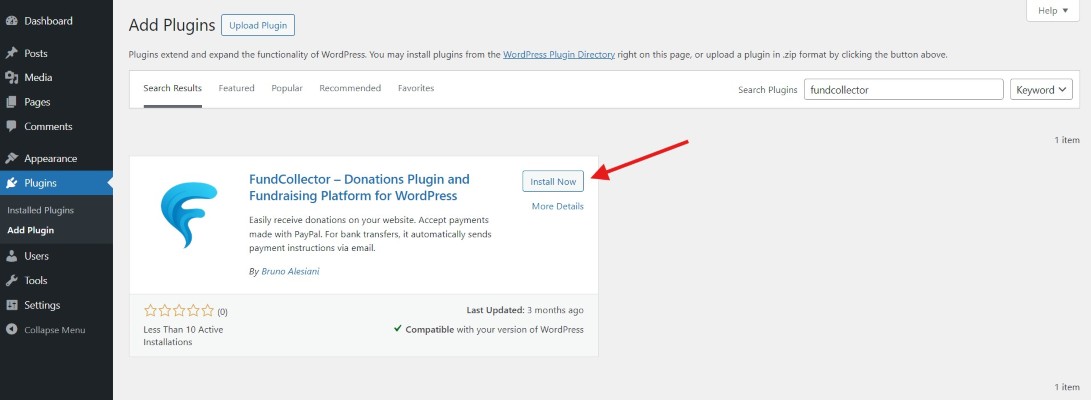
Click on the “Install now” button inside the box.
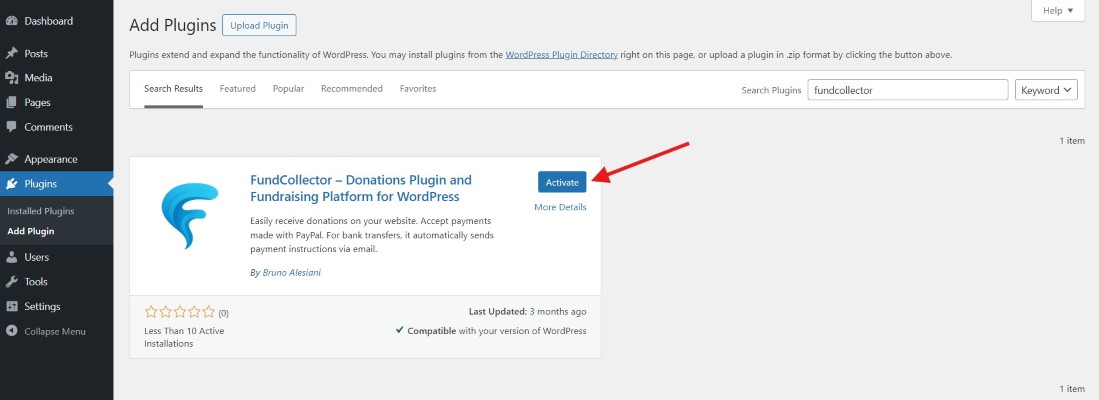
Once the automatic installation is complete, click the “Activate” button.
Step 2: Install FundCollector Pro
Download the FundCollector Pro zip file from fundcollector.net after purchasing your license.
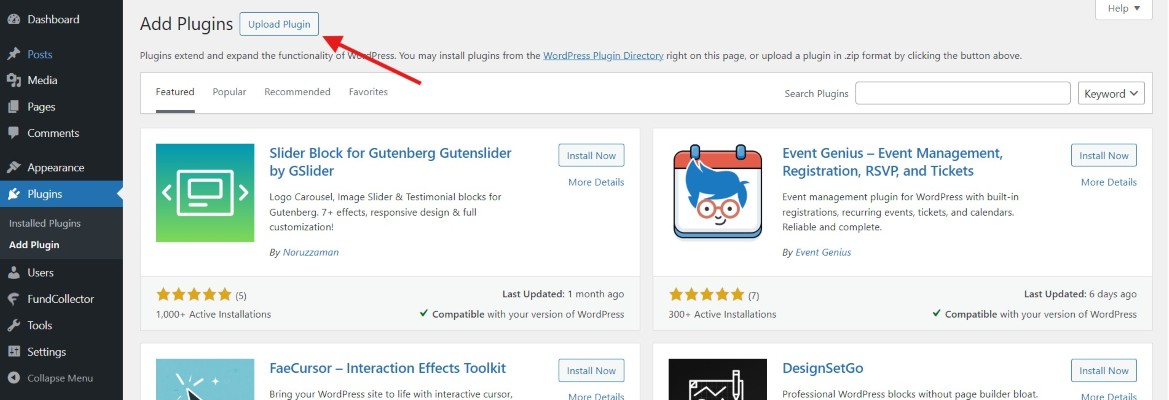
In your WordPress dashboard, navigate to Plugins → Add Plugin → Upload Plugin.
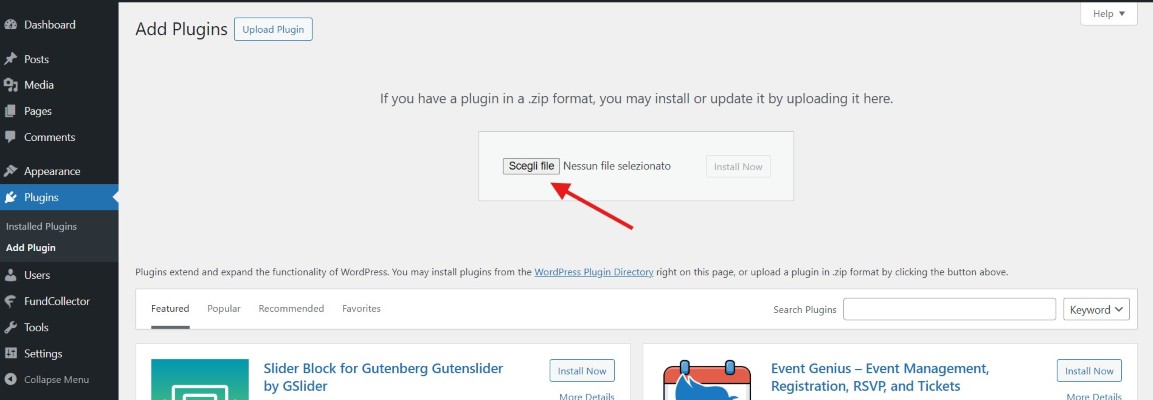
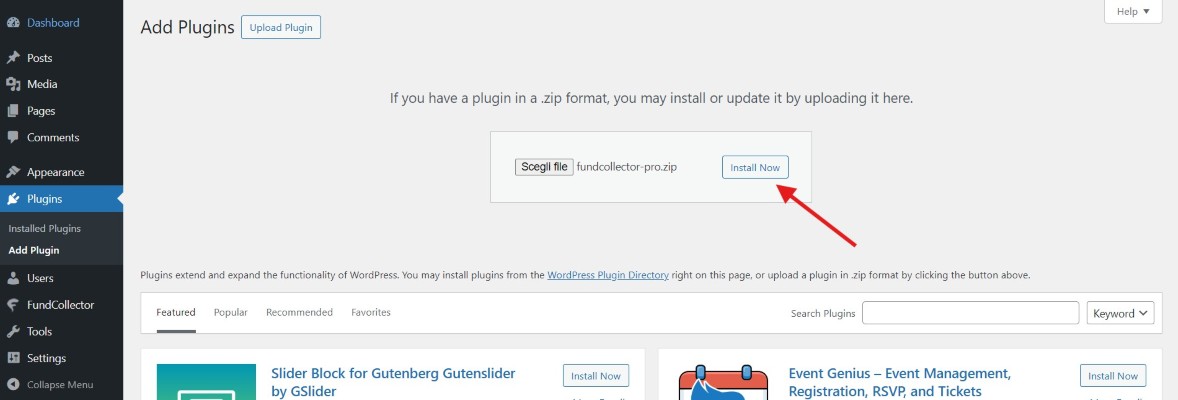
Click “Choose File”, select the downloaded zip file, and click “Install Now”.
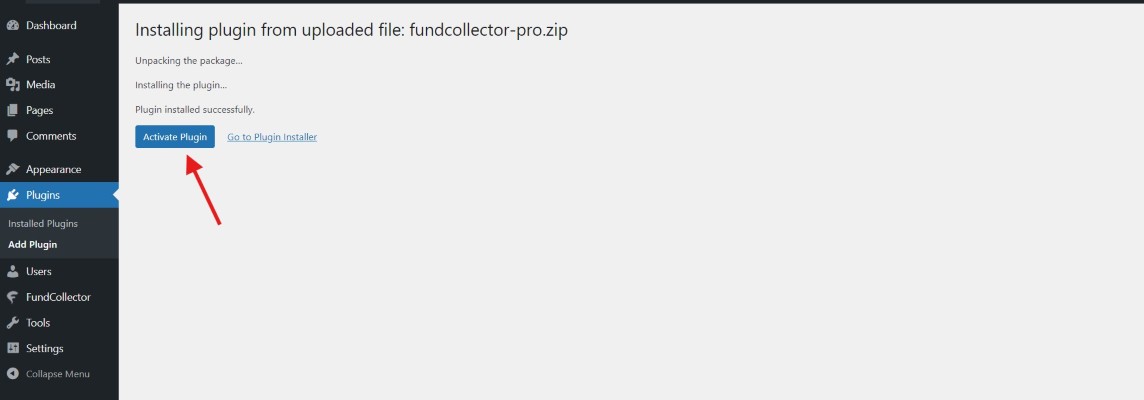
Once installation is complete, click the “Activate Plugin” button.
After a normal, single-plugin activation of Pro, FundCollector redirects an administrator to the Setup Wizard. This also works when Free was installed and activated first: activating Pro last makes its payment options available in that same wizard. If you activate several plugins in bulk, WordPress skips this redirect; open FundCollector → Settings and select Run Setup Wizard instead.
2. License Activation
After installing FundCollector Pro, you need to activate your license to receive automatic updates and priority support.
After purchase, you will receive your license key by email
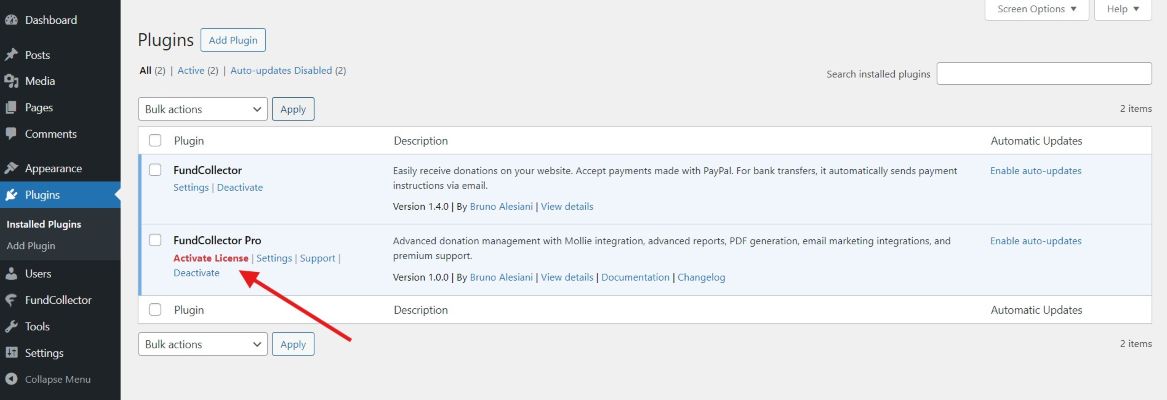
Click on the “Plugins” menu item in your WordPress dashboard, then click “Activate License” on the FundCollector Pro plugin
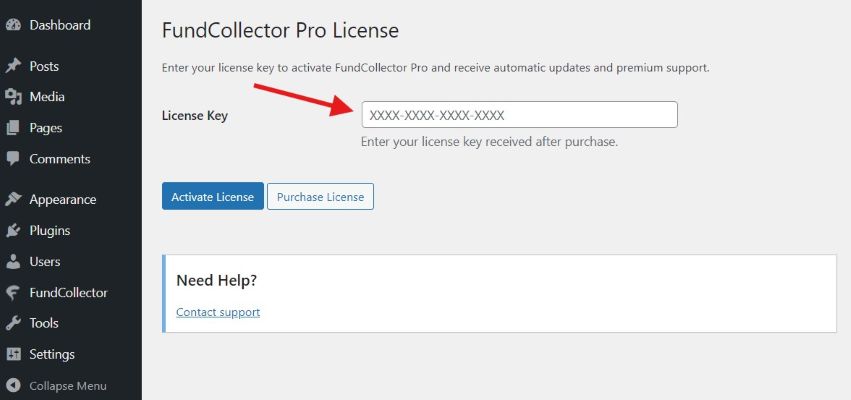
Enter your license key in the “License Key” field
Click “Activate License”
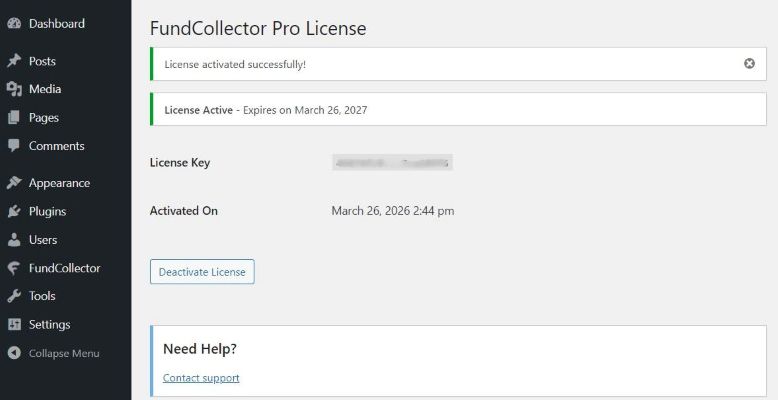
The status will change to “Active” with your expiration date
License Status
Active: License is valid. You will receive automatic updates and have access to priority support.
Expired: License has expired. All Pro features remain active, but automatic updates are paused. Renew at fundcollector.net/pricing/.
Not activated: License key has not been entered. All Pro features are available, but updates require manual installation.
Automatic Updates
With an active license, FundCollector Pro integrates with the WordPress update system. When a new version is available, you will see the standard WordPress update notification and can update with a single click.
3. FundCollector Pro Menu Items
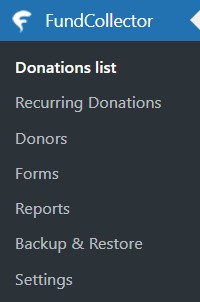
Once activated, FundCollector Pro adds additional menu items to the existing FundCollector admin menu:
Below is a brief explanation of each menu item; each item will be explained in detail later on:
Donations List
Your central hub for viewing and managing all received donations (one-time and recurring). Here you can:
View all donations with status indicators (completed, pending, cancelled, failed, expired, refunded, manual check)
Filter and search donations by payment method (including Mollie), date, status, donor name, or amount
View detailed information for each donation
Soft-delete (trash) donations you no longer need
Recurring Donations
A dedicated section to manage all recurring subscriptions:
View all active, cancelled, and expired subscriptions
See subscription details: donor, amount, frequency, status, next payment date
Cancel subscriptions directly from the admin panel
Retry failed subscription creation
Donors
A dedicated section to view and manage all your donors:
See all donors with their total donation amount and number of donations
View individual donor profiles with full donation history (including recurring)
Sort donors by name, email, total donated, or date
Forms
The form builder interface where you create and customize donation forms. Pro features include:
Create multiple forms for different campaigns
Customize form fields and design
Generate shortcode and Gutenberg blocks
Preview forms before publishing
Reports
Advanced reporting and analytics:
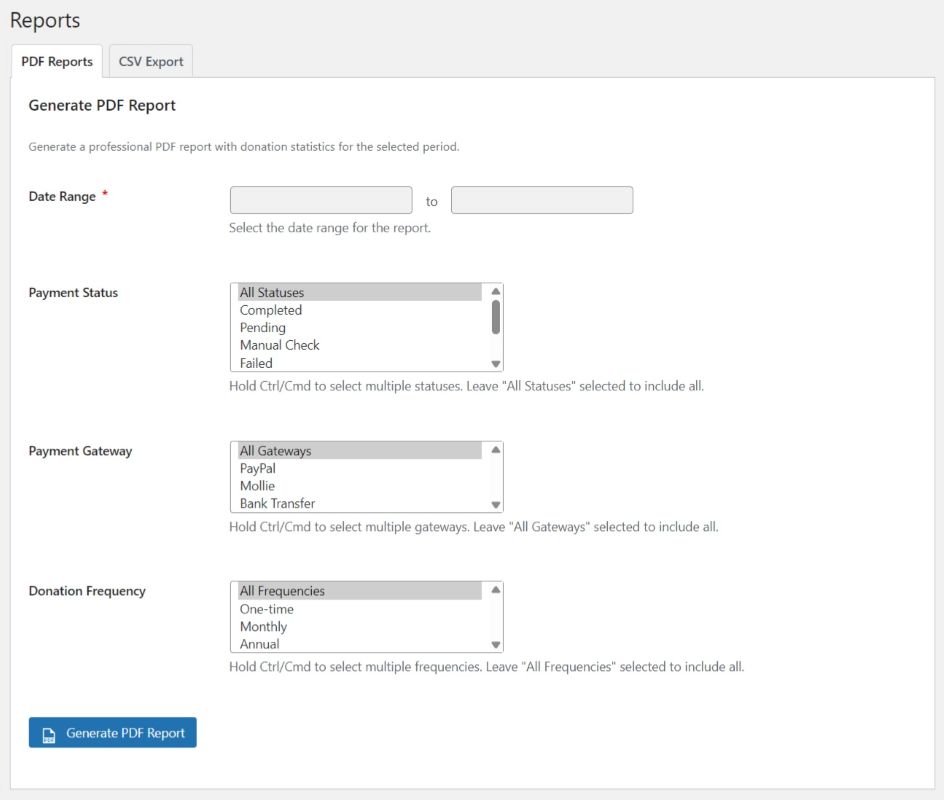
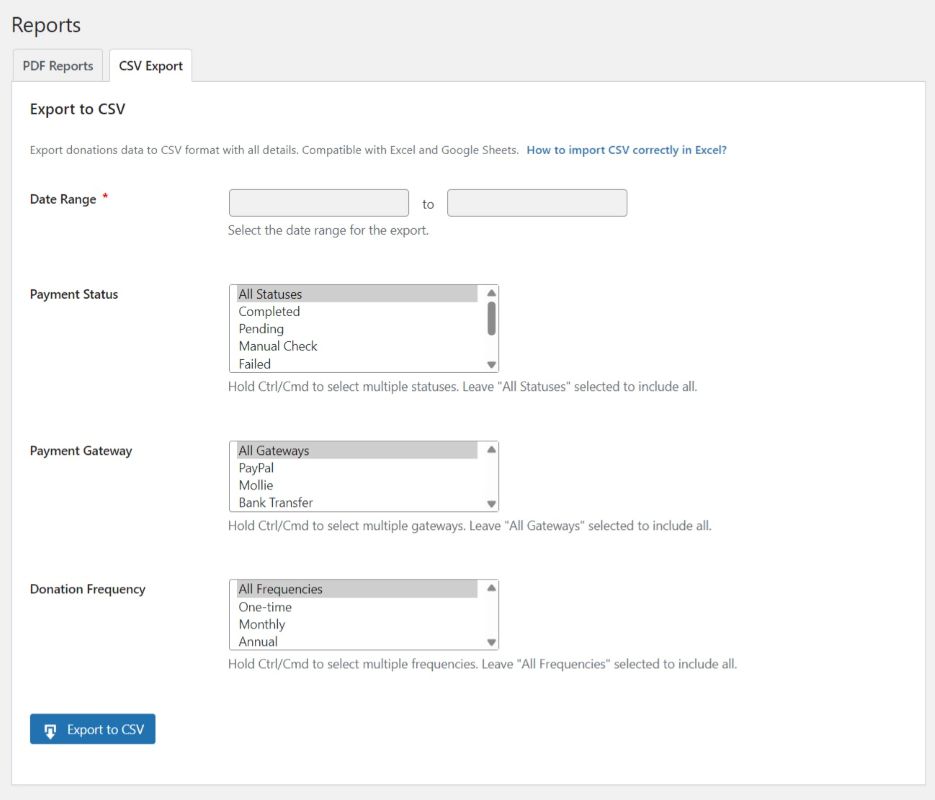
Generate comprehensive donation reports with custom date ranges
Filter by payment method, status, and donation frequency
Export reports to PDF or CSV format
View donation statistics and payment breakdowns
Backup & Restore
Data protection tools:
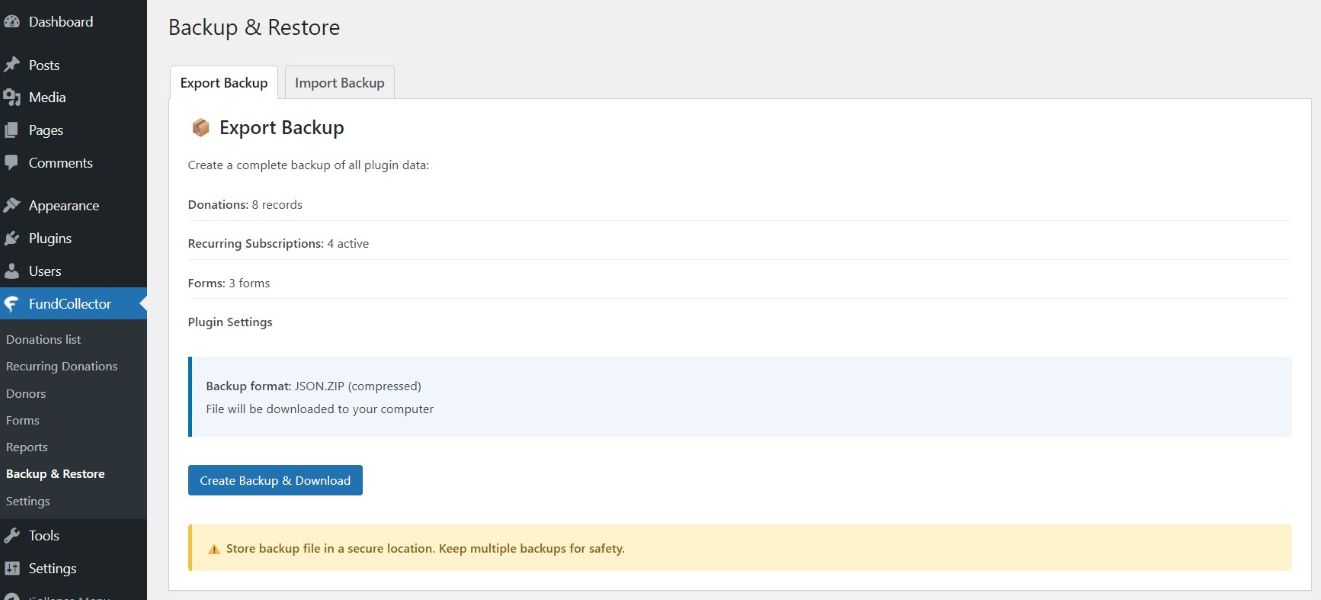
Create full backups of FundCollector data, including donations, donors, recurring subscriptions, forms, and settings
Download backups as zip files
Restore data from a previous backup
Settings
Comprehensive configuration panel with additional Pro tabs:
How to use FundCollector Pro: Quick-start guide and Pro overview directly in the admin
General: Currency, location, and pages
Payment Methods: PayPal, Mollie, and bank transfer configuration
Email: Customize all email templates including Mollie notifications
Security: Honeypot and reCAPTCHA settings
Advanced: Data deletion option for uninstallation
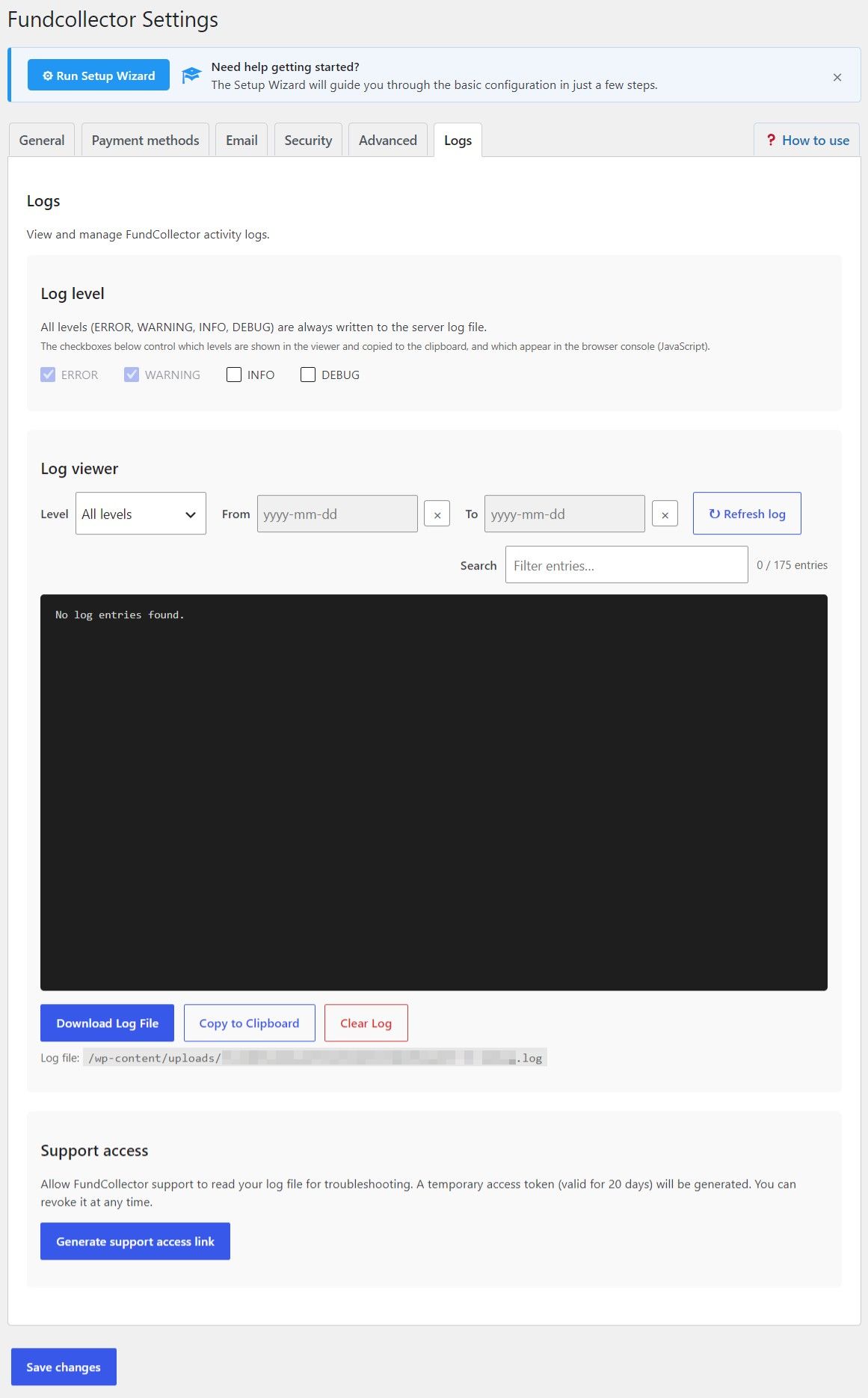
Logs: Admin log viewer, level filters, download and clear controls, plus optional support access
Use Run Setup Wizard anytime from Settings if you want a guided first configuration. Let us configure each section step by step.
4. Settings
Navigate to FundCollector → Settings to configure your plugin settings.
FundCollector Pro Settings
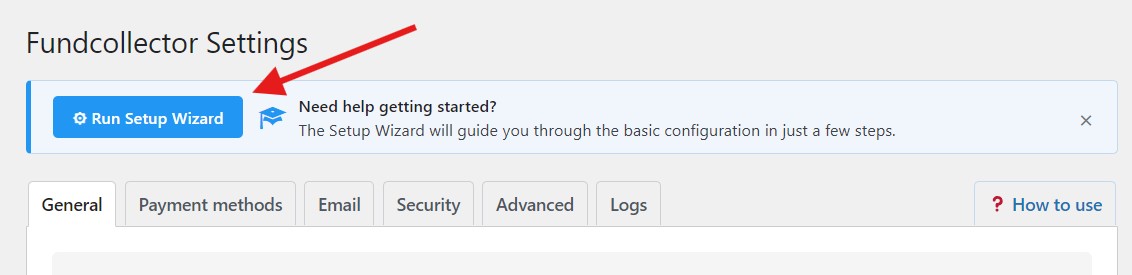
Setup Wizard
The Setup Wizard is provided by FundCollector Free and adapts automatically when Pro is active. It opens after a normal, single-plugin activation of FundCollector or FundCollector Pro. This means that an administrator can install Free, activate Pro immediately afterwards, and then complete one wizard with the Pro payment options already available. It does not open automatically after a WordPress bulk activation. You can always reopen it with Run Setup Wizard in FundCollector → Settings.
Setup Wizard Button
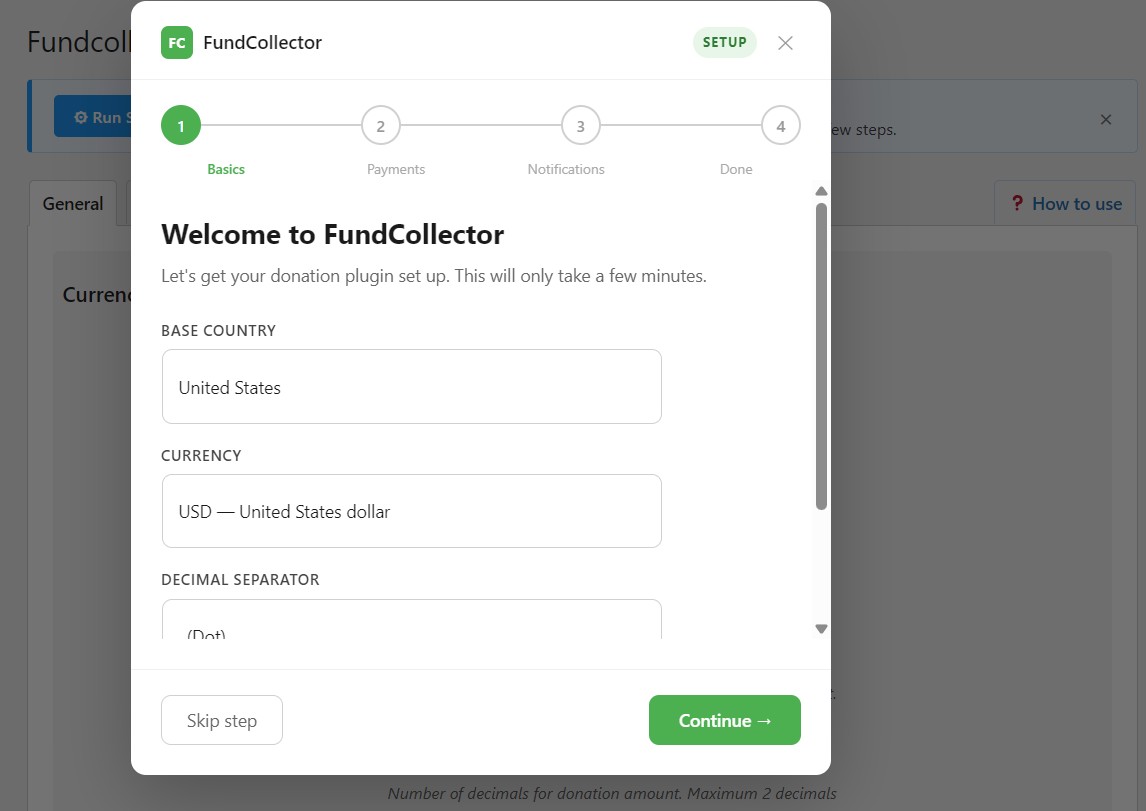
The wizard has four steps:
Basics – Choose the base country and currency, then set decimal and thousands separators.
Payments – Enable and configure PayPal with Live Client ID, Live Client Secret, and Live Webhook ID. After entering the Client ID and Secret, use Automatic Webhook Creation when the site is publicly reachable over HTTPS. With Pro active, you can also enable PayPal recurring donations. You can also enable Mollie alongside PayPal. When Mollie Connect is available, select Connect with Mollie, authorise the connection on Mollie, and return to the wizard without copying API keys. If Mollie Connect is not available, enter the Live API Key and Profile ID manually. You can also enable Mollie recurring donations here.
Notifications – Choose the email address that receives administrator donation notifications. Add more recipients later in Email settings.
Done – Finish the configuration and use the shortcuts to create a donation form or open Settings.
Setup Wizard
You can skip individual steps, close the wizard, and change every value later in Settings. The wizard does not replace the detailed PayPal and Mollie setup guides: use the payment settings to configure Sandbox or test credentials, bank transfer, additional email recipients, and any gateway options not needed during first setup.
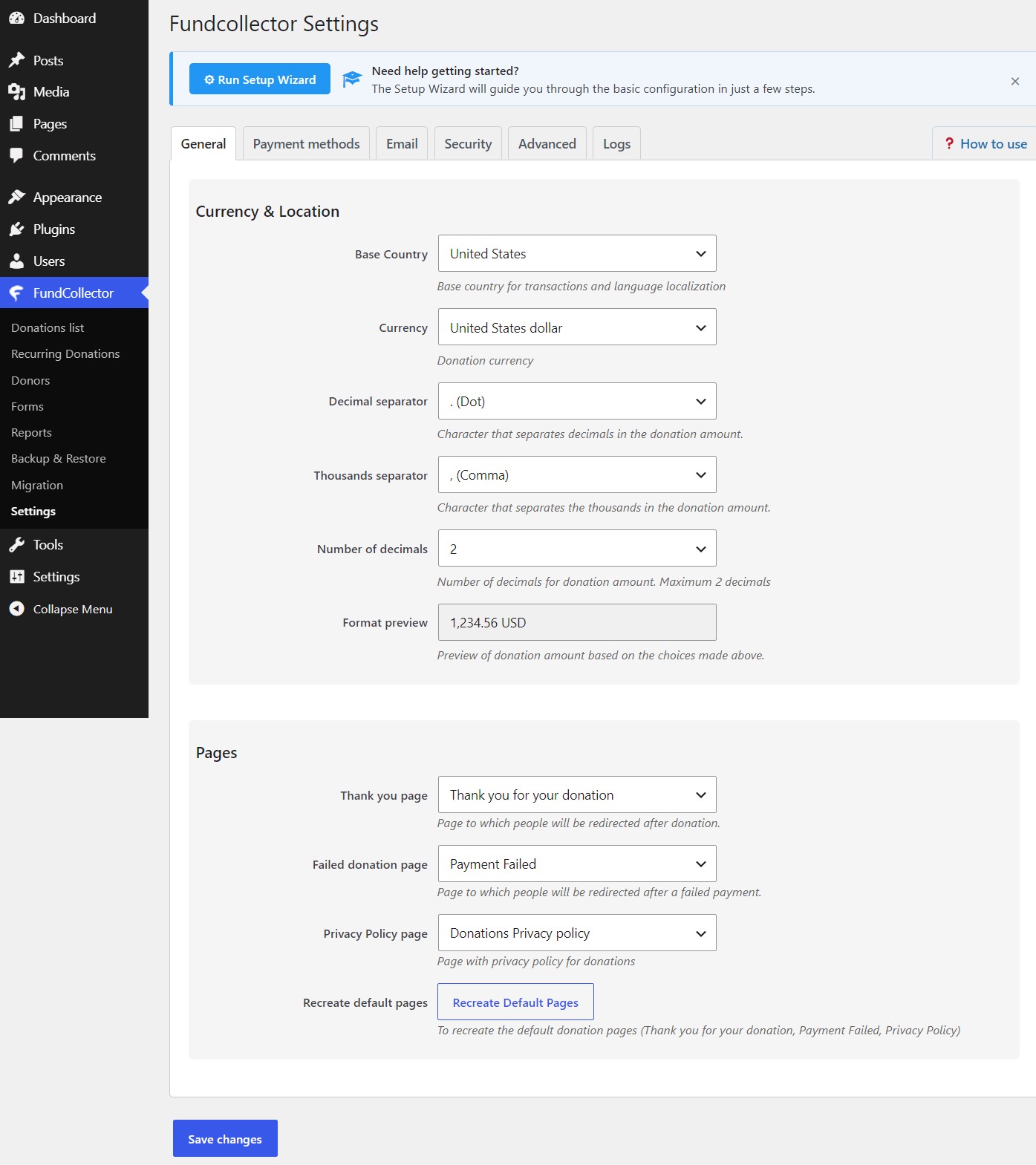
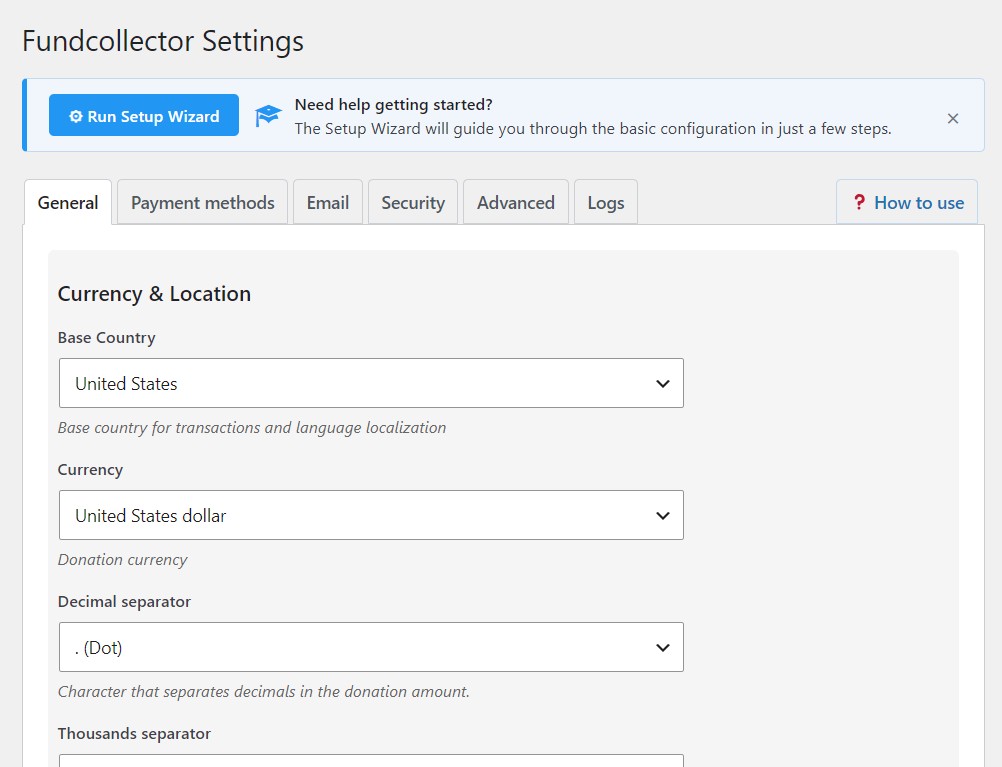
Currency & Location Settings
Currency & Location
These settings define how donation amounts are displayed and processed:
Base Country
Select your organization’s primary country
This helps ensure proper payment processing for all gateways
Affects currency compatibility and regional settings
Currency
Choose your preferred currency (USD, EUR, GBP, etc.)
Important: Ensure your currency is compatible with your payment gateways
Mollie supports most major currencies used in Europe (Mollie accounts are available for organizations based in Europe only)
PayPal has specific currency requirements for different countries
Number Formatting
Decimal Separator: Character between whole numbers and decimals (e.g., . or ,)
Thousands Separator: Character grouping thousands (e.g., , or .)
Number of Decimals: How many decimal places to show (0-2 supported)
Example Formatting:
US format: 1,000.50 (comma thousands, period decimal, 2 decimals)
EU format: 1.000,50 (period thousands, comma decimal, 2 decimals)
The Format preview on the same screen shows a live sample amount based on your separator and decimal choices.
Pages Settings
Pages settings
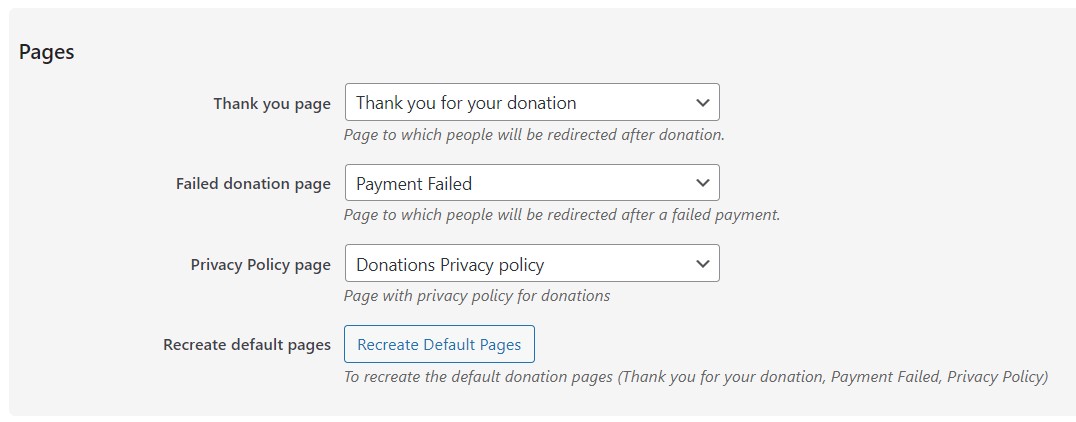
During installation, FundCollector creates three web pages to simplify the administrator work. The pages created by the plugin will be set to draft status. Use Recreate Default Pages if you deleted them or need fresh copies:
Thank You Page
Where donors land after successful payment (one-time and recurring)
Should include a gratitude message and next steps
Displays donation confirmation with the donation ID
Failed Donation Page
Shown when payment fails or is cancelled
Should include support contact information
Offer alternative payment methods
Privacy Page
This page is designed to accommodate your specific privacy policy; the text must be updated in accordance with the privacy regulations in effect in your country.
5. Payment Methods Settings
Navigate to FundCollector → Settings → Payment Methods. If you have not run it yet, the Setup Wizard (see Settings above) can configure the basics of PayPal and Mollie for you; the PayPal Show Setup Wizard checklist described later on this page is a separate, more detailed walkthrough just for the PayPal REST API credentials.
FundCollector Pro supports three payment methods that can be enabled independently or together. Recurring donations can be processed through Mollie or PayPal: Mollie is available for organizations based in Europe only, while PayPal recurring donations are available worldwide, wherever PayPal Checkout is supported. Organizations outside Europe can therefore accept both one-time and recurring donations through PayPal alone, without a Mollie account.
PayPal Settings
PayPal general (Pro)
Info before you start
PayPal Business account – FundCollector does not support PayPal Personal accounts. A Business account is completely free and allows you to use all the plugin’s features: credit/debit card payments, access to the PayPal REST API, webhook configuration, and no transaction limits. You can create a Business account on PayPal.
You do not need to type your PayPal email in FundCollector. The REST API identifies your account from the Client ID and Secret you configure.
HTTPS on production – Use a valid SSL certificate on your live site before accepting real payments.
Currency – Set your base currency under FundCollector → Settings → General so it matches what your PayPal account and payment methods support.
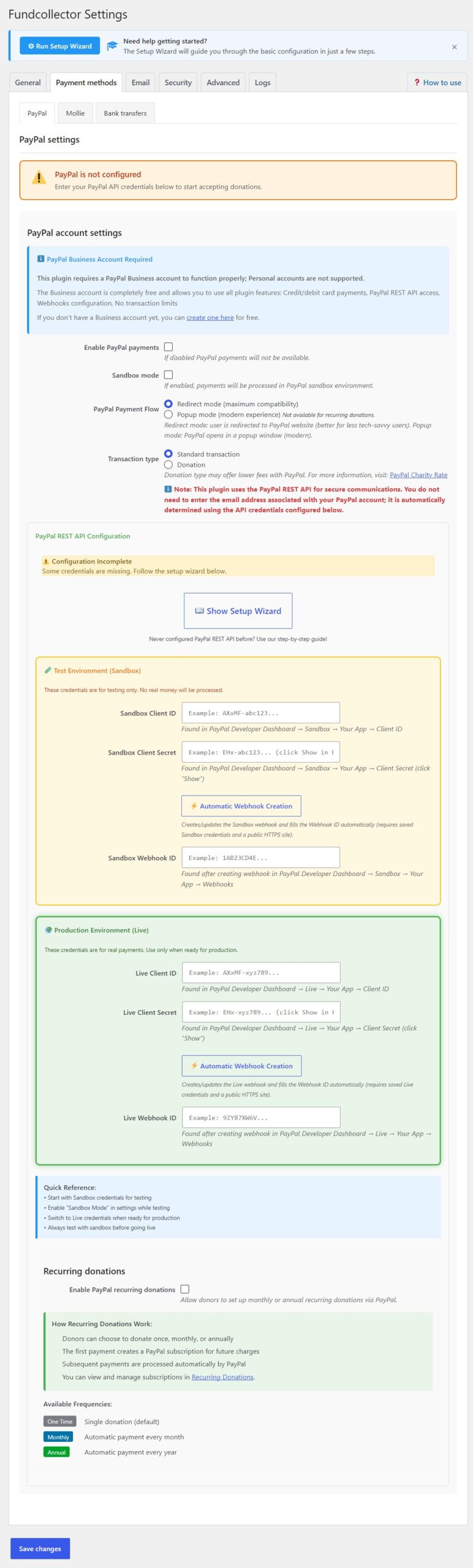
PayPal account settings
PayPal account settings
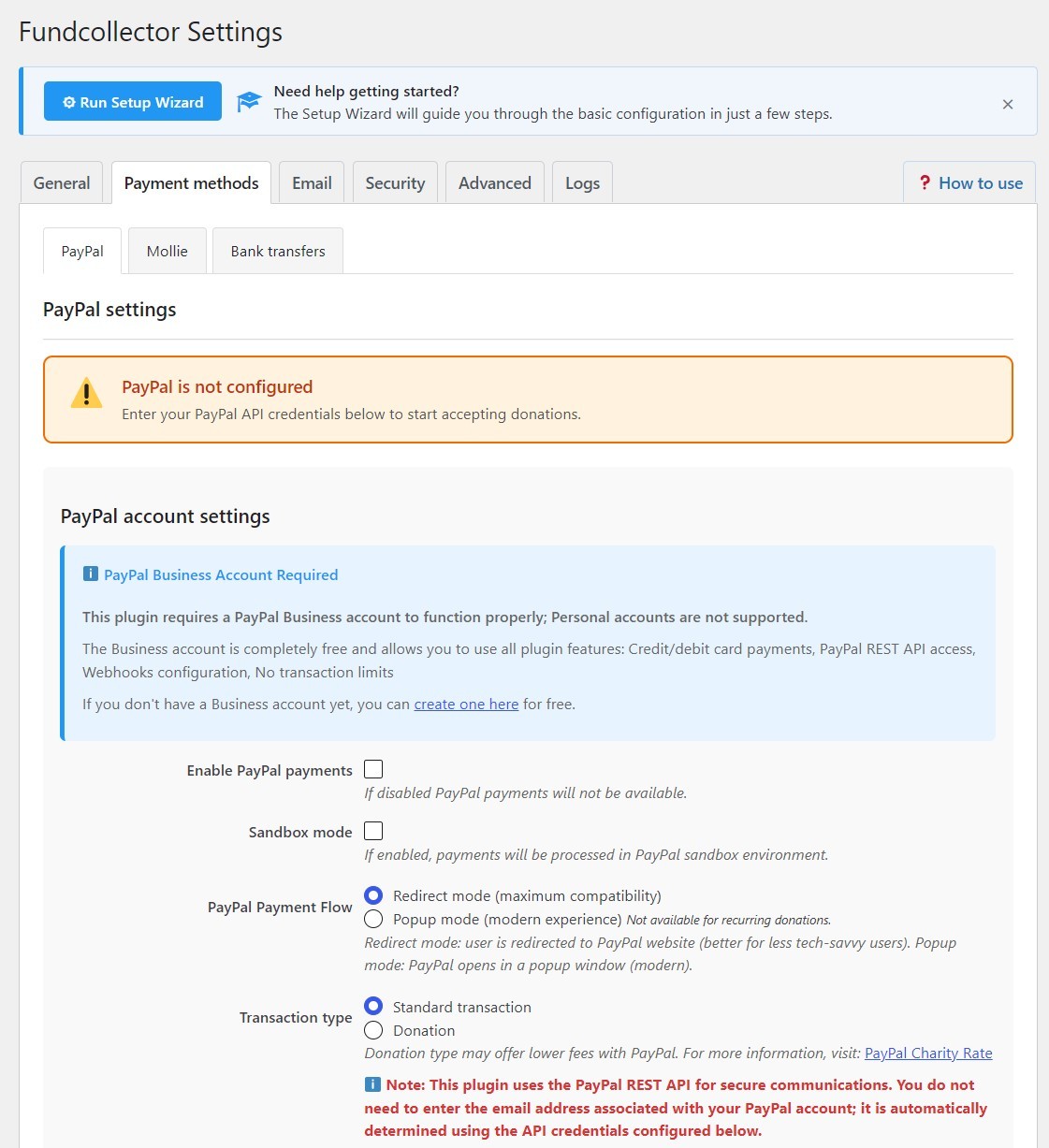
Enable PayPal payments
Turn this on to show PayPal as a payment option on your donation forms. If it is off, donors will not see PayPal even if API credentials are saved.
Sandbox mode
When enabled, FundCollector talks to PayPal’s test (sandbox) environment. No real money moves. The Sandbox version is used for testing and to verify that everything is working properly before using the live version with real payments. To use Sandbox mode, you must fill in the following fields in the “Test Environment (Sandbox)” section: Sandbox Client ID, Sandbox Client Secret, and Sandbox Webhook ID. You can obtain these from the PayPal Developer website, as explained in the following sections of this guide. Before going live, disable Sandbox mode and ensure Live credentials are filled in.
PayPal payment flow
Redirect mode (maximum compatibility) – The donor leaves your site briefly to pay on PayPal, then returns. Best for older browsers and users who block pop-ups.
Popup mode (modern experience) – PayPal opens in a popup over your page. Smoother for many users; requires pop-ups to be allowed for your domain.
Transaction type
Standard transaction – Regular commerce-style capture.
Donation – Eligible organizations may qualify for lower PayPal fees or rates. See PayPal’s Charity rate documentation for eligibility and application details.
PayPal REST API configuration
FundCollector needs three values per environment (Sandbox for testing, Live for production): Client ID, Client Secret, and Webhook ID.
On the PayPal settings screen you will also see:
Show Setup Wizard – an in-page checklist that walks through the same Developer Dashboard steps described below (expand/collapse with that button).
A configuration status banner (Configuration Complete or Configuration Incomplete) that reflects whether the required credentials for the active mode are filled in.
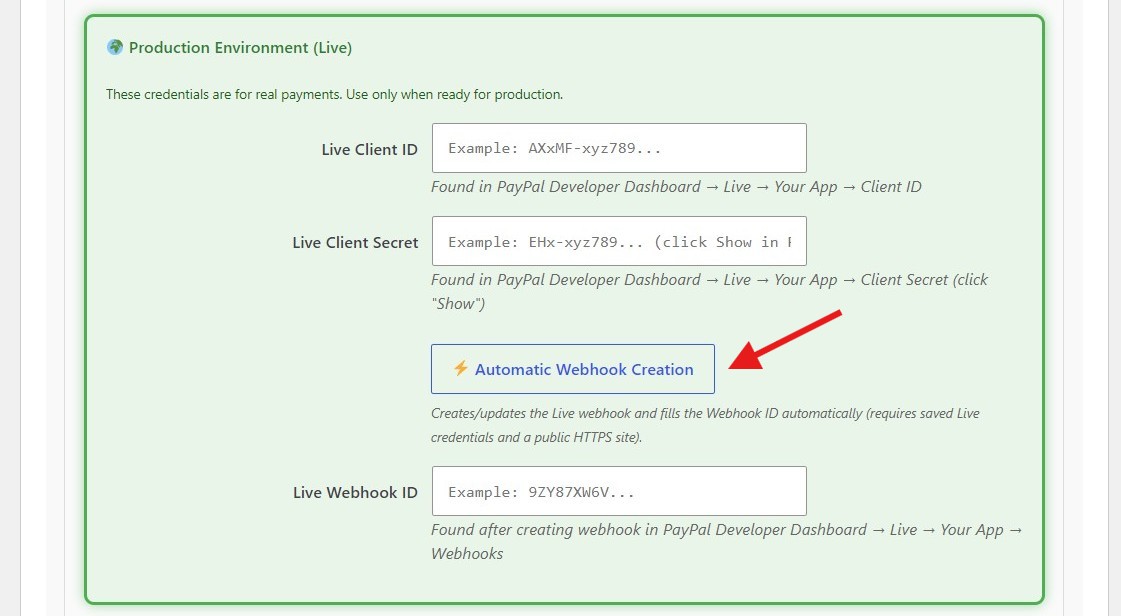
Automatic Webhook Creation – the recommended way to create the webhook and fill the Webhook ID (see below).
PayPal Rest api sandbox
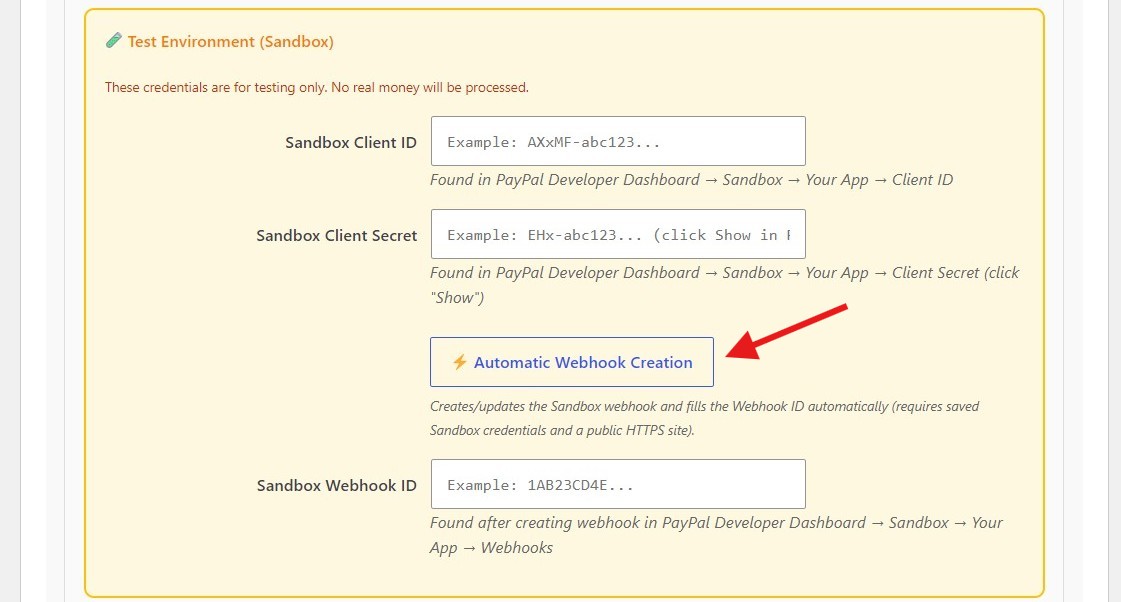
Recommended path: Automatic Webhook Creation
After you have a PayPal REST app and have copied the Client ID and Client Secret, you usually do not need to create the webhook by hand in the PayPal dashboard.
Paste Client ID and Client Secret into the matching environment box in FundCollector (Test Environment (Sandbox) or Production Environment (Live)).
Click Automatic Webhook Creation in that same box. Confirm when prompted.
FundCollector calls the PayPal API, creates the webhook (or links an existing one that already points to your site), subscribes to the required events, and fills the Webhook ID field.
Click Save changes at the bottom of Settings so everything is stored.
Requirements for Automatic Webhook Creation:
Valid Client ID and Client Secret for that environment (you can type them in the form before saving; the button reads the current field values).
A public HTTPS site that PayPal can reach. Localhost, private IPs, and sites blocked from the internet will fail.
Use the Sandbox button with Sandbox credentials, and the Live button with Live credentials.
If PayPal already has a webhook for your FundCollector URL, the plugin links that webhook ID instead of creating a duplicate. When that happens, open the PayPal Developer Dashboard and confirm the event types listed below are enabled for that webhook.
If automatic creation fails (wrong credentials, site not reachable over HTTPS, PayPal API error), use the manual webhook steps below, or check FundCollector → Settings → Logs for details.
Manual path: Show Setup Wizard checklist
Click Show Setup Wizard on the PayPal REST API panel if you prefer a step-by-step checklist inside WordPress. The numbered steps on this page match that wizard and can also be used as a printable guide.
App name: for example Fundcollector Sandbox (any clear name is fine).
Select your sandbox business (merchant) account.
Under features, enable Accept payments.
Critical: Enable JavaScript SDK v6 for this app. FundCollector relies on it for a secure, compatible checkout flow.
Important (Pro recurring cards): Under Payment capabilities, enable Save payment methods (Vault API) if you will accept recurring card donations via PayPal.
Save the app.
Step 3 – Copy Sandbox credentials
Open your new sandbox app.
Copy the Client ID (visible on the page).
Click Show next to Client Secret and copy it.
Paste them into FundCollector under Test Environment (Sandbox): Sandbox Client ID and Sandbox Client Secret.
Recommended: click Automatic Webhook Creation (Sandbox), then Save changes. Skip Step 4 unless automatic creation is not available for your site.
Step 4 – Create the Sandbox webhook manually (optional fallback)
Webhooks let PayPal notify your site when an order is approved or completed and when a payment capture completes, fails, or is pending. Without a webhook (and its ID in settings), status updates may be delayed or incomplete.
On the same app page, scroll to Webhooks.
Click Add Webhook.
Webhook URL – Use this URL on your public WordPress site (replace YOUR-DOMAIN with your site hostname, no trailing slash): https://YOUR-DOMAIN/wp-admin/admin-post.php?action=fundcollector_paypal_webhook_rest
Event types – Subscribe to all of the following (these are the events FundCollector registers automatically):
CHECKOUT.ORDER.APPROVED
CHECKOUT.ORDER.COMPLETED
PAYMENT.CAPTURE.COMPLETED
PAYMENT.CAPTURE.DENIED
PAYMENT.CAPTURE.PENDING
Save the webhook, then copy the Webhook ID PayPal shows and paste it into Sandbox Webhook ID in FundCollector.
Click Save changes in FundCollector.
PayPal Rest api live
Step 5 – Repeat for Live (production)
In the Developer Dashboard, switch to the Live section (not Sandbox).
Create a Live app (for example Fundcollector Live) with the same feature flags: Accept payments and JavaScript SDK v6.
Important (Pro): Also enable Save payment methods (Vault API) on the Live app if you use PayPal recurring card donations.
Copy Live Client ID and Live Client Secret into FundCollector under Production Environment (Live).
Recommended: click Automatic Webhook Creation (Live), then Save changes. Otherwise add a Live webhook manually with the same URL pattern and the same event types listed above, then paste the Live Webhook ID.
When you are ready for real donations, turn off Sandbox mode in FundCollector so Live credentials are used.
Quick reference checklist
Start with Sandbox credentials and Sandbox mode enabled.
Confirm Enable PayPal payments is on.
Prefer Automatic Webhook Creation over manual webhook setup when your site is publicly reachable over HTTPS.
The webhook URL must be reachable from the public internet (localhost will not work for PayPal webhooks).
After changing credentials or webhooks, run a test donation and verify the donation appears in FundCollector → Donations list with the expected status.
Before launch: disable Sandbox mode, verify the Live app has JavaScript SDK v6, and keep Live secrets confidential.
PayPal recurring donations PRO
PayPal Recurring Donations
New in FundCollector Pro 1.1.0: recurring (monthly or annual) donations can now be processed through PayPal as well as Mollie, so organizations outside Europe can offer recurring donations without a Mollie account.
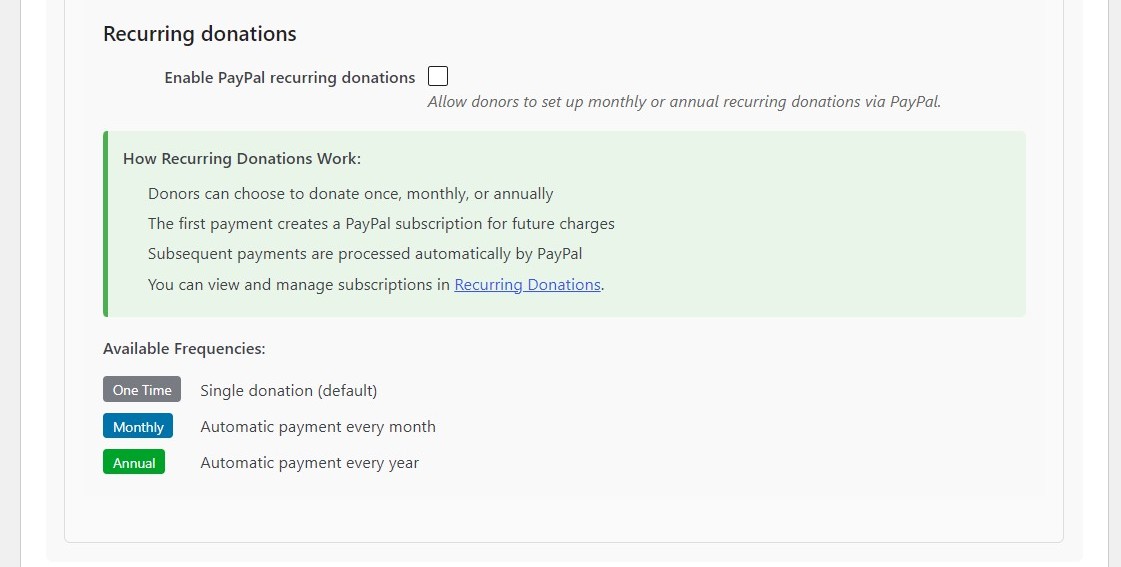
Navigate to FundCollector → Settings → Payment Methods → PayPal and turn on Enable PayPal recurring donations in the “Recurring donations” section.
Required: enable Save payment methods (Vault API) on your PayPal Sandbox and Live apps (see Step 2 and Step 5 above). Without it, recurring card donations fail with an authorization error.
Click Save changes.
How it works: the donor picks Monthly or Annual on the donation form; FundCollector creates a dedicated PayPal billing plan priced with the actual donation amount, and PayPal charges the donor automatically on the scheduled date. Depending on the donor’s PayPal account, the first payment may either activate immediately (vaulted card) or require a one-time approval redirect on PayPal (this is normal PayPal behaviour, not an error).
Manage active PayPal and Mollie subscriptions together from FundCollector → Recurring Donations (see section 12). If a PayPal subscription fails to be created, ask the donor to start a new recurring donation; unlike Mollie, PayPal subscriptions cannot be retried from the admin.
Mollie Settings
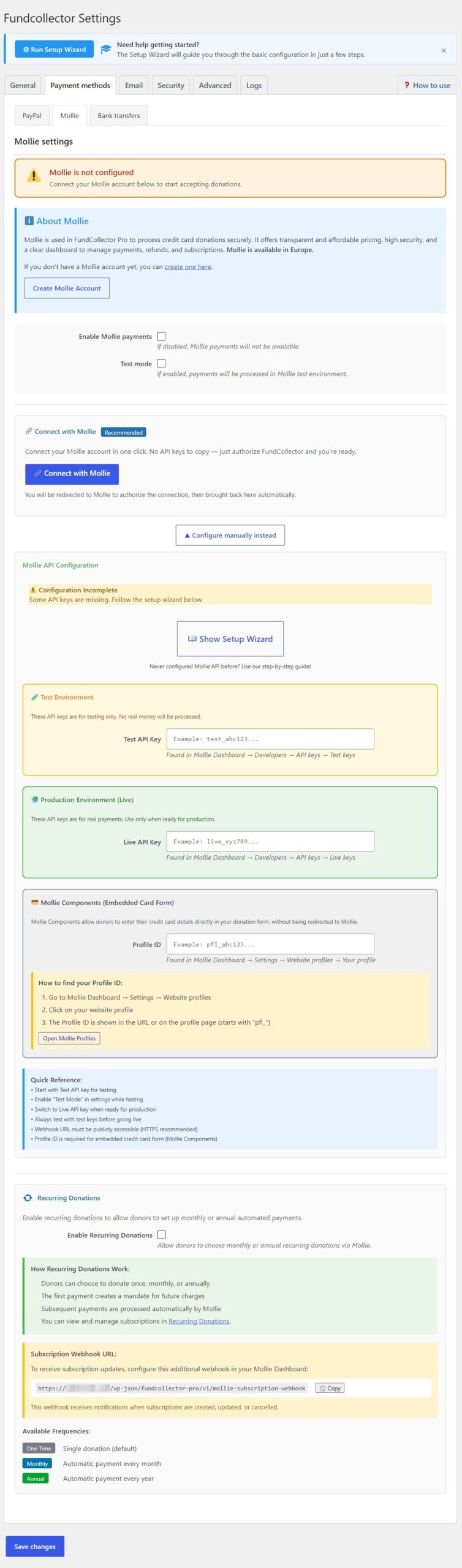
Mollie Settings
Mollie is a powerful payment gateway that supports credit cards and offers very affordable rates. It is one of the gateways available for recurring donations in FundCollector Pro; PayPal recurring donations are also available. Mollie is available for organizations based in Europe.
About Mollie
Mollie offers transparent and affordable pricing, high security standards, and a clear dashboard to manage payments, refunds, and subscriptions. Mollie requires a merchant account and accepts businesses and organizations based in Europe. If your organization is outside Europe, you cannot open a Mollie account. You can create a PayPal Business account instead to accept one-time credit and debit card donations through PayPal (included in both the Free and Pro versions), as well as recurring donations through PayPal in Pro. If you do not have a Mollie account yet, create one here.
Recommended: Connect with Mollie PRO 1.1.0
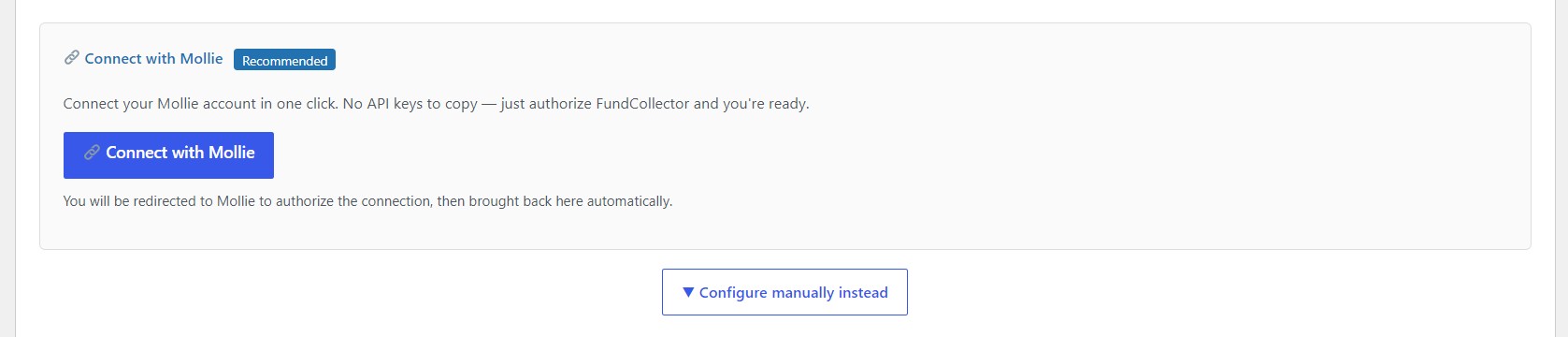
New in FundCollector Pro 1.1.0:Mollie Connect is the fastest way to link your Mollie account — no need to find and copy API keys manually.
Connect with Mollie
Click Connect with Mollie on the Mollie settings tab.
You are redirected to Mollie to log in and authorize FundCollector for your organization.
After authorizing, you are redirected back to your site: a green banner confirms “Mollie is connected and ready” and shows your organization name.
Once connected, FundCollector keeps the connection alive automatically: the access token is refreshed in the background every 15 minutes, well before it expires, so you do not need to do anything for it to keep working. If a refresh ever fails and stays broken for more than an hour, FundCollector both shows a dashboard notice and emails the site administrator with a link back to Mollie settings; a confirmation email follows once the connection recovers. You can disconnect at any time from the same screen and reconnect (or switch to manual API keys) whenever you like.
If Mollie Connect is not available on your site, or you prefer to manage your own API keys, use the manual path below instead.
Separate Mollie checklist: the Mollie settings tab also includes a Show Setup Wizard button. This is a five-step, in-page checklist for the Mollie Dashboard, test API key and webhook, then live API key and webhook. It is separate from the main FundCollector Setup Wizard described in Settings above.
Manual alternative: API keys
Step 1: Enable Mollie
Navigate to FundCollector → Settings → Payment Methods → Mollie
Toggle the “Enable Mollie payments” checkbox to activate Mollie
Step 2: Configure Test Mode
Enable “Test mode” to process payments in the Mollie test environment
Use test mode during setup and development to avoid real charges
Disable test mode when you are ready to go live
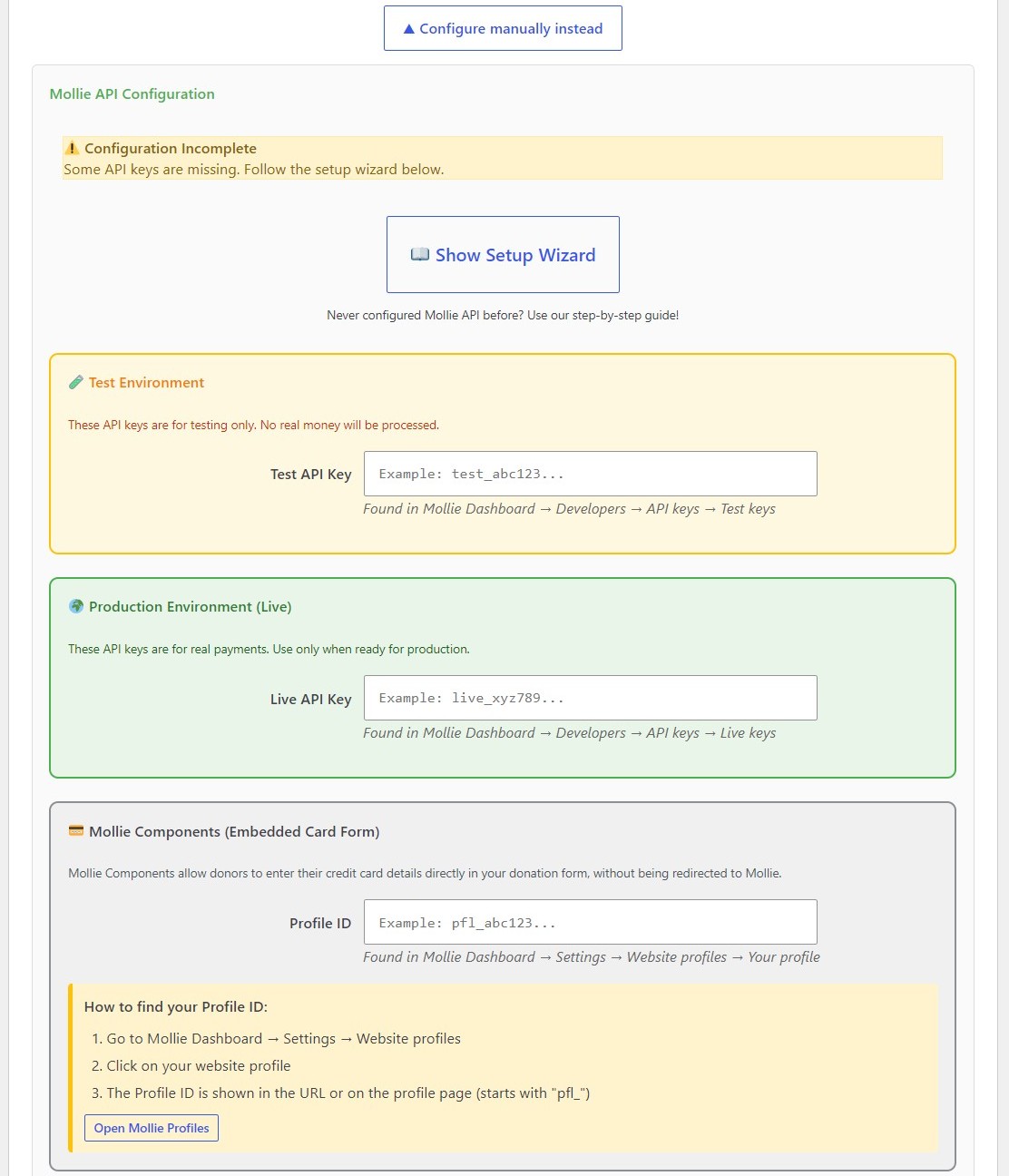
Mollie API Keys
Mollie manual api settings
When Test mode is enabled, FundCollector uses Mollie’s test environment. No real money is charged and no live payouts are made. Test mode is for setup, integration checks, and end‑to‑end donation flows before you accept real payments.
To use test mode, fill in the Test API key field (it starts with test_) and the Profile ID. You copy the Test API key from your Mollie Dashboard under Developers → API keys, as described in the following sections of this guide. The Profile ID identifies your website profile in Mollie and is required for the embedded credit card form (Mollie Components). You find it under Mollie Dashboard → Settings → Website profiles: open your profile and use the ID shown in the URL or on the profile page (it starts with pfl_). It is the same Profile ID for both test and live; only the API key changes when you switch environments.
Use only Mollie’s test payment methods and test cards while Test mode stays on.
Before going live, turn Test mode off and enter your Live API key (starts with live_) from Developers → API keys. Keep the Profile ID filled in. Confirm that webhooks and return URLs match your production site URL so live payments and notifications are processed correctly.
You need to obtain API keys from your Mollie dashboard as explained below:
Copy your Test API key (starts with test_) for sandbox testing
Copy your Live API key (starts with live_) for production
Getting Your Profile ID
In your Mollie Dashboard, navigate to Settings → Website profiles
Select or create a profile for your website
Copy the Profile ID (format: pfl_xxxxxxxxxx)
The Profile ID is required for the embedded card form (Mollie Components)
Entering Your Credentials
Test API Key: Enter your Mollie test API key (required when test mode is enabled)
Live API Key: Enter your Mollie live API key (required for production)
Profile ID: Enter your Mollie website profile ID (required for card payments)
Security Note: All API keys are encrypted before being stored in the database using FundCollector’s built-in encryption system.
Recurring Donations with Mollie
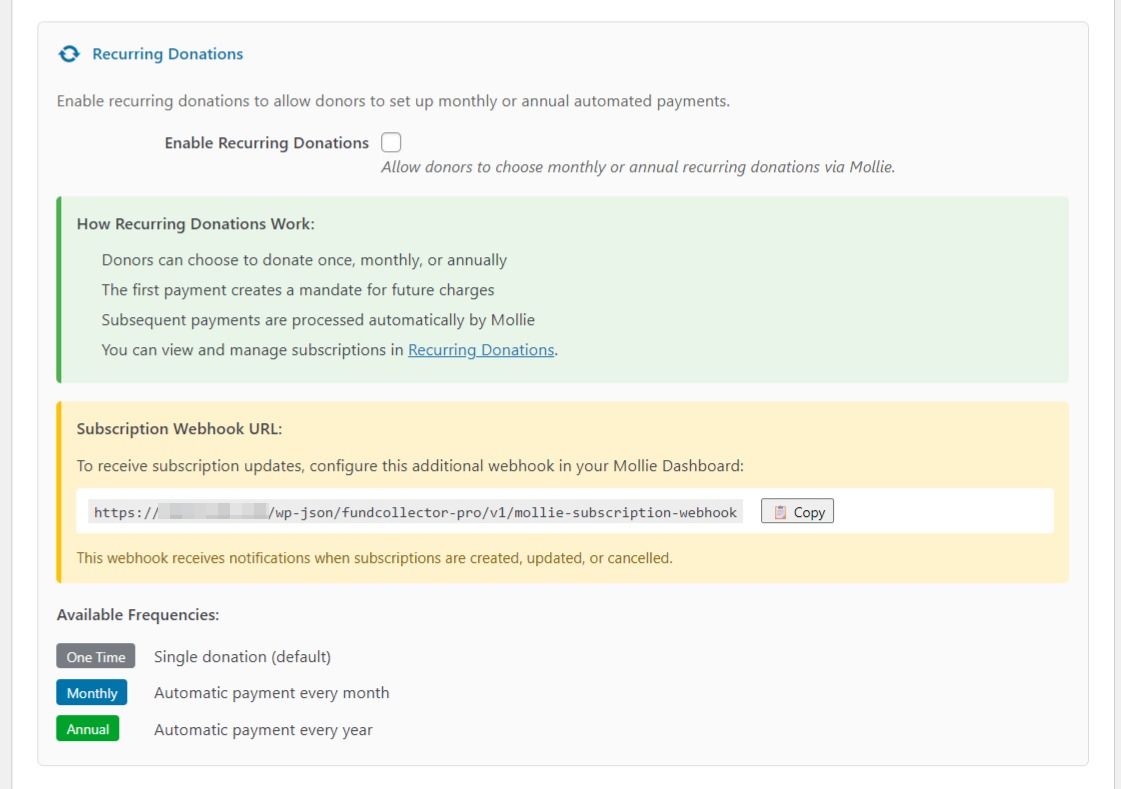
Mollie Recurring Donations Settings
Recurring donations allow donors to set up automatic monthly or annual payments. In FundCollector Pro this was previously exclusive to Mollie; since version 1.1.0, PayPal recurring donations are also available (see the Payment Methods section above), so organizations outside Europe can offer recurring donations without a Mollie account.
Enabling Recurring Donations
Ensure Mollie is enabled and configured with valid API keys
Toggle the “Enable recurring donations” checkbox in the Mollie settings
Save your settings
Recurring donation options will now appear in your donation forms
How Recurring Donations Work
Donor selects a recurring frequency (monthly or annual) on the donation form
The first payment is processed immediately via Mollie
Subsequent payments are automatically charged by Mollie on the scheduled date
Donors can cancel their subscription at any time (or you can cancel it from the admin)
All recurring payments appear in the Donations List with their subscription reference
Mollie Account Requirements for Recurring
Your Mollie account must have recurring payments enabled
Contact Mollie support if recurring payments are not available in your account
Recurring payments require a verified Mollie account
Mollie Subscription Webhook URL
Recurring donations rely on Mollie subscriptions, which can change over time (for example when a subscription is updated or cancelled). The Subscription Webhook URL is the endpoint on your WordPress site where Mollie sends those subscription-level events so FundCollector can keep the Recurring Donations list in sync with Mollie (status, next payment date, cancellations, and related updates). It is separate from ordinary payment webhooks: you should add this URL as an additional webhook in your Mollie account.
How to set it up: In your WordPress admin, open FundCollector → Settings → Payment Methods → Mollie, find Subscription Webhook URL, and copy the full URL (use the copy button if available). In the Mollie Dashboard, go to Developers → Webhooks (or your account’s webhook settings), create a new webhook, and paste that URL. Save the webhook for both test and live environments if you use both. Ensure your site uses HTTPS and that nothing blocks POST requests to /wp-json/ so Mollie can reach the endpoint.
Bank Transfer Settings
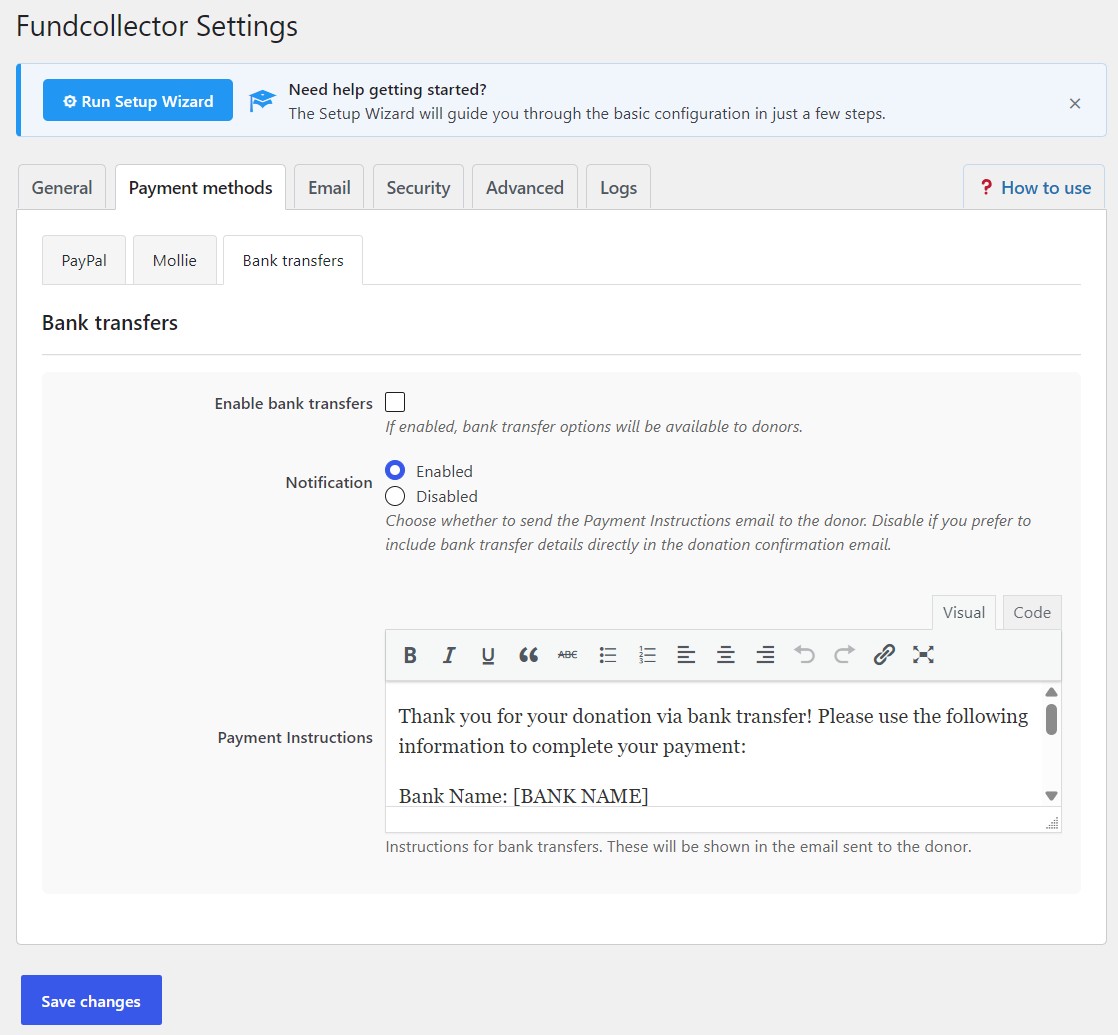
Bank Transfer settings
Bank transfer provides an alternative payment method for donors who prefer traditional banking.
Enable Bank Transfer
Toggle the checkbox to activate this payment option.
Notification
Select whether or not you want to send an email to donors who make payments via bank transfer. This email contains the bank account details needed for the donor to complete the transfer. If you prefer, you can disable this email and include the bank details in the donation confirmation email described later in this guide.
Bank Transfer Instructions
Customize the message donors receive with your banking details. This appears:
On the website after selecting bank transfer
In the confirmation email sent to donors
Template Placeholders: Use these dynamic tags in your instructions:
{donor_name} – Donor’s full name
{donor_email} – Donor’s email address
{donation_amount} – Amount to transfer
{donation_id} – Unique reference number
{form_name} – Name of the donation form used
Example Bank Transfer Instructions:
Thank you for your donation via bank transfer!

        Please transfer {donation_amount} to the following account:

        Bank Name: First National Bank
        Account Holder: Your Organization Name
        IBAN: GB29 NWBK 6016 1331 9268 19
        SWIFT/BIC: NWBKGB2L
        Reference: {donation_id}

        Please use the donation ID as your payment reference so we can match your payment.

        Your donation reference: {donation_id}

        Thank you for your generous support!
Important Notes:
Bank transfer donations are marked as “Manual check” status
You must manually verify payments in your bank account, FundCollector cannot access bank account information to verify whether the payment went through successfully.
Consider sending a final confirmation email after verifying payment
6. Email Notifications Configuration
Navigate to FundCollector → Settings → Email. FundCollector Pro includes additional email templates for Mollie payments.
Email General Settings
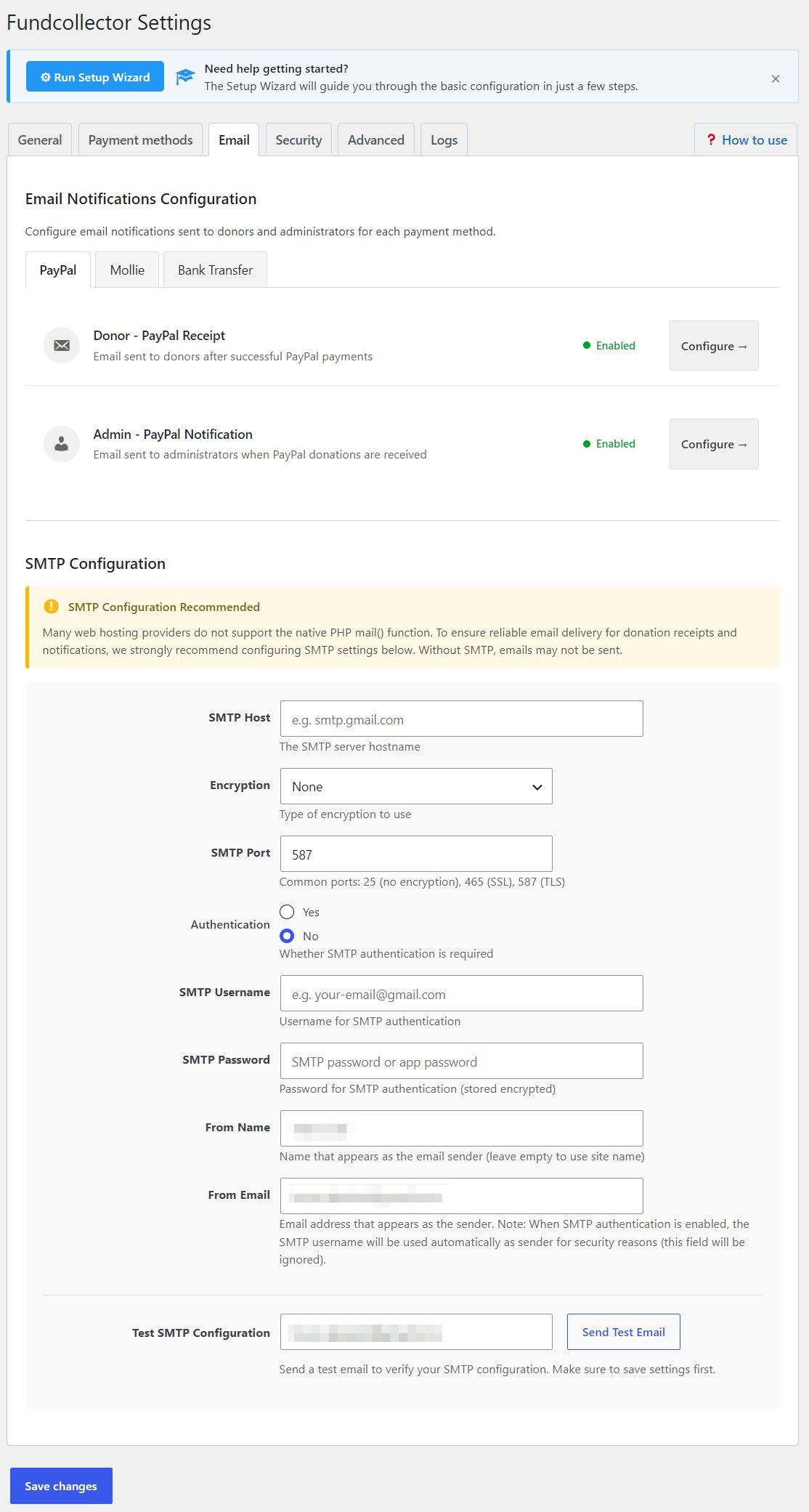
This screen is titled Email Notifications Configuration. It is where you control which emails are sent after donations and what they say, grouped by payment method. A short introduction explains that you configure notifications for donors and administrators for each method.
At the top of the email area you switch between:
PayPal – two entries: Donor – PayPal Receipt (confirmation after a successful PayPal payment) and Admin – PayPal Notification (alert to site staff when a PayPal donation is received). Each row shows an Enabled / Disabled status and a Configure → button.
Mollie(visible with FundCollector Pro) – the same pattern for Donor – Mollie Receipt and Admin – Mollie Notification.
Bank Transfer – Donor – Bank Transfer Receipt (message with transfer instructions) andAdmin – Bank Transfer Notification.
Choosing Configure → opens the detailed editor for that template: you can turn the notification on or off, set the subject, and edit the message in the WordPress editor (including media and formatting where supported). Message bodies can include placeholders (such as donor name, amount, donation ID, form name, date, and site name) so each email is filled in automatically.
SMTP Configuration In this subsection, you can configure the SMTP email protocol. We recommend that you enable SMTP because many web hosting providers do not support the native PHP mail() function. Without SMTP, emails may not be sent. Contact your hosting provider to find out the SMTP settings you need to use. Here you set:
SMTP Host, Encryption(None / SSL / TLS), SMTP Port(with hints for common ports),
Authentication(Yes/No), then SMTP Username and SMTP Password when required,
From Nameand From Emailfor the sender shown to recipients (with the note that when SMTP authentication is on, the authenticated username may be used as the sender for deliverability).
Use Test SMTP Configuration: enter a recipient address and click Send Test Email to verify delivery after saving. Finish with Save changes at the bottom of the settings page.
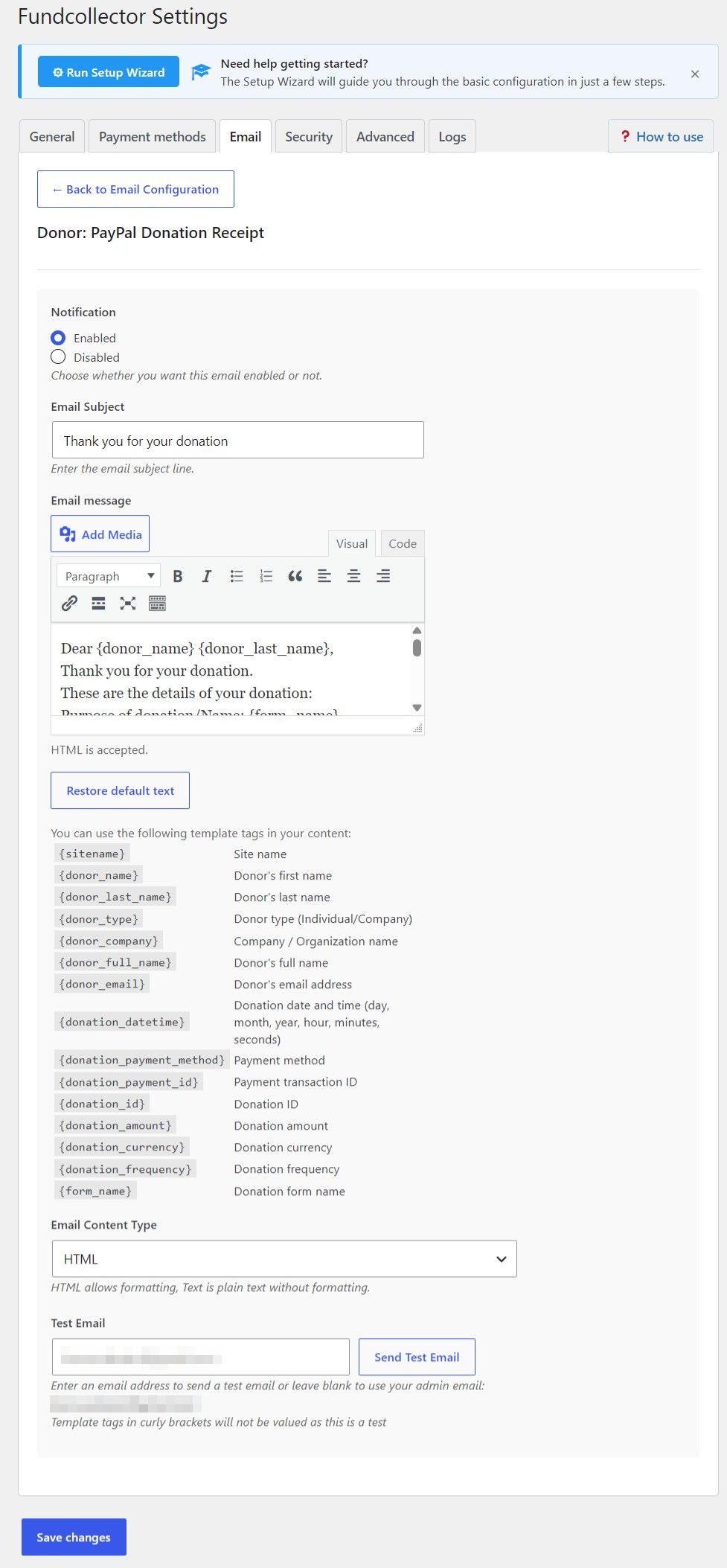
Donor: PayPal Donation Receipt
Donor – PayPal Donation Receipt
This screen configures the thank-you / receipt email that FundCollector sends to the donor after a successful PayPal donation.
Navigation Open FundCollector → Settings → Email, choose the PayPalsub-tab, then click Configure → on Donor – PayPal Receipt. Use ← Back to Email Configuration to return to the email overview without losing unsaved work until you save.
Notification Under Notification, choose Enabledor Disabled. When disabled, donors will not receive this receipt email after PayPal payments (the donation can still be recorded normally).
Email Subject Set the subject line donors see in their inbox. A short hint explains that this is the visible subject of the message.
Email message The body is edited with the WordPress visual/HTML editor (toolbar, media where allowed, Quicktags). HTML is supported. You can replace the default wording with your own branding and tone.
Restore default text If you change the message and want to go back to the plugin’s built-in template, use Restore default text. You will be asked to confirm; after restoring, click Save changes on the main settings page to persist.
Template tags Below the editor, an Available template tags reference lists placeholders you can paste into the subject or body (for example site name, donor name, email, amount, payment method, donation ID, form name, date/time, frequency). They are replaced automatically when the email is sent.
Saving Scroll to the bottom of Settingsand click Save changes so subject, body, and enabled/disabled state are stored. Reliable delivery still depends on your SMTP (or server mail) configuration on the same Email tab.
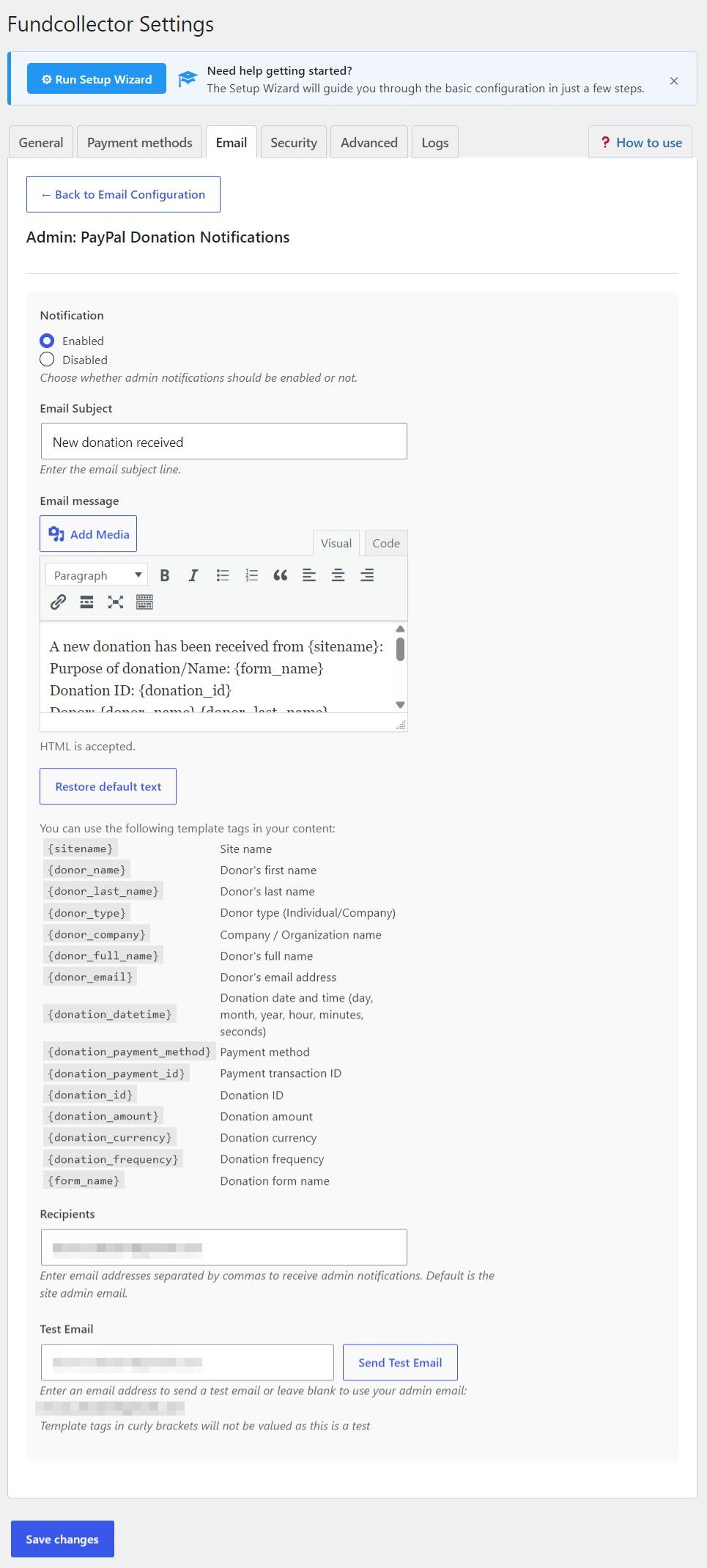
Admin: PayPal Donation Notifications
Admin – PayPal Donation Notifications
This screen configures the administrator notification email sent when a PayPal donation is successfully received.
How to open it: Go to FundCollector → Settings → Email, open the PayPal sub-tab, then click Configure → on Admin – PayPal Notification. Use ← Back to Email Configuration to return to the email overview.
Notification – Choose Enabled or Disabled. If disabled, no admin email is sent for PayPal donations.
Email Subject – The subject line shown in the administrator’s inbox.
Email message – The body is edited with the WordPress editor. HTML is allowed. Use Restore default text to reset the template (confirm, then click Save changes on the settings page). The Available template tags section lists placeholders (donor details, amount, donation ID, form name, payment transaction ID, site name, etc.) that are filled when the real email is sent.
Recipients – One or more email addresses separated by commas. The default is the WordPress site admin email.
Test Email – Enter an address in the field (or leave it empty to use the site admin email, shown in the help text) and click Send Test Email. This sends a real message through your mail setup so you can confirm delivery (SMTP, spam filters, etc.). Template tags in curly brackets are not filled in for this test – they appear as literal placeholders, because no live donation record is used.
Click Save changes at the bottom of FundCollector Settings to store your changes. For reliable delivery, configure SMTP on the same Email tab if needed.
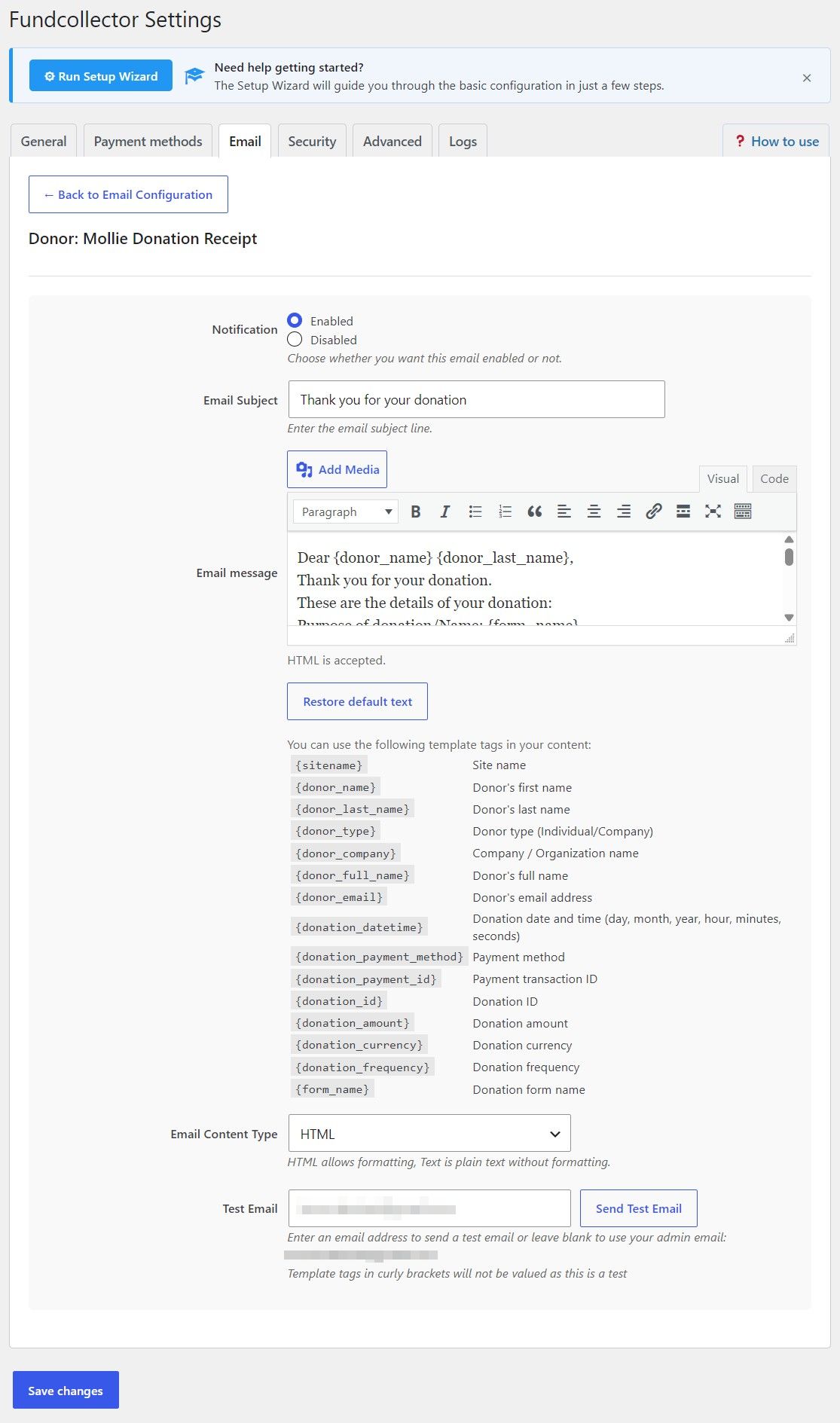
Donor: Mollie Donation Receipt
Donor – Mollie Donation Receipt
This screen is available only with FundCollector Pro. It configures the receipt email sent to the donor after a successful Mollie payment (card or other Mollie methods you offer).
How to open it: Go to FundCollector → Settings → Email, open the Mollie sub-tab, then click Configure → on Donor – Mollie Receipt. Use ← Back to Email Configuration to return to the email overview.
Notification – Enabled or Disabled. If disabled, donors do not receive this Mollie receipt email after payment.
Email Subject – The subject line donors see in their inbox.
Email message – Body edited with the WordPress editor. HTML is accepted.Restore default text resets the plugin’s default copy (confirm, then use Save changes on the settings page). Below the editor, Available template tags documents placeholders such as donor name, email, amount, donation ID, form name, payment method, frequency, date/time, site name, payment transaction ID, and site URL.
Email Content Type – HTML (formatted) or Text (plain, no HTML formatting). The on-screen note explains that HTML allows formatting while Text does not.
Test Email – Enter an address in the field (or leave it empty to use the site admin email, shown in the help text) and click Send Test Email. This sends a real message through your mail setup so you can confirm delivery (SMTP, spam filters, etc.). Template tags in curly brackets are not filled in for this test – they appear as literal placeholders, because no live donation record is used.
Click Save changes at the bottom of FundCollector Settings to store everything. For reliable delivery, configure SMTP on the same Email tab if needed.
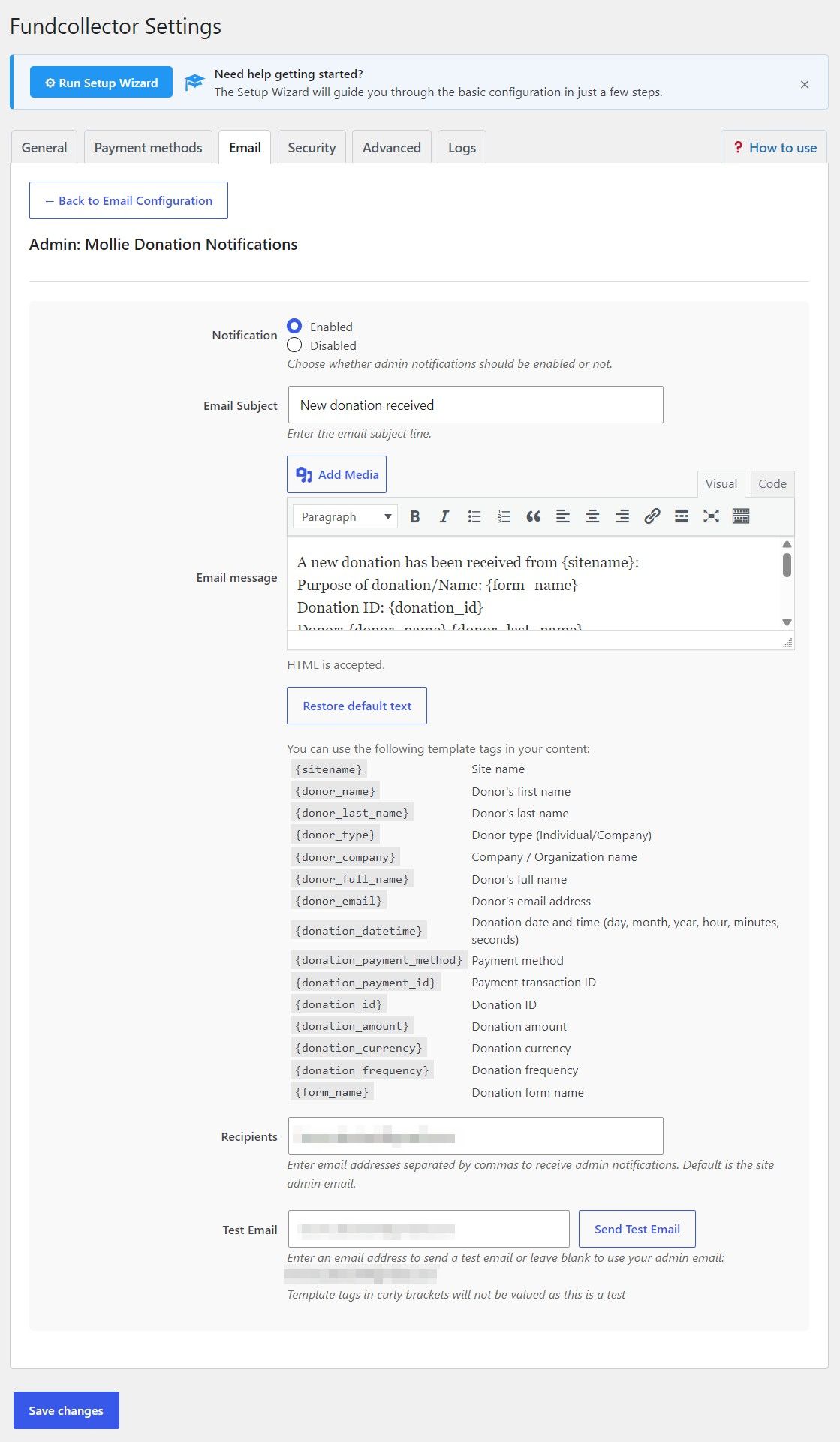
Admin: Mollie Donation Notifications
Admin – Mollie Donation Notifications
This screen is available only with FundCollector Pro. It configures the administrator notification email sent when a Mollie donation is successfully received (one-time or recurring, depending on your setup).
How to open it: Go to FundCollector → Settings → Email, open the Mollie sub-tab, then click Configure → on Admin – Mollie Notification. Use ← Back to Email Configuration to return to the email overview.
Notification – Enabled or Disabled. If disabled, no admin email is sent for Mollie donations.
Email Subject – The subject line shown in the administrator’s inbox.
Email message – The body is edited with the WordPress editor. HTML is accepted. Use Restore default text to reset the plugin default (confirm, then click Save changes on the settings page). The Available template tags section lists placeholders (donor details, amount, donation ID, form name, payment method, frequency, date/time, payment transaction ID, site name, site URL, etc.) that are replaced when the real notification is sent.
Recipients – One or more email addresses separated by commas. The default is the WordPress site admin email.
Test Email – Enter an address in the field (or leave it empty to use the site admin email, shown in the help text) and click Send Test Email. This sends a real message through your mail setup so you can confirm delivery (SMTP, spam filters, etc.). Template tags in curly brackets are not filled in for this test – they appear as literal placeholders, because no live donation record is used.
Click Save changes at the bottom of FundCollector Settings to store your changes. For reliable delivery, configure SMTP on the same Email tab if needed.
Donor: Bank Transfer Donation Receipt
Donor – Bank Transfer Donation Receipt
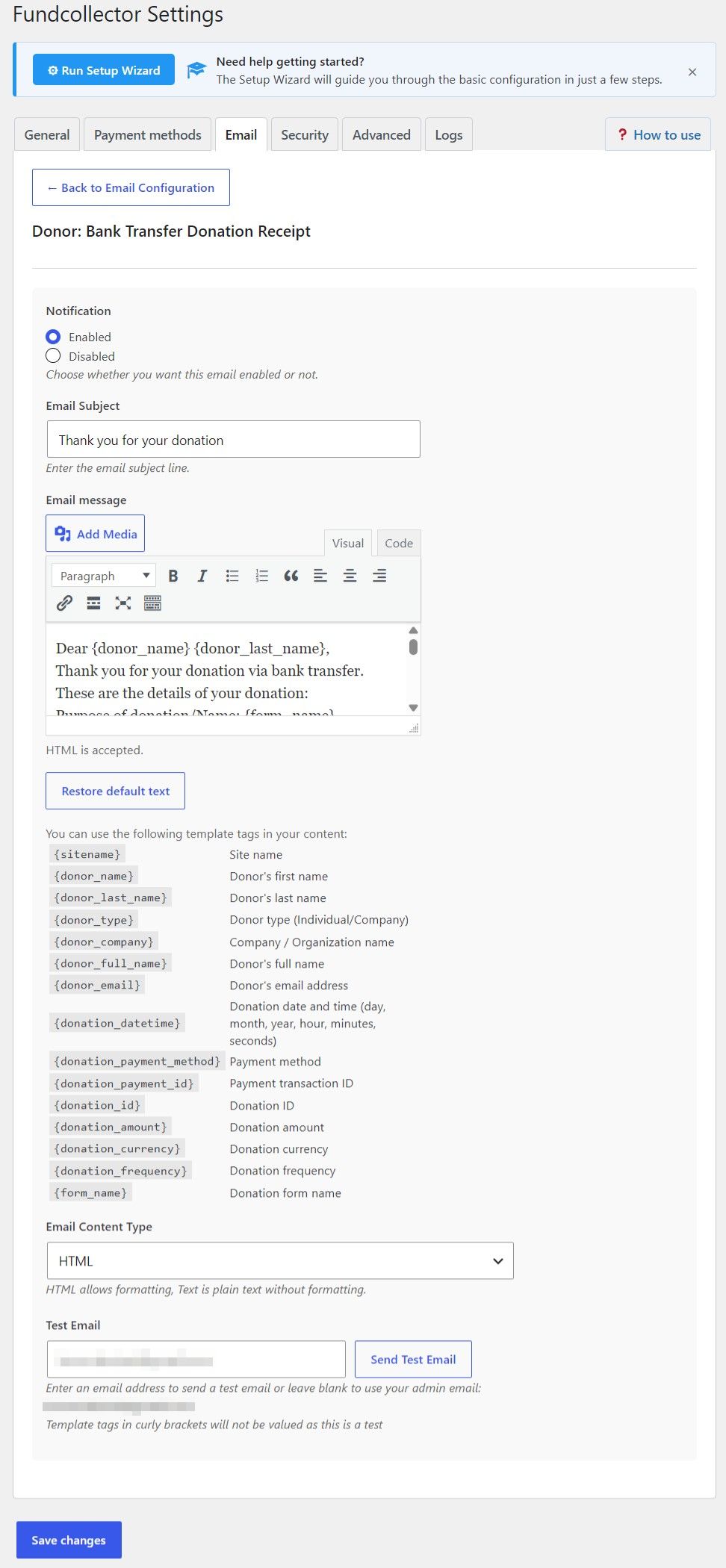
This screen configures the email sent to donors after they choose bank transfer as the payment method. Open it from FundCollector → Settings → Email, choose the Bank Transfer sub-tab, then open Donor: Bank Transfer Donation Receipt. Use Back to Email Configuration to return to the email overview.
Notification Choose Enabled or Disabled to turn this receipt on or off. When it is disabled, donors do not receive this message (real donations still follow your other settings).
Email Subject Single line for the subject. The default is a “thank you for your donation” style subject (localized when the site language is not English).
Email message The body is edited with the WordPress editor (visual/HTML, quick tags, optional media). HTML is accepted. The built-in default text thanks the donor for choosing bank transfer, summarizes donation details (form name, donation ID, donor, email, payment method, amount with a note that the amount is to be verified on the bank account, date/time), and reminds them to complete the donation using the bank transfer instructions sent in a separate email.
Restore default text Replaces the current message with the plugin default after confirmation. You must still click Save changes on the main settings page to persist it.
Available template tags A reference table lists placeholders such as {sitename}, {donor_name}, {donor_last_name}, {donor_full_name}, {donor_type}, {donor_company}, {donor_email}, {donation_datetime}, {donation_amount}, {donation_payment_method}, {donation_frequency}, {donation_payment_id}, {donation_id}, {form_name}, and {site_url}. They are replaced with real values when the email is sent for an actual donation.
Email Content Type HTML (default) sends formatted content; Text sends plain text without HTML formatting.
Test Email Enter an address in the field (or leave it empty to use the site admin email, shown in the help text) and click Send Test Email. This sends a real message through your mail setup so you can confirm delivery (SMTP, spam filters, etc.). Template tags in curly brackets are not filled in for this test – they appear as literal placeholders, because no live donation record is used.
Remember to save plugin settings after editing subject, body, content type, or notification state.
Admin: Bank Transfer Donation Notifications
Admin – Bank Transfer Donation Notifications
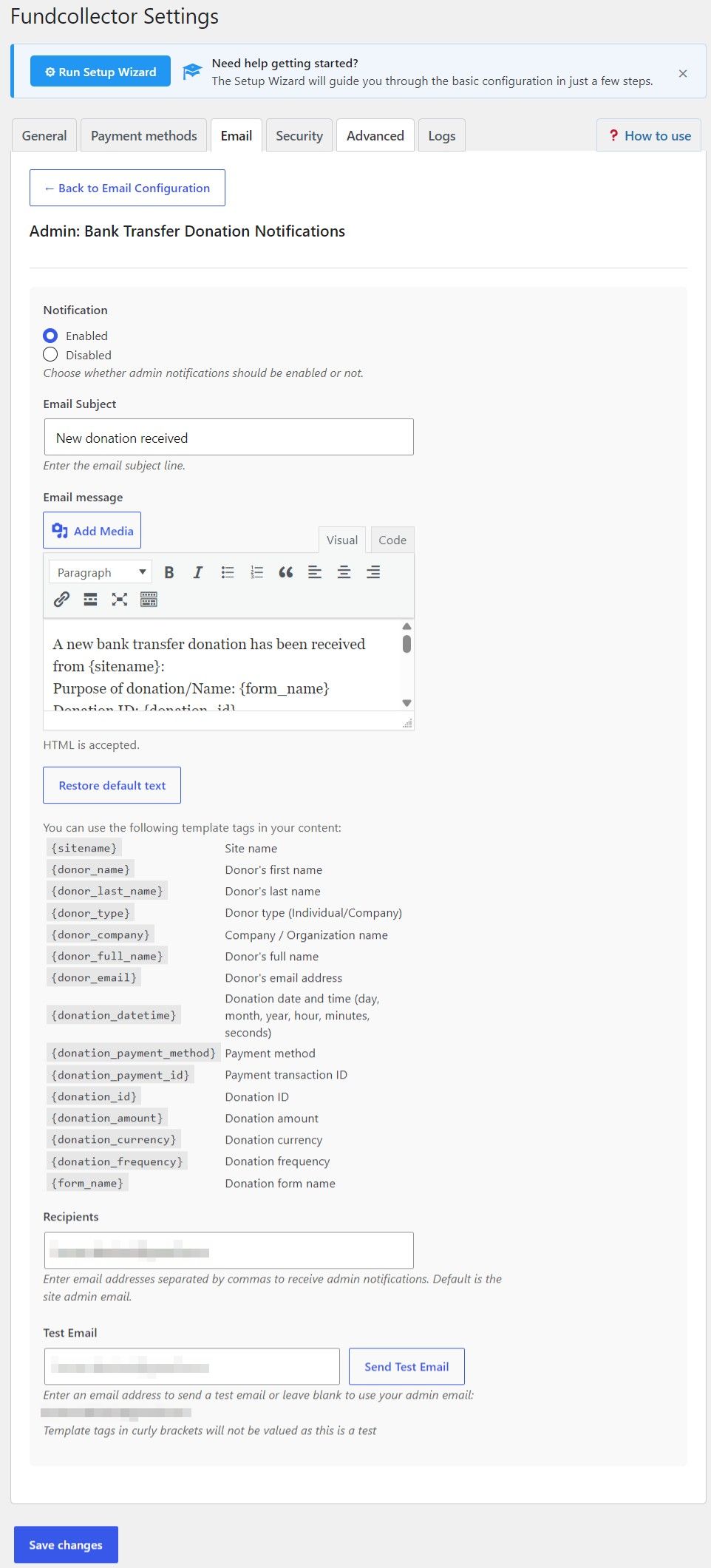
This screen configures the email sent to site staff when someone submits a donation using bank transfer. Open it from FundCollector → Settings → Email, select the Bank Transfer sub-tab, then open Admin: Bank Transfer Donation Notifications. Use Back to Email Configuration to return to the email overview.
Notification Use Enabled or Disabled to turn these admin alerts on or off. When disabled, no admin notification is sent for new bank-transfer donations (other payment methods use their own admin templates).
Email Subject Sets the subject line. The default is a “new donation received” style subject (localized when the site language is not English).
Email message The body is edited with the WordPress editor (visual/HTML, quick tags, optional media). HTML is accepted. The default text announces that a new bank transfer donation was received, includes key details (form name, donation ID, donor name, email, payment method, amount with a note that the amount is to be verified on the bank account, date/time), and states that the donor has been given bank transfer instructions to complete payment.
Restore default text After confirmation, replaces the current message with the plugin default. Click Save changes on the settings page to keep the change.
Available template tags The reference lists placeholders such as {sitename}, {donor_name}, {donor_last_name}, {donor_full_name}, {donor_type}, {donor_company}, {donor_email}, {donation_datetime}, {donation_amount}, {donation_payment_method}, {donation_frequency}, {donation_payment_id}, {donation_id}, {form_name}, and {site_url}. They are replaced with real data when the email is sent for an actual donation.
Recipients One or more addresses separated by commas. By default this is the WordPress site admin email. Use this to notify finance staff, a shared inbox, or multiple people.
Test Email Enter an address (or leave the field empty to use the admin email shown in the help text) and click Send Test Email. This sends a real message so you can verify SMTP/delivery. Curly-bracket template tags are not replaced in test mode – they stay as literal text because no live donation is attached.
Save the FundCollector settings after changing notification state, subject, body, or recipients.
7. Security Settings
Security Settings
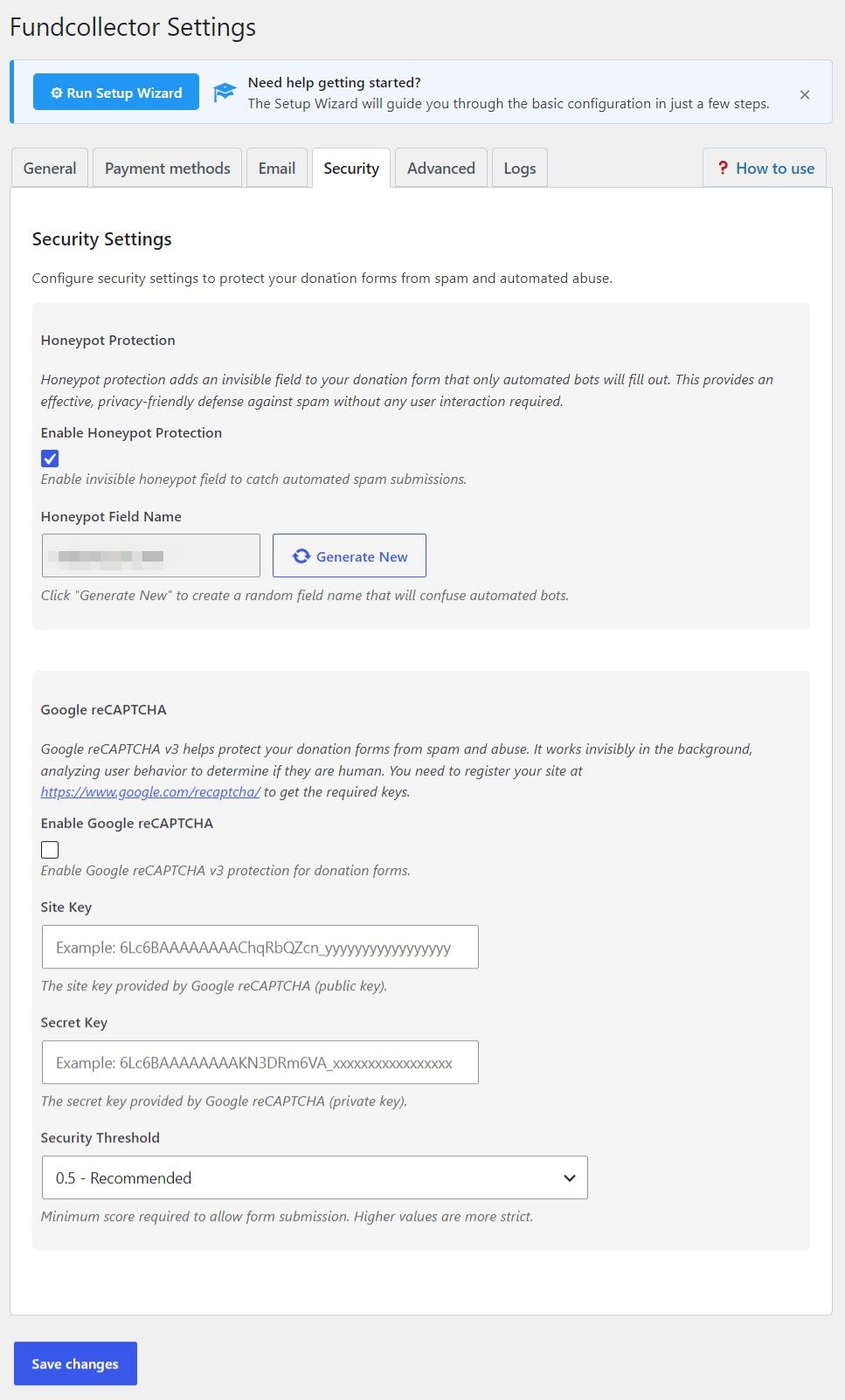
Open FundCollector → Settings in your WordPress admin and click the Security tab. This screen is where you reduce spam and automated abuse on your donation forms. You can use honeypot protection alone, Google reCAPTCHA v3 alone, or both together for a stronger setup.
Honeypot Protection
Honeypot protection adds a hidden field to the form that real visitors do not see or fill in; simple bots often fill every field and get caught. It does not ask donors to solve puzzles and is privacy-friendly.
Enable Honeypot Protection – Turn the invisible honeypot field on or off.
Honeypot Field Name – The name of that hidden field (shown read-only). Use Generate New to rotate a random name from time to time so predictable bots have a harder time adapting.
Google reCAPTCHA
FundCollector uses Google reCAPTCHA v3, which runs in the background and scores how likely the visitor is human – no checkbox challenge for most users. You must create a v3 site in the Google reCAPTCHA console and add the keys here.
Enable Google reCAPTCHA – Activates reCAPTCHA on donation forms.
Site Key – Public key from Google (safe to use in the browser).
Secret Key – Private key; keep it confidential.
Security Threshold – Minimum score (0.0–1.0) required to accept a submission. Higher means stricter:
0.3 – Permissive – More submissions allowed; use if you see real donors being blocked with stricter values.
0.5 – Recommended – Balanced default for many sites.
0.7 – Moderate – Fewer bots get through than Recommended.
0.9 – Very strict – Fewest bots get through; some real users might occasionally be blocked.
Admin notice
If neither honeypot nor reCAPTCHA is enabled, the plugin can show a Security Warning stating that no anti-spam protection is active and that forms may receive automated spam. Enabling at least one method clears that concern.
Practical tips
Quick win: Enable honeypot only – no external account, minimal friction.
Extra layer: Keep honeypot enabled and add reCAPTCHA v3 with the Recommended threshold, then adjust if donors report issues or spam persists.
After any change, scroll down and click Save Changes (same as the rest of FundCollector settings).
8. Advanced Settings
Advanced Settings
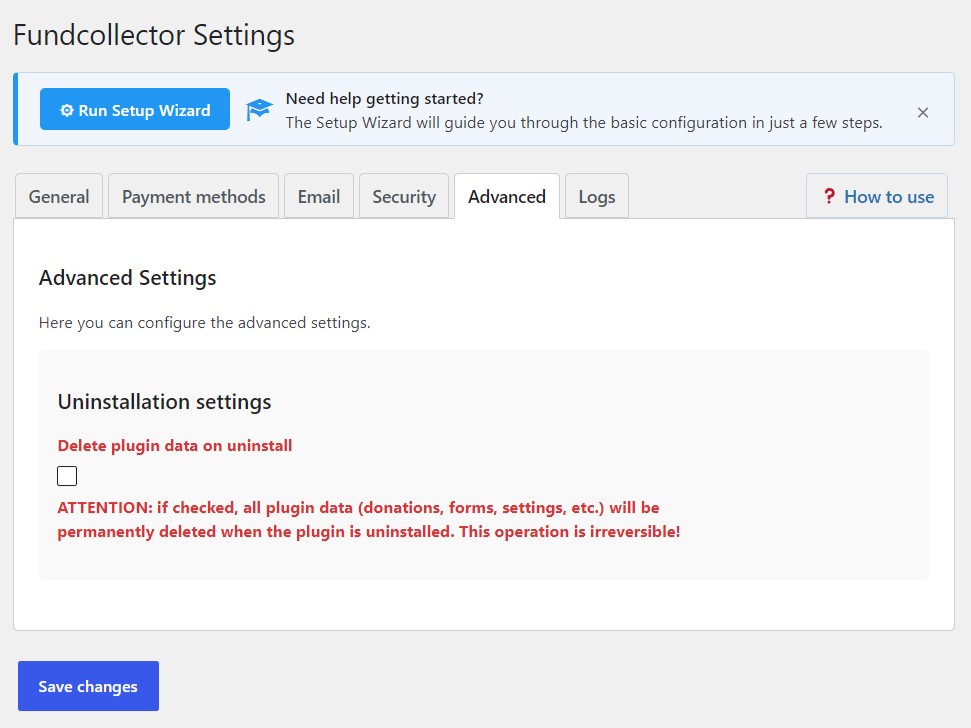
Go to FundCollector → Settings and open the Advanced tab. This area controls what happens when the plugin is removed. Diagnostic logging lives on the separate Logs tab (see the next section); since Pro 1.1.0 it also records key Pro admin activity — Mollie Connect (connect, disconnect, token refresh, reconnection alerts), PayPal recurring subscription events, and Backup & Restore operations.
Uninstallation settings
This option controls whether FundCollector removes all of its own data when you uninstall the plugin from WordPress (not when you merely deactivate it).
Delete plugin data on uninstall: If checked, uninstalling the plugin will permanently delete plugin-related data such as donations, forms, settings, and related records. This operation is irreversible! Recommendation: Leave this unchecked unless you are deliberately wiping the site of FundCollector data (for example, before removing the plugin forever on a test install). For production sites, keep it off so an accidental uninstall does not erase your donation history.
After changing any option, click Save changes at the bottom of the settings screen (same as for other FundCollector tabs).
9. Logs & Diagnostics
Go to FundCollector → Settings → Logs.
This tab is the Admin Logs viewer: you can inspect activity logs in WordPress admin, filter and search entries, download or clear the log file, and optionally share a temporary support access link with FundCollector support. Since Pro 1.1.0, this same log also records key Pro admin activity — Mollie Connect (connect, disconnect, token refresh, reconnection alerts), PayPal recurring subscription events, and Backup & Restore operations — giving you an audit trail of important plugin events alongside the diagnostic entries.
Log level
All levels (ERROR, WARNING, INFO, DEBUG) are always written to the server log file. The checkboxes control which levels are shown in the viewer, copied to the clipboard, and mirrored to the browser console for JavaScript:
ERROR and WARNING – always on in the viewer (read-only checkboxes).
INFO – optional; enable for more operational detail.
DEBUG – optional; enable only when investigating a specific issue (more verbose).
After changing INFO or DEBUG, click Save changes. Until you save log settings at least once, FundCollector may follow your site’s WP_DEBUG default for which optional levels appear.
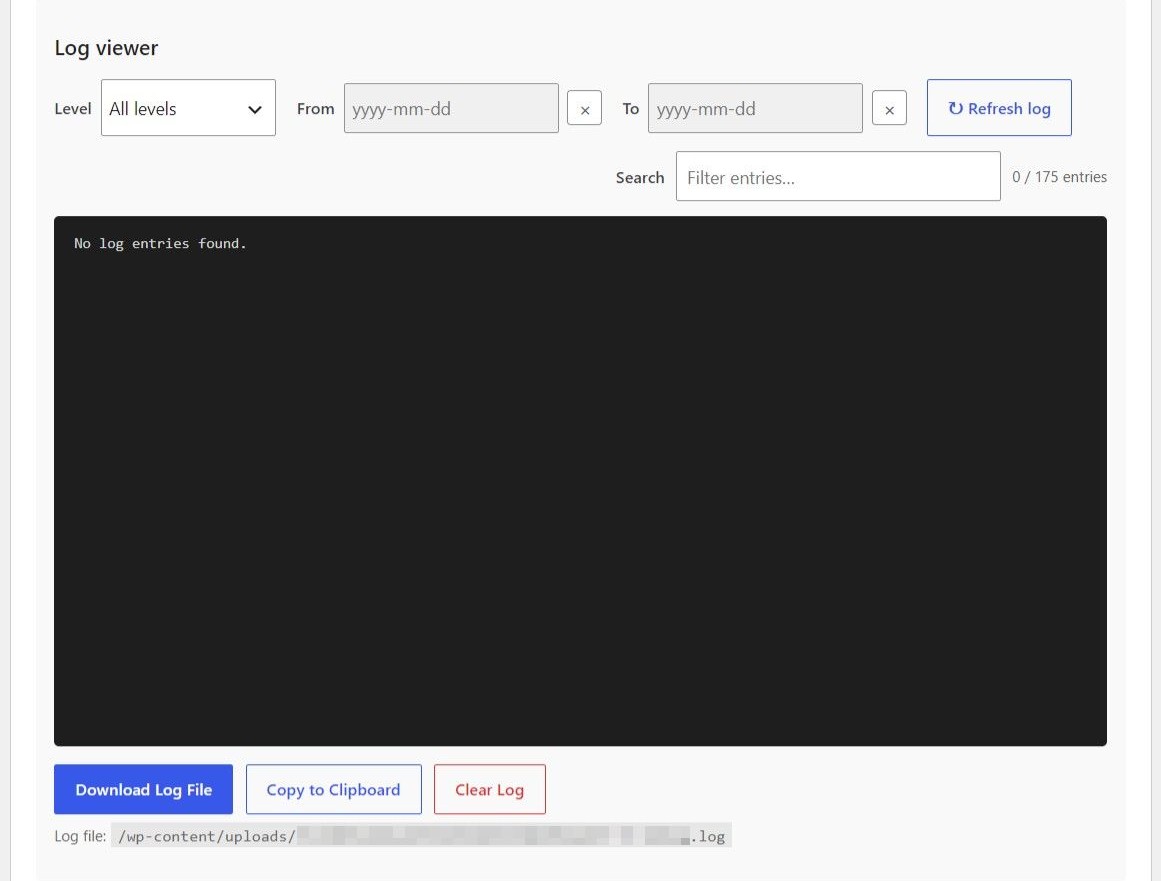
Log viewer
Log viewer
Use the toolbar above the dark log panel to narrow what you see:
Level – All levels, or ERROR / WARNING / INFO / DEBUG only.
From / To – date range (yyyy-mm-dd).
Refresh log – reload entries from the file.
Search – filter the loaded entries by text; a counter shows how many match.
Below the viewer:
Download Log File – download the full log file from the server.
Copy to Clipboard – copy the currently displayed (filtered) entries.
Clear Log – wipe the log file (use with care; you cannot undo this).
The path to the log file on the server is shown under the buttons for reference.
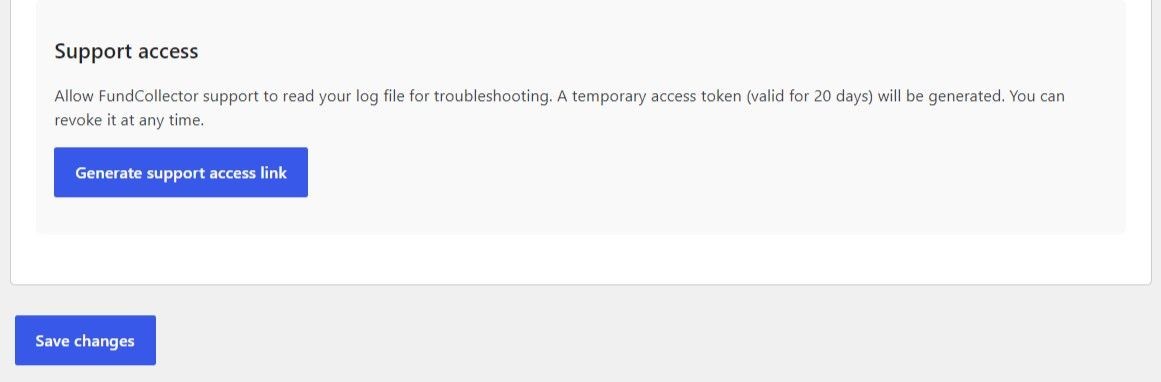
Support access
Log support access
If you contact FundCollector support about a payment or configuration issue, you can let them read your log file without sharing FTP or full admin access:
Click Generate support access link.
Copy the link and send it to support (for example via the support page).
The token is valid for 20 days. You can click Revoke access at any time to invalidate it immediately.
Tip: Enable INFO or DEBUG only while troubleshooting, then turn them off again if you prefer a quieter viewer. Clearing the log before reproducing a bug can make the relevant lines easier to find.
10. How to create a new donation form
This guide explains how to create and configure donation forms in WordPress with FundCollector.
Overview
FundCollector stores each donation layout as a form. Every form has:
A Form ID used in the shortcode.
Its own fields (what donors see and what is required).
Design options (width, colours, typography).
A shortcode such as [fundcollector_donation_form id=your_id] to embed the form on pages or posts.
You can use the built-in Default donation form to speed up the process, or create additional forms for different campaigns or pages.
Open the Forms screen
Log in to the WordPress admin (/wp-admin/).
In the left-hand menu, open FundCollector.
Click Forms.
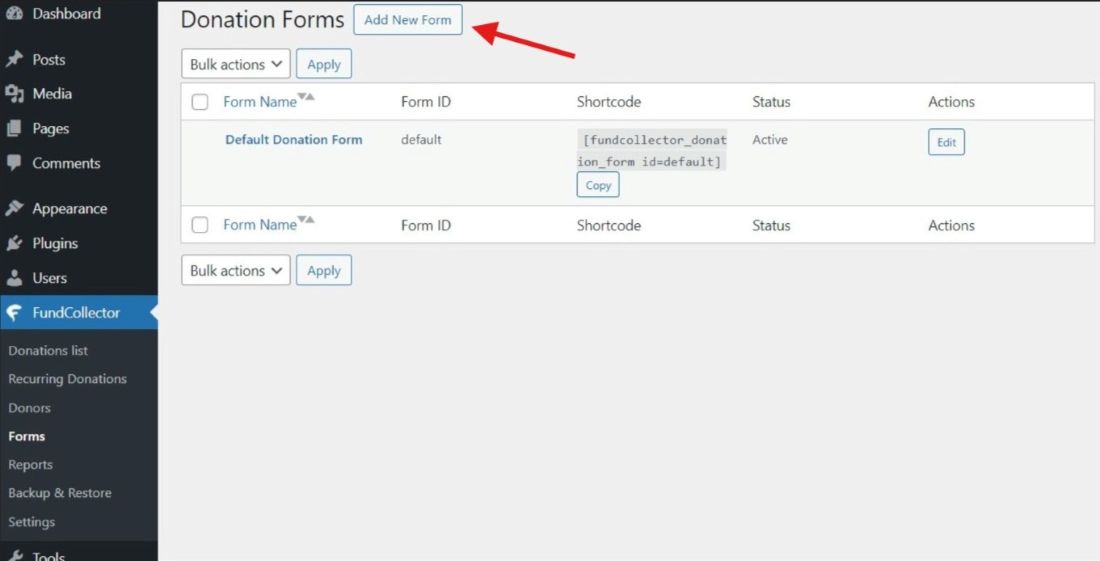
You should see the Donation Forms screen: page title Donation Forms and (when forms exist) a table of forms.
Donation Forms Page
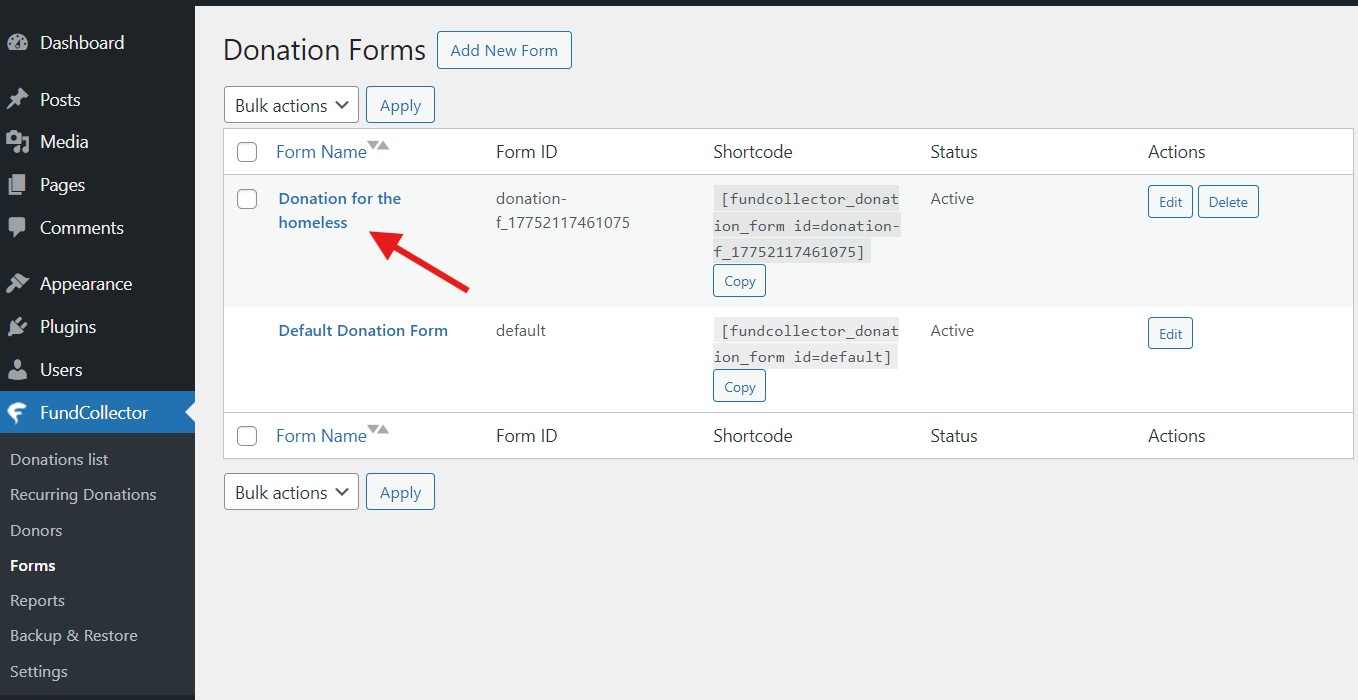
Donation Forms list (existing forms)
When at least one form exists, the list shows:
Form Name (sortable; click the column header to switch sort order – a tooltip explains the next sort).
Form ID – internal identifier used in the shortcode.
Shortcode – the exact embed code; a Copy button copies it to the clipboard.
Status – Active or Inactive.
Actions – Edit; Delete for custom forms (subject to the rules in Managing forms below).
Above the table:
Add New Form (next to the page title).
Bulk actions – select multiple forms, choose Delete, then Apply (the default form cannot be selected).
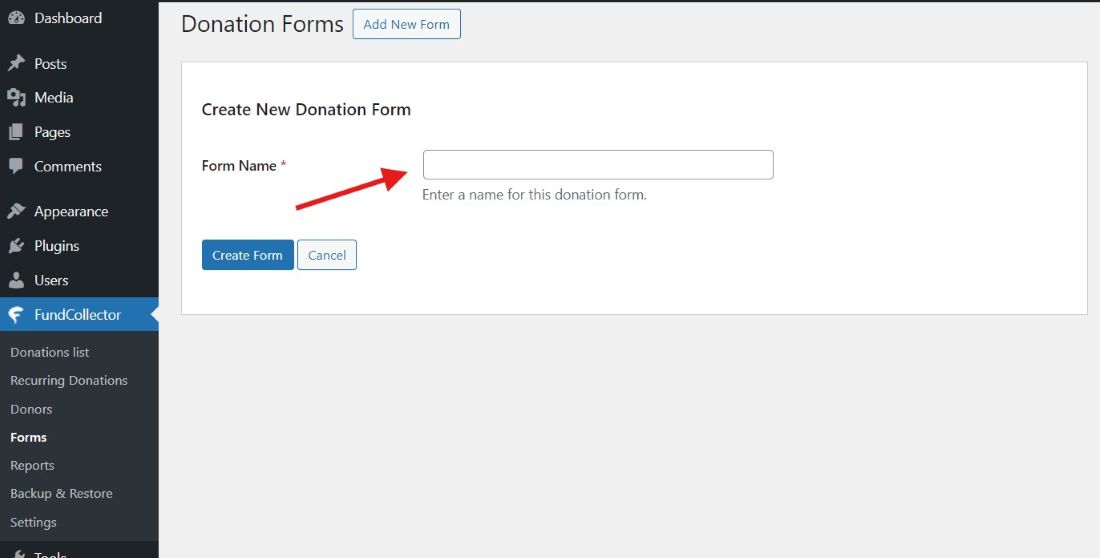
Create a new form
Click Add New Form (or Create Your First Form on the empty state).
The Create New Donation Form panel appears.
Enter a Form Name (required). This name mainly helps you recognize the form in the admin; you can set the public-facing title separately in the editor (Purpose of donation / Name).
Click Create Form to save, or Cancel to return to the list without creating.
After creation, WordPress opens the form editor for the new form.
Add New Donations Form
Form editor – header, shortcode, and navigation
At the top of the editor:
Donation Forms title and Add New Form (same as list screen).
Back to Forms List – returns to the table.
Purpose of donation / Name – text field; this is the public-facing title or context for donors (align it with your campaign copy).
Shortcode – read-only box with the exact shortcode, e.g. [fundcollector_donation_form id=abc123].
Default form: the built-in form uses id=default. You can embed it with [fundcollector_donation_form id=default] or, for the default only, [fundcollector_donation_form] with no id attribute.
Donations Forms List
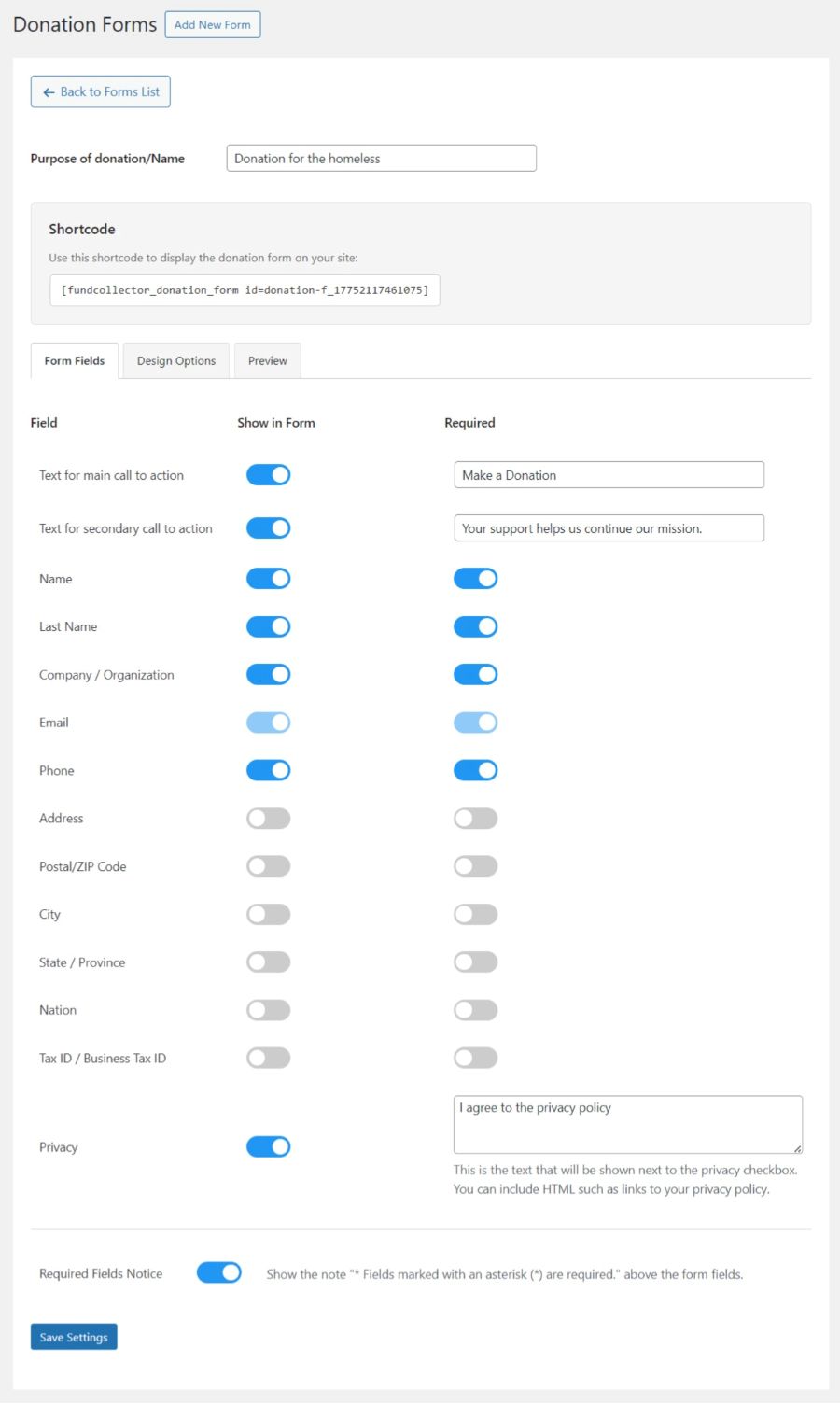
Tab: Form Fields
Three tabs appear: Form Fields, Design Options, Preview. Open Form Fields first.
Calls to action
Text for main call to action – toggle Show in Form; set the headline text (default idea: “Make a Donation”).
Text for secondary call to action – optional supporting line under the title.
Donor fields
A table lists fields such as Name, Last Name, Company / Organization, Email, Phone, Address, and address-related fields, Tax ID, and more.
For each row:
Show in Form – include or hide the field.
Required – donor must fill the field before submitting.
Email is always shown and required (you cannot turn it off).
Privacy
Privacy – toggle visibility; edit the privacy text in the textarea. You may use HTML (for example a link to your privacy policy page). This text appears next to the privacy consent checkbox on the front end.
Required fields notice
Below the main field table, Required Fields Notice toggles whether the form shows the standard note that asterisk-marked fields are required.
New Donation Form Settings
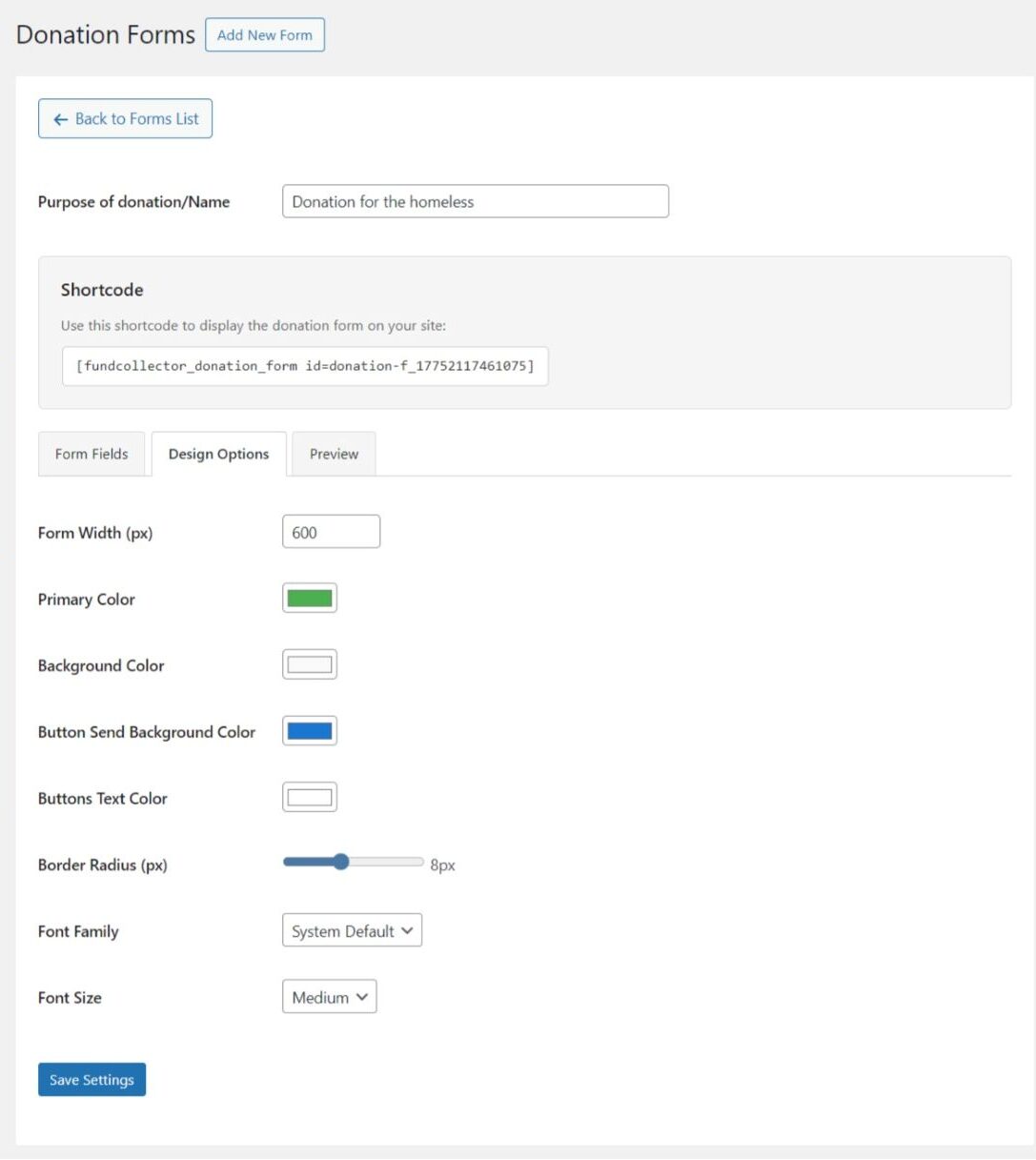
Tab: Design Options
Use Design Options to align the form with your theme:
Form Width (px) – between 300 and 1200.
Primary Color – accent for amounts and highlights.
Background Color – form panel background.
Button Send Background Color and Buttons Text Color – main donate button.
Border Radius (px) – slider with live value.
Font Family – e.g. System Default, Arial, Verdana, Helvetica, Roboto.
Font Size – Small / Medium / Large.
Design New Donation Form
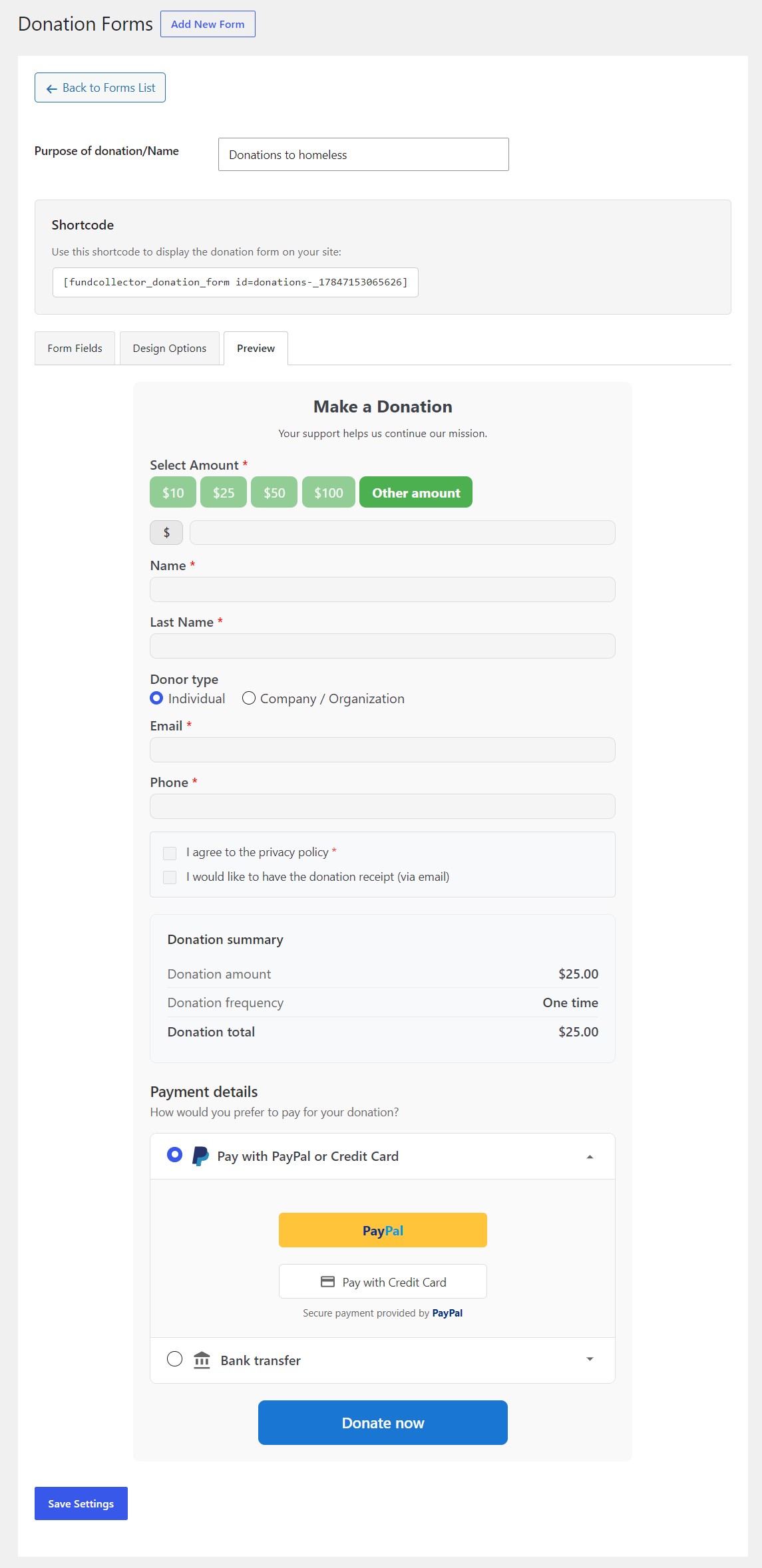
Tab: Preview
Preview renders an approximate version of the form inside the admin, including:
Title and secondary text.
Amount buttons and custom amount area.
Visible donor fields and donation summary.
Payment details reflecting enabled payment methods in plugin settings (PayPal, bank transfer; FundCollector Pro may add Mollie / card UI).
Privacy checkbox (if enabled).
Donate now button (disabled in preview).
If no payment method is enabled, a warning appears instead – enable at least one method under FundCollector → Settings before expecting a full preview.
Donation Form Preview
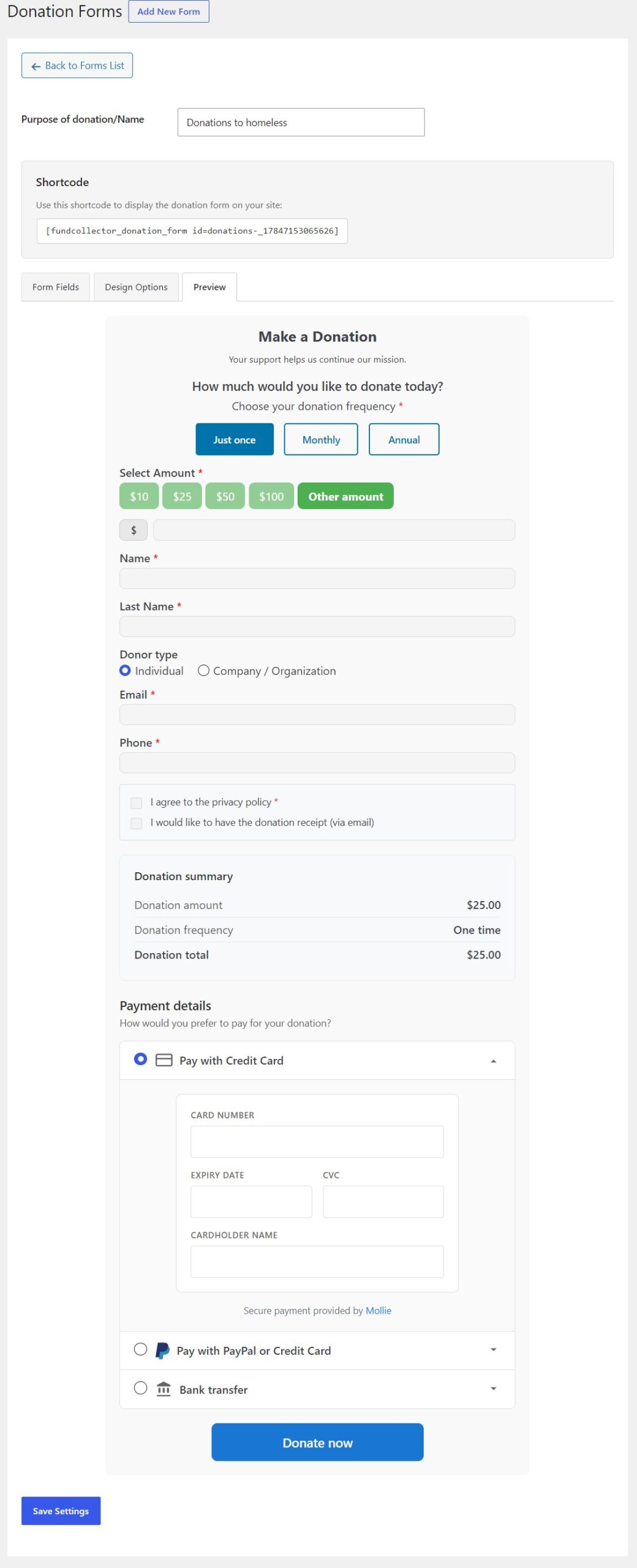
FundCollector Pro (optional)
If you use FundCollector Pro with Mollie enabled (and recurring donations if applicable), you can add a second screenshot showing the card section and frequency options (Just once / Monthly / Annual).
Donation Form Preview with recurring
Save
Click Save Settings at the bottom of the editor. On success, a green admin notice confirms that form settings were saved.
Embed the form on the site
You can place the same form on many pages. Use the Donation Form block in the Gutenberg Block Editor (recommended), or paste the shortcode if you prefer the classic approach.
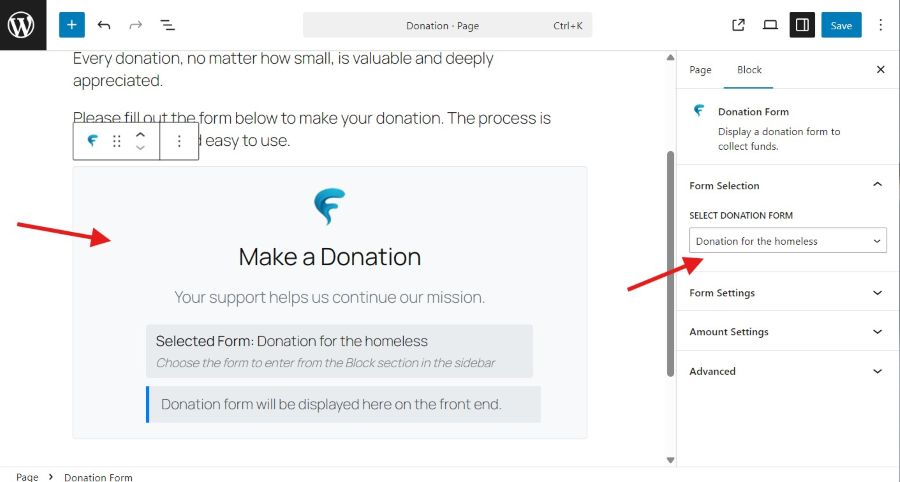
Block Editor (Gutenberg)
Open the page or post where you want the form (or create a new one).
Add a block: click + and search for Donation Form, or open the Fundcollector block category and choose Donation Form.
Click the block in the editor canvas so it is selected.
In the right-hand sidebar, make sure you are on the Block panel (icon with two sliders), not the Page/Post document panel.
Open the Form Selection section (it is expanded by default). In Select Donation Form, pick the form you want from the dropdown. The list uses the same names as FundCollector → Forms.
If you choose an inactive form, the sidebar shows a warning that it will not appear on the front end – set the form to Active under Forms or pick another form.
Click Save or Update, then view the page on the front end to confirm the donation form loads.
The Form Settings section in the same sidebar (collapsed by default) lets you change text and amount options for this block only (for example title, description, suggested amounts). Which form is loaded – and its fields and colours – still comes from Form Selection and FundCollector → Forms; many sites only adjust Select Donation Form and leave Form Settings as they are.
Block editor with Donation Form block selected and Form Selection / Select Donation Form in the right sidebar
Embedded form in page or post
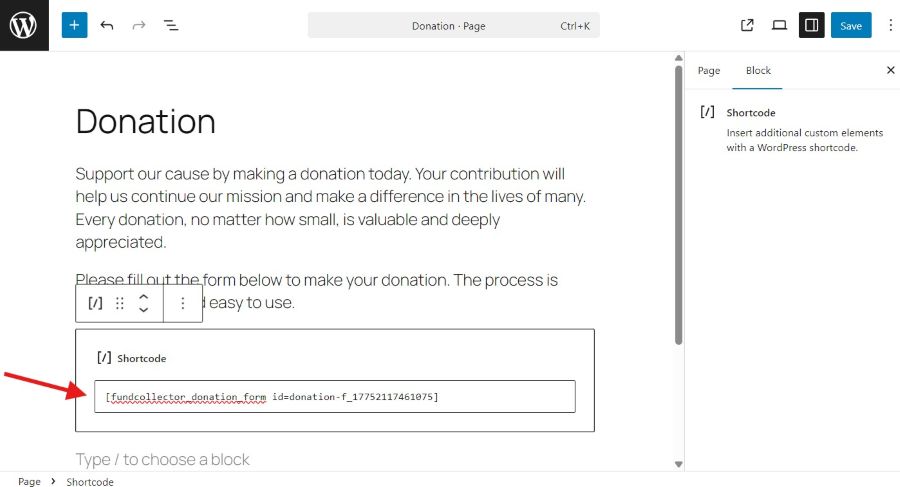
Shortcode (alternative)
Copy the shortcode from FundCollector → Forms (Copy next to the shortcode) or from the form editor.
In the Block Editor (Gutenberg), add a Shortcode block (or use the Classic Editor / a shortcode-ready widget) and paste the shortcode, e.g. [fundcollector_donation_form id=your_form_id].
After saving the page or post, visitors see the real donation form on the public site.
Public website page displaying the FundCollector donation form
Frontend Donation Page
Related settings
Payment methods (PayPal, bank transfer, and in Pro Mollie) are configured under FundCollector → Settings, not on the form screen. The Preview tab reflects what is enabled globally.
Currency and other global options also affect how amounts and symbols appear.
11. Donations Management
Donations List
The Donations List is the main operational view for donations stored in the plugin database. Each row is one donation record. From here you can:
Review donor, amount, purpose, payment method, status, and donation frequency (one-time or recurring).
Search across donations using IDs, donor fields, amounts, dates, and more.
Open a Donation Details modal without leaving the page.
Trash or restore donations (soft delete: records stay in the database but are hidden from the default list).
Use bulk actions to trash or restore many rows at once.
Only users with the manage_options capability (typically Administrators) can access this screen.
Open the Donations List
Log in to the WordPress admin (/wp-admin/).
In the left-hand menu, click FundCollector (the plugin uses this menu as the top-level entry; the first submenu item is Donations list).
You land on FundCollector → Donations list (admin.php?page=fundcollector-donations-list).
Donations List
Search field
At the top right, the Search donations… field and Search button let you filter the list. The search runs across multiple fields, including:
Public donation ID, donor name and surname (including full-name match), email
Donation purpose, payment method, payment status
Partial matches on stored amount text
Smart amount matching using your Currency & Location separators (e.g. finding 50 when the donor typed 50, or 50 $)
Date-oriented queries in common formats (e.g. day/month/year, ISO dates, month/year, year-only)
A short summary line shows the term and how many results matched, with a Clear search link. Sorting and pagination preserve the active search term.
The donations table
Below is a description of the table columns:
Columns
ID: The donation identification code donation ID (clickable). Under it: Details, Trash or Restore, and sometimes Retry Subscription for eligible Mollie recurring rows (see below).
Donor Name: Full name. If the donation is linked to a donor record, the name links to FundCollector → Donors (donor detail). If empty, the UI shows Anonymous.
Donation Purpose: Form name / purpose of the donation text.
Amount: Formatted with your currency symbol and decimal / thousands settings from Settings → Currency & Location (accounting-style: symbol + formatted number).
Date of Payment: Shown in the site’s configured timezone/locale via the plugin’s date utilities.
Payment Method: e.g. Bank transfer, PayPal, Mollie, or other registered methods. For PayPal and Mollie, when a gateway payment ID exists, the label is a link that opens the provider’s dashboard for that payment (sandbox vs live PayPal follows your PayPal test mode setting).
Status: Colour-coded payment status (e.g. Completed, Pending, Failed, Cancelled, Expired, Refunded, Declined). Bank transfer donations are labelled Manual check in the list because the transaction must be verified by a person in the bank account. Trashed rows can show a struck-through Trashed: state when viewed in context.
Donation frequency: Badges One Time, Monthly, or Annual, matching the values saved for each donation. A generic Recurring badge appears only as a fallback for uncommon recurring values that are neither monthly nor annual (rare in normal use). If a recurring Mollie subscription failed to be created, a warning icon may appear; eligible rows show Retry Subscription with the option to click on it to try again.
Sorting
Click a sortable column header to change order. Active sort is indicated by bold header text and an arrow icon. Sorting resets to page 1 when you change column or direction.
Row actions
Details (modal)
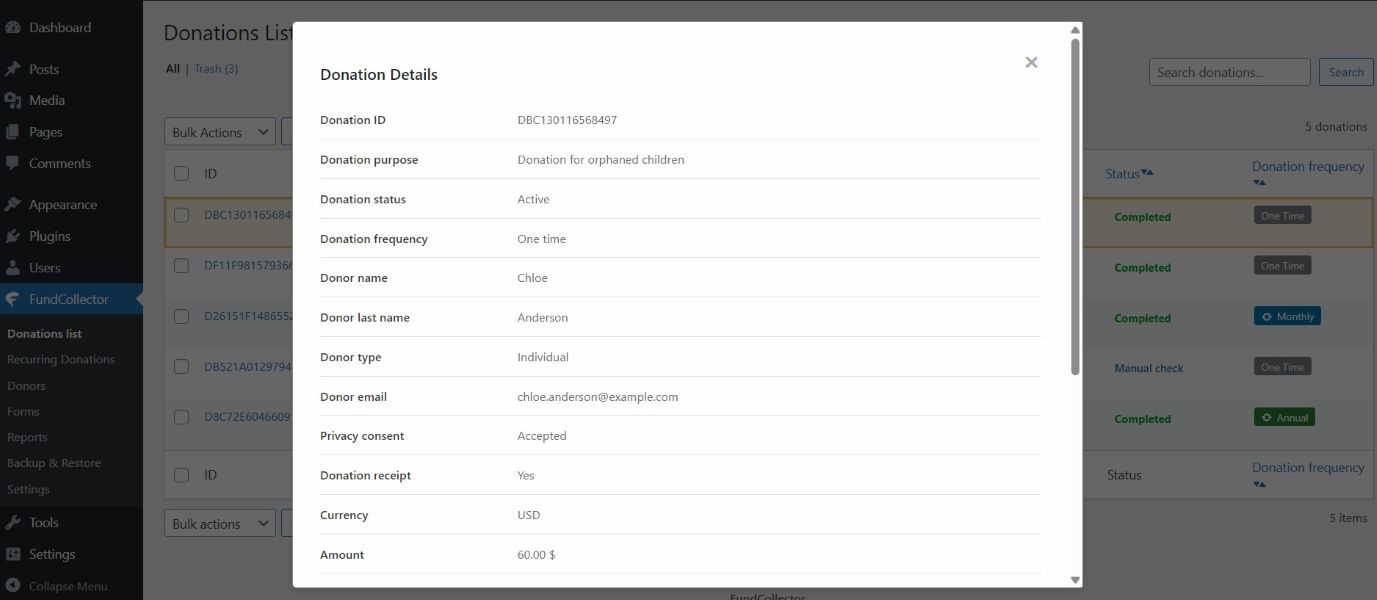
Click the donation ID or Details to open Donation Details in a modal. Content is loaded via AJAX. Close with ×, clicking the backdrop, or the Escape key.
The modal lists fields in a fixed order, with values formatted for readability. Depending on payment method and data, some fields are omitted (e.g. payer fields only for PayPal/Mollie; bank transfer omits some gateway-only fields). Typical sections include:
Donation ID, purpose, donation status (including trashed), donation frequency
Recurring status when a subscription exists in the recurring table
Payment method, PayPal transaction type (PayPal only), Payment ID, payment status
Payer name / email when supplied by the gateway
Empty values appear as --. In the admin, manage_options users see the full detail set for each donation.
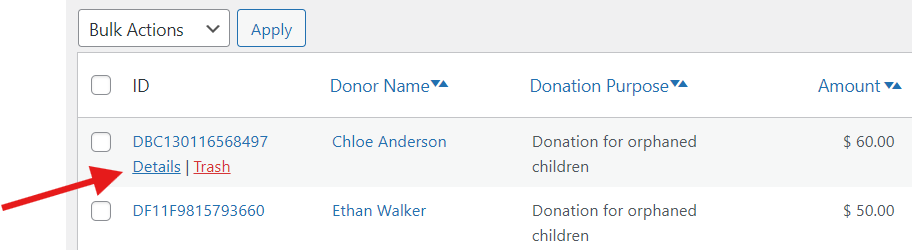
Details / Trash linksDonations List – Details window
Trash
Clicking the Trash link marks the donation as “in the trash”; it is no longer visible in the list but has not been permanently deleted from the database – it has been moved to the Trash page, which can be accessed via the link at the top of the Donation List page. Donations in the trash can be restored using the Restore link located below each donation in the trash.
Retry Subscription (Mollie recurring)
For some recurring donations paid via Mollie where subscription creation failed, the list shows Retry Subscription. This runs an admin action to attempt creating the subscription again in Mollie. Use it when you have fixed configuration or transient API issues. (The Donation frequency screenshot above can include this link if available.)
Which donations appear in the list?
The list is not limited to “completed only”. It includes donations whose payment status is among:
This helps you audit abandoned checkouts and gateway outcomes.
12. Recurring Donations
Recurring Donations
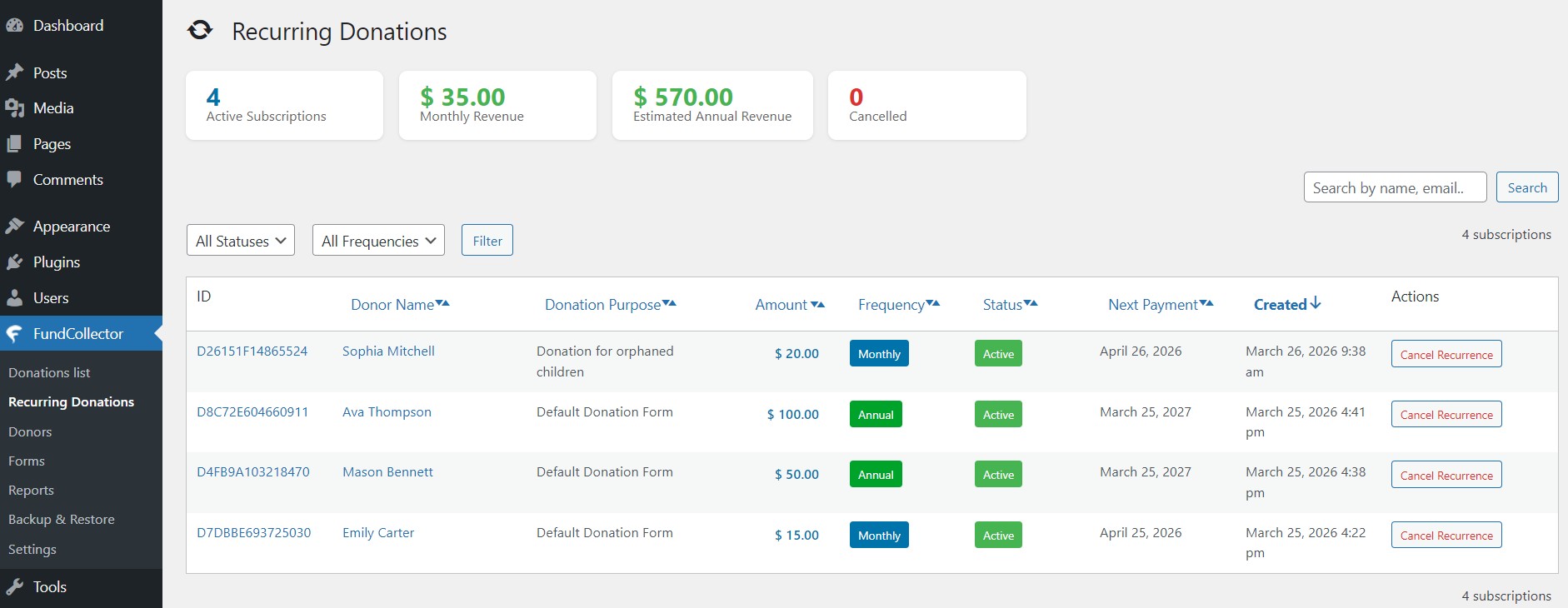
This section describes the Recurring Donations screen in the WordPress admin for FundCollector Pro: subscription overview, summary statistics, search and filters, sortable columns, pagination, opening donation details, and cancelling an active recurrence through Mollie or PayPal.
Overview
The Recurring Donations page lists Mollie- and PayPal-backed recurring subscriptions stored in the plugin’s recurring table, joined with the original donation and form data. From here you can:
See at-a-glance metrics: how many subscriptions are active, approximate monthly and estimated annual recurring revenue, and how many are cancelled.
Search across donor fields, donation ID, form name, Mollie subscription ID, and amount text.
Filter by status and billing frequency (monthly / annual).
Sort the table by donor, purpose, amount, frequency, status, next payment date, or creation date.
Paginate results (20 subscriptions per page).
Open the same Donation Details modal used on the Donations list (via the donation ID or Details link).
Cancel an active subscription: the site calls the Mollie or PayPal API (matching the subscription’s gateway) to cancel the mandate/subscription, then updates the local record.
Only users with the manage_options capability (typically Administrators) can access this screen.
Requirement: Recurring charges are processed by Mollie or PayPal, depending on which gateway the donor used. The in-page notice states that donors are charged on the same calendar day each month or year, and that you can cancel a subscription from this page at any time.
The menu order is arranged so Recurring Donations appears after Donations list and before Donors (when both Free and Pro menus are registered).
Summary statistics (top cards)
Four cards summarize data from all subscriptions in the recurring table (not only the current filter):
Active Subscriptions: Count of rows whose status is active.
Monthly Revenue: Sum of amount for active subscriptions with monthly frequency. Amounts use each subscription’s stored currency; the UI formats with your Currency & Location settings (symbol + decimal/thousands separators).
Estimated Annual Revenue: (Monthly revenue × 12) plus the sum of amounts for active annual subscriptions. This is a planning figure, not a tax or accounting guarantee.
Cancelled: Count of subscriptions with status cancelled.
Other statuses (pending, suspended, expired) appear in the table and filters but do not get separate summary cards.
Search
At the top right, Search recurring donations uses the standard s query parameter. The placeholder suggests name, email, but the backend matches partial strings (behaviour follows your database collation, typically case-insensitive) against:
Donation ID (donation_id on the donation row)
Donor first name, last name, and full name (name + space + last name)
Donor email
Form name (from the linked form)
Gateway subscription ID (Mollie or PayPal, stored on the recurring row)
Amount (as stored, text LIKE match)
When a search is active, a blue search results line shows the term and result count, with Clear search. Submitting the Filter form preserves the search term (hidden field s). Clear Filters opens the bare Recurring Donations URL and therefore removes status, frequency, search, and non-default sort query arguments in one step.
Filters and pagination (top bar)
The Filter form includes:
Status: All, Active, Pending, Cancelled, Suspended, Expired
Frequency: All, Monthly, Annual
Click Filter to apply. If any filter or search is active, Clear Filters appears and reloads the default list (no filters, no search, default sort).
The Recurring Donation table
Columns
ID: The public donation ID (same code as on the Donations list). Click the ID or Details to open the Donation Details modal.
Donor Name: The donor’s first and last name (as saved on the donation). If that person also has an entry in FundCollector → Donors, the name is a link: click it to open their donor profile. If there is a name but no donor profile is linked, you still see the name, but it is not clickable. If no name was provided, the list shows Anonymous.
Donation Purpose: The form name associated with the donation, or N/A if missing.
Amount: Recurring instalment amount in the subscription’s currency
Frequency: Monthly or Annual label.
Status: Active, Pending, Cancelled, Suspended, or Expired.
Next Payment: For active subscriptions with a stored next payment date, the value is formatted for the admin locale/timezone. Otherwise an em dash is shown.
Actions: For active rows only: Cancel Recurrence (red-styled button). Other statuses have no action in this column.
Sorting
Click a sortable column header to toggle ascending / descending. Sortable fields:
Donor Name
Donation Purpose (form name)
Amount
Frequency
Status
Next Payment
Created
Default sort is Created, newest first (DESC). Changing sort resets to page 1 in the URL. Active sort is indicated by bold header text and an arrow icon.
Cancel Recurrence (active subscriptions only)
Click Cancel Recurrence on an active row.
The UI asks for confirmation (action cannot be undone).
On confirm, a request runs; the server cancels the subscription via Mollie or PayPal (matching the subscription’s gateway), then marks it cancelled locally.
Success or error is shown in the interface; on failure, logs may contain details for support.
If the gateway accepts cancellation but updating the local database fails, the user may see a message that cancellation succeeded on the gateway but local status could not be updated.
Donation details
Recurring Donations – Details link
How you open it
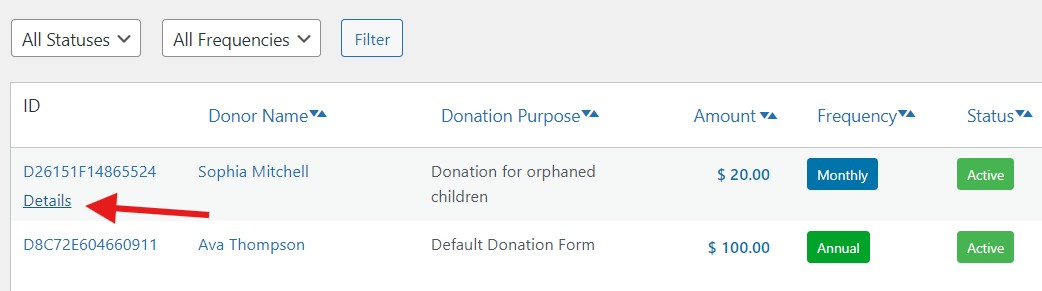
In the ID column, each row shows the donation reference number and, underneath, a Details link. You can open the extra information in either of these ways:
Click Details, or
Click the donation number itself.
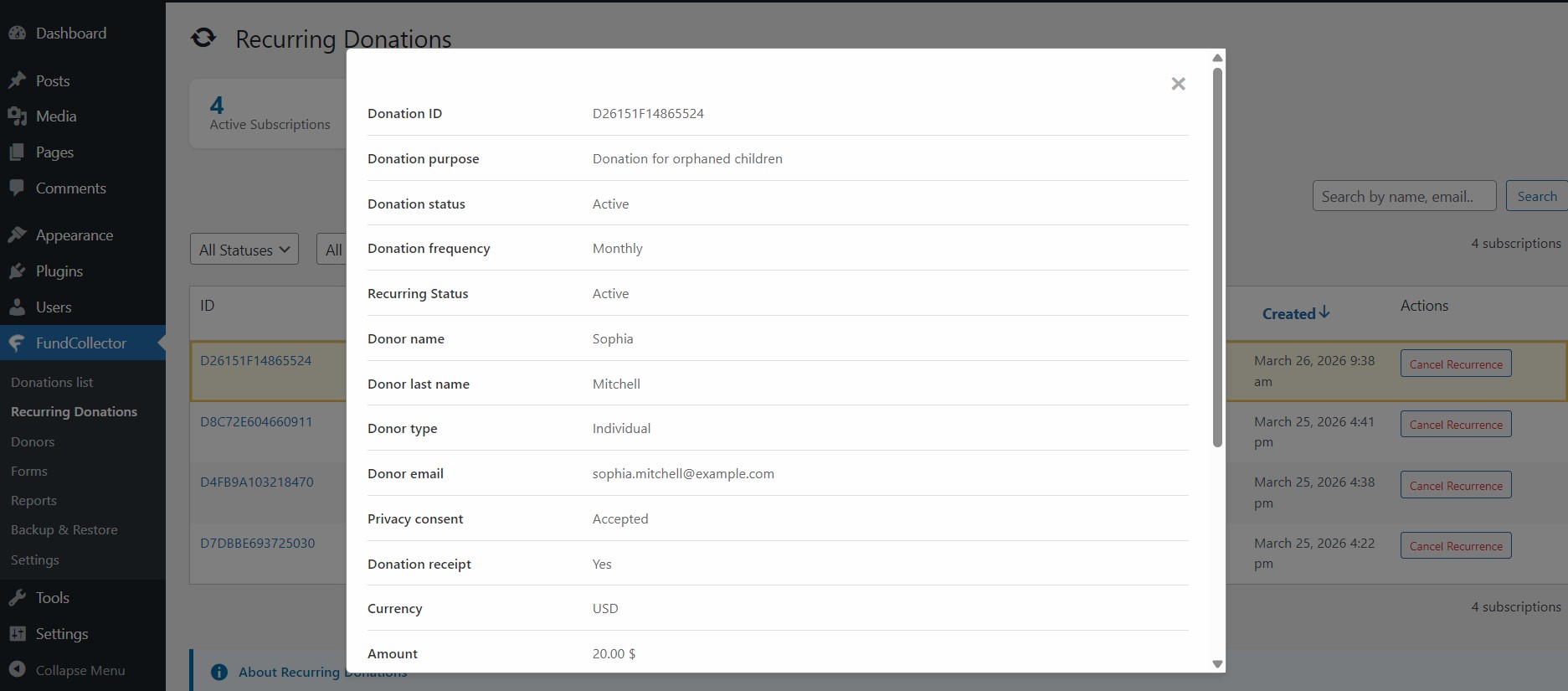
A panel opens on top of the page (you stay on Recurring Donations). You may see a short “loading” message first; then the content appears.
What you see
Recurring Donations – Details window
The panel is a vertical list of labels and values – everything FundCollector stores for that donation, in a readable order. In practice it usually includes:
About the gift: donation reference, purpose or campaign name, and whether the donation record is active or has been moved to trash.
Recurring: how often the donor chose to give (for example monthly or yearly) and, when applicable, the recurring subscription status linked to that payment setup.
About the donor: name, whether they gave as a person or an organisation, company or group name when relevant, email, and choices such as privacy consent or receipt request.
About the payment: currency, amount, date and time (when the system has one), how they paid, payment status, and reference numbers from the payment provider when those exist. For some methods, you may also see payer name or email as returned by the provider.
Fields that do not apply or were left empty often appear as — (two dashes).
Related: Retry subscription
If a recurring Mollie payment completed but subscription creation failed, Retry Subscription may appear on Donations list rows (not on this screen). This retry option is available for Mollie only: for a failed PayPal recurring subscription, ask the donor to start a new recurring donation instead. That flow is documented with the Donations list; the Recurring page is for subscriptions already present in the recurring table.
13. Donors Management
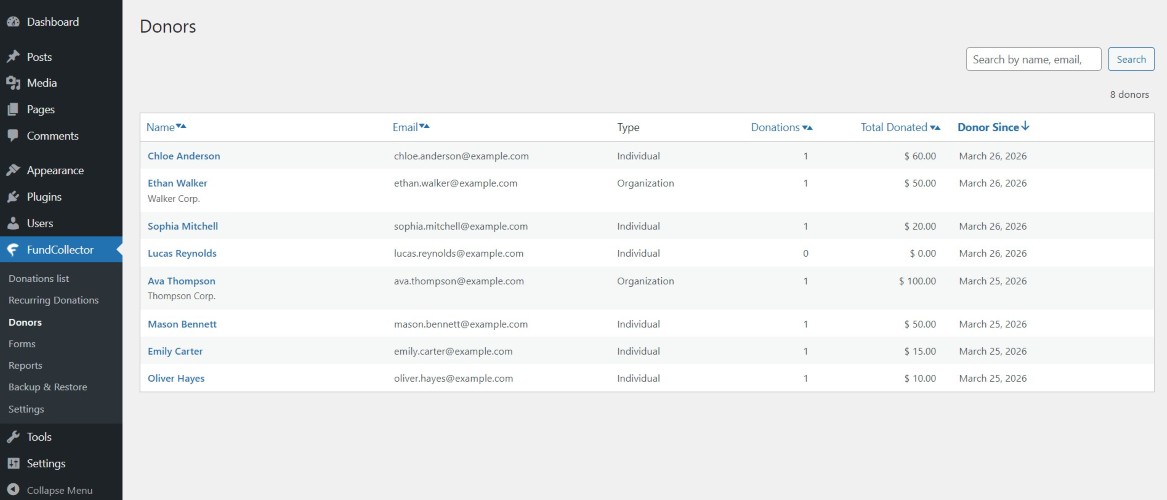
Now let’s describe the Donors screen in the WordPress admin for FundCollector. It is a people-centric view: each row is one donor profile built from donations, so you can see who supports your campaigns, how often they give, and how much (where the plugin can measure it).
Overview
On Donors you can:
Browse everyone the plugin recognizes as a donor, with paging when the list is long.
Sort several columns to bring the most relevant donors to the top.
Search by name, email, or company (when FundCollector Pro is active).
Open a donor’s detail page to see contact-style information and their recent donations.
You need access to FundCollector in the dashboard (normally Administrators) to open this screen.
Open the Donors page
Log in to your site’s WordPress admin.
In the left menu, open FundCollector.
Click Donors.
You will land on FundCollector → Donors (admin.php?page=fundcollector-donors).
Donors list
Search
At the top right there is a search area labelled for finding donors.
The field suggests you can look up name, email, or company.
With FundCollector Pro installed and active, you can type a term and press Search. When results are shown, a short summary appears with the term you used and how many donors matched, plus a Clear search link so you can return to the full list.
Sorting and paging keep your active search when you are using Pro search.
Sorting
Several column titles work as sort links. Click a title to change the order; click again to flip direction. The active column is shown more prominently and a small arrow icon indicates the direction.
You can sort by:
Name – alphabetical order (A→Z or Z→A).
Email – alphabetical order by address.
Donations – by the number of donations recorded for that donor (low to high or high to low).
Total donated – by the sum of amounts the plugin uses for that donor (low to high or high to low). Currency symbol and number formatting follow your Settings → Currency & location choices.
Donor since – by when the donor record was first created (newest first or oldest first).
Changing sort usually sends you back to page 1 of the list.
Type (Individual vs Organization) is shown for each row but is not a sortable heading.
What each row shows
Think of each row as one donor. The pieces of information are:
Name – the donor’s name and surname as stored by the plugin. The name is a link: click it to open that donor’s detail page. If a company name exists, it may appear on a second line under the person’s name. If no name was saved, the list may show a friendly “no name” placeholder.
Email – the email address on file.
Type – either Individual or Organization, depending on how the donor was recorded.
Donations – how many donation records are tied to this donor (a simple count).
Total donated – the running total the plugin associates with this donor, formatted with your currency settings.
Donor since – the date (and related time display rules) when this donor profile was created. If that date is missing, the cell may show a dash.
If nobody matches the current filters or search, you see a clear empty message (and with an active search, a hint to clear the search).
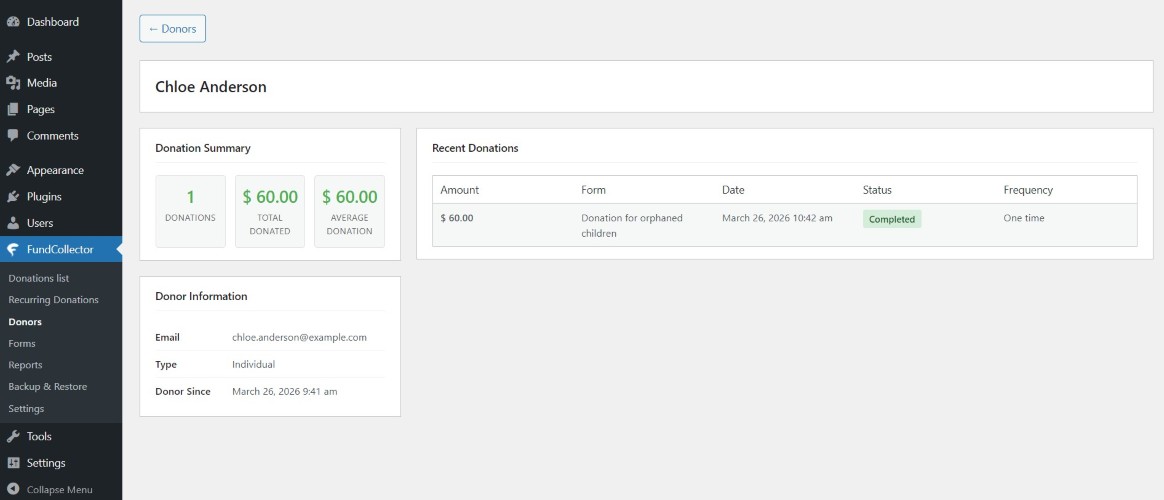
Donor detail page
When you click a donor’s name, you leave the list and open a detail view for that person or organization.
At the top, a back style link returns you to the Donors list.
The donor’s name appears as the main heading.
Donor details page
Donation summary (left side)
A compact Donation summary area highlights:
Donations – again, the count of donations.
Total donated – the same kind of total as on the list, with your currency formatting.
Average donation – the total divided by the count (or zero when there are no donations).
If this donor has bank transfer donations, an extra figure may show how many of those there are. In that case a short note explains that bank transfer amounts are not included in the totals above, so the numbers stay honest when some gifts are still manual or outside automatic totals.
Donor information (left side)
Donor information lists what the plugin knows, such as:
Email
Type (Individual or Organization)
Organization name (only when it exists)
Phone (only when saved)
Address (only when any address parts exist – street, postal code, city, region, country are combined into one readable line)
Tax ID (only when saved)
Donor since – creation time of the donor record, with more detail than the list if your settings show date and time together.
Fields that were never filled in simply do not appear as extra rows.
Recent donations (right side)
The Recent donations block lists this donor’s gifts in a table-like layout. For each donation you typically see:
Amount – with the correct currency symbol when a per-donation currency exists.
Form – the purpose or form name tied to the donation, or a dash when nothing is set.
Date – date and time in the site’s usual WordPress date/time format.
Status – a readable payment status (the same family of labels you know from the donations list, including special wording for bank transfer when relevant).
Frequency – One time, Monthly, or Annual, matching how the gift was set up.
If there are no donations at all for this donor, a short message says so.
14. Reports
This section describes the Reports screen in the WordPress admin for FundCollector Pro. It is the place where you can extract donation data out of the plugin – either as a ready-to-print PDF summary or as a spreadsheet-friendly CSV file you can open in Excel or Google Sheets.
Overview
On Reports you can:
Generate a PDF report with donation statistics for a chosen period, ready to save or print.
Export a CSV file with the full detail of every donation that matches your filters, compatible with Excel and Google Sheets.
Filter both outputs by date range, payment status, payment gateway, and donation frequency before generating.
You need access to FundCollector in the dashboard (normally Administrators) to open this screen.
Open the Reports page
Log in to your site’s WordPress admin.
In the left menu, open FundCollector.
Click Reports.
You will land on FundCollector → Reports (admin.php?page=fundcollector-pro-reports).
Tabs
At the top of the content area there are two tabs:
PDF Reports – generate a formatted PDF document.
CSV Export – download a raw data file.
Clicking a tab switches the form below without leaving the page.
PDF Reports tab
Open this tab when you want a printable summary instead of a spreadsheet.
Reports – PDF Reports
What it does
Generates a professional PDF report containing donation statistics for the period you select.
The file opens or downloads directly in your browser when you click the button.
Date Range
Two date fields – from and to – let you pick the start and end of the period covered by the report.
Both fields are required (marked with a red asterisk).
A short hint below the fields reads “Select the date range for the report.”
Clicking a field opens a date picker.
Payment Status
A scrollable list box showing all available statuses:
All Statuses (default, includes everything)
Completed
Pending
Manual Check
Failed
Cancelled
Refunded
Expired
You can select multiple statuses by holding Ctrl (Windows/Linux) or Cmd (Mac).
Leaving All Statuses selected includes every status in the report.
Payment Gateway
A scrollable list box showing the available gateways:
All Gateways (default)
PayPal
Mollie
Bank Transfer
You can select multiple gateways the same way as for Payment Status (Ctrl/Cmd).
Leaving All Gateways selected includes every gateway in the report.
Donation Frequency
A scrollable list box showing the available frequencies:
All Frequencies (default)
One-time
Monthly
Annual
You can select multiple frequencies with Ctrl/Cmd.
Leaving All Frequencies selected includes every frequency in the report.
Generate PDF Report
A blue Generate PDF Report button (with a small document icon) starts the process.
The plugin applies your filters and produces the PDF. If no donations match the criteria, the report will reflect that.
CSV Export tab
Open this tab when you want a data file for Excel, Google Sheets, or other tools.
Reports – CSV Export
What it does
Exports donation data to a CSV file with all available details.
The file is compatible with Excel and Google Sheets.
A link “How to import CSV correctly in Excel?” is shown next to the description; clicking it scrolls to or reveals the import guide below the form.
Date Range
Two date fields – from and to – let you pick the start and end of the period included in the export.
Both fields are required (marked with a red asterisk).
A short hint below the fields reads “Select the date range for the export.”
Clicking a field opens a date picker.
Payment Status
A scrollable list box showing all available statuses:
All Statuses (default, includes everything)
Completed
Pending
Manual Check
Failed
Cancelled
Refunded
Expired
You can select multiple statuses by holding Ctrl (Windows/Linux) or Cmd (Mac).
Leaving All Statuses selected includes every status in the file.
Payment Gateway
A scrollable list box showing the available gateways:
All Gateways (default)
PayPal
Mollie
Bank Transfer
You can select multiple gateways the same way as for Payment Status (Ctrl/Cmd).
Leaving All Gateways selected includes every gateway in the file.
Donation Frequency
A scrollable list box showing the available frequencies:
All Frequencies (default)
One-time
Monthly
Annual
You can select multiple frequencies with Ctrl/Cmd.
Leaving All Frequencies selected includes every frequency in the file.
Export to CSV
A blue Export to CSV button triggers the download.
The browser will prompt you to save the .csv file (or download it automatically depending on your browser settings).
How to import CSV in Excel
The main concern is leading zeros in fields like postal codes, phone numbers, and tax IDs – Excel tends to strip them when you double-click a CSV file.
Correct method (recommended)
Open Excel with a blank workbook.
Go to the Data menu and choose From Text/CSV.
Select the downloaded CSV file.
In the import window, click Transform Data or Edit.
For the Phone, Postal Code, and Tax ID columns: select the column and change its type from Number to Text (the ABC icon).
Click Close & Load.
Incorrect method (avoid)
Do not open the CSV by double-clicking it. Excel will automatically interpret numeric-looking values and remove leading zeros (for example, 00144 becomes 144).
15. Backup & Restore
This guide describes the Backup & Restore screen in the WordPress admin for FundCollector Pro. It lets you save a copy of your donation-related data to your computer and bring that copy back later – for example before big changes, when moving to another site, or after a problem on the server.
Overview
On Backup & Restore you can:
Export a single compressed file that contains your FundCollector data (donations, recurring plans, forms, and saved plugin settings).
Import a file you exported earlier, choosing whether to replace everything or merge new records into what you already have.
You need access to FundCollector in the dashboard (normally Administrators) to open this screen.
Treat backups like sensitive documents: they can contain personal and payment-related information. Store them somewhere safe and do not share them publicly.
Open the Backup & Restore page
Log in to your site’s WordPress admin.
In the left menu, open FundCollector.
Click Backup & Restore.
You will land on FundCollector → Backup & Restore (admin.php?page=fundcollector-pro-backup).
Tabs
At the top of the content area there are two tabs:
Export Backup – create a file and download it.
Import Backup – upload a file and restore or merge data.
Clicking a tab switches the panel below without leaving the page.
Export Backup tab
Use this tab when you want a fresh snapshot of your data on your computer.
Export Backup
What the page shows before you export
A short line explains that you are creating a complete backup of all plugin data.
A small summary lists live counts (numbers update when you load the page):
Donations – how many donation records will be included.
Recurring Subscriptions – how many active recurring subscriptions are counted for the backup.
Forms – how many donation forms are included.
Plugin Settings – settings are part of the backup (no separate count).
Under Backup format, the page states that the file is JSON.ZIP (a compressed archive) and that it will be downloaded to your computer.
Create Backup & Download
The main blue button is labelled Create Backup & Download.
When you click it, the plugin builds the backup on the server. A short in progress state may appear while the file is prepared.
When ready, your browser starts a normal file download. The downloaded name follows a fixed pattern: it starts with fundcollector-backup-, then the date and time, then a short random part, and ends with .json.zip.
After the operation, a green or red notice on the page tells you if the backup was created successfully or not; on success it may also show the exact filename and an approximate size of the downloaded package.
If the amount of data is too large for a single backup file, the plugin will refuse to create the download and show an error instead of a broken file.
Import Backup tab (Restore)
Use this tab when you already have a .json.zip backup file from this plugin and want to load it into the current site.
Import Backup (Restore)
Choose a file
Instructions ask you to upload a backup file created earlier with this same tool.
You use a Choose File control. Only files whose name ends in .zip are accepted; if you pick another type, the page stops you before sending anything.
There is a maximum file size for the upload (the same upper limit as for creating a backup – about 50 MB). Larger archives cannot be imported through this screen.
After picking a file, its name usually appears next to the control so you can double-check you selected the right archive.
Restore strategy (read carefully)
Before restoring, you must pick one of two modes using radio buttons:
REPLACE – Complete Replacement
What it does: removes all existing FundCollector data on this site and replaces it with what is inside the backup.
When it is meant for: serious recovery situations, for example after a server crash, when you want the site to look exactly like the backup.
Risk: the page warns clearly that you will lose all current data on this site for the data covered by the backup.
MERGE – Merge Data(selected by default)
What it does: keeps what you already have and adds records coming from the backup.
When it is meant for: bringing in donations (or related data) from another installation without wiping the live database first.
A heading above these options stresses that you should choose the strategy carefully.
Upload & Restore
The blue Upload & Restore button sends the file and runs the import with the strategy you selected.
If you did not choose any file yet, the page asks you to select one first.
While the server works, an in progress indicator may appear.
When finished, a result message shows whether the restore succeeded or what went wrong.
On success, the message can include a short summary (for example how many donations and forms were brought in, how many lines were skipped because they already existed, whether settings were updated, and similar). Extra warnings may appear in a list if something needed your attention without failing the whole job.
On failure, the message explains the problem when possible; sometimes a list of errors or warnings is shown with more detail.
Confirmation for REPLACE
If you chose REPLACE, the browser shows a confirmation dialog before the destructive step runs. You must confirm that you understand current data will be removed.
16. Next Steps
Congratulations! Your Pro donation system is now configured and ready to accept one-time and recurring donations.
Recommended Next Steps
1. Testing Phase
Make a test donation via Mollie test mode
Set up a test recurring donation and verify the subscription is created in your Mollie dashboard
Make a test donation via PayPal Sandbox mode
Verify all emails are received correctly (including Mollie receipts)
Test bank transfer flow
Try forms on mobile devices
Check donations appear in the admin panel correctly
Generate a test report and verify PDF/CSV export
Create a test backup and verify the download
2. Before Going Live
Switch Mollie to Live mode and enter live API keys
Switch PayPal to Live mode (if using PayPal)
Make a small real donation to verify end-to-end flow
Configure SMTP for reliable email delivery
Set up Google reCAPTCHA for your production domain
Review all email templates for accuracy
Activate your Pro license key
3. Launch & Promote
Add donation form to key pages
Create dedicated donation landing page
Promote recurring donation options to your community
Announce to your community
Share on social media
Include in email newsletter
Add to website navigation menu
4. Ongoing Management
Check donations daily
Monitor recurring subscriptions for cancellations or failed payments
Verify bank transfers weekly
Generate monthly reports and export to PDF/CSV
Create regular backups of your donation data
Respond to donor questions promptly
Keep plugin updated (automatic with active license)
Common Troubleshooting
Mollie Issues:
Payments not appearing: Verify your Mollie webhook is configured correctly. Check the Mollie dashboard for webhook delivery logs.
Card form not loading: Ensure your Profile ID is correctly entered in settings
Test mode payments not working: Confirm you are using the Test API key (starts with test_)
Recurring not available: Verify recurring payments are enabled in your Mollie account and in FundCollector settings
Subscription creation fails: use Retry Subscription on the related Donations list row for Mollie, then check Mollie account verification status. PayPal recurring subscription creation cannot be retried from the admin; ask the donor to start a new recurring donation.
Mollie Connect shows “reconnection required”: Click Connect with Mollie again in Mollie settings to re-authorize; FundCollector also keeps retrying automatically in the background
PayPal Issues:
Donations not appearing: Check webhook configuration. Use Automatic Webhook Creation after entering your PayPal credentials when the site is publicly reachable over HTTPS, or check Settings → Logs for errors.
Payment fails: Verify currency compatibility with your PayPal account
Test mode not working: Confirm you are using Sandbox credentials
Recurring option missing from the form: Enable “Enable PayPal recurring donations” under Payment Methods → PayPal
Recurring card donations fail with an authorization error: Enable “Save payment methods” (Vault API) on your PayPal Sandbox/Live app
Email Issues:
Emails not arriving: Configure SMTP settings
Emails in spam: Use SMTP with proper SPF/DKIM records
Mollie emails not sent: Verify Mollie email templates are configured in the Email settings tab
Reports Issues:
PDF not generating: Check PHP memory limit (minimum 128MB recommended)
Empty report: Verify the date range includes donations and check status filters
Backup Issues:
Backup fails: Check PHP memory limit and execution time; large sites may need higher server resource limits before creating a complete backup
Restore fails: Ensure the zip file is a valid FundCollector backup; check file size does not exceed 50MB
Logs & Support:
If the log viewer is empty, first make a test donation or reproduce the issue, then check FundCollector → Settings → Logs again.
Use the support-access option only when requested by support. The generated link is temporary and can be revoked from the same screen.