
Note: This documentation covers both the Free and Pro versions of FundCollector. FundCollector Pro requires the Free version to be installed and kept active at all times. Sections that apply only to Pro are marked with PRO.
Logs
Open FundCollector → Settings in your WordPress admin and click the Logs tab. This is the Admin Logs viewer: you can inspect activity logs directly in WordPress, filter and search entries, download or clear the log file, and optionally share a temporary support access link with FundCollector support.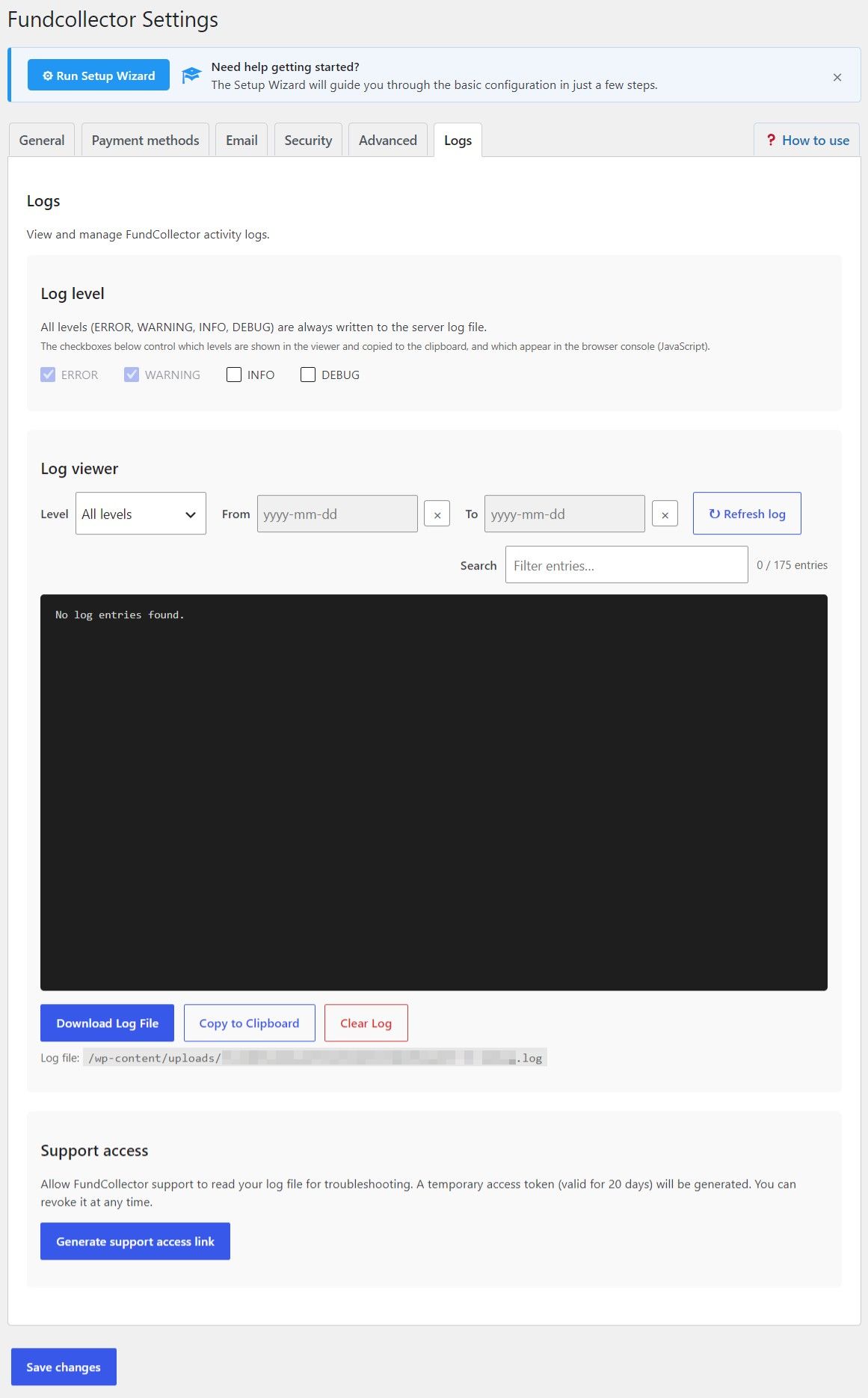
manage_options capability (typically Administrators) can access this screen.
Log level
All levels (ERROR, WARNING, INFO, DEBUG) are always written to the server log file. The checkboxes control which levels are shown in the viewer, copied to the clipboard, and mirrored to the browser console for JavaScript:- ERROR and WARNING: always on in the viewer (read-only checkboxes).
- INFO: optional; enable for more operational detail.
- DEBUG: optional; enable only when investigating a specific issue (more verbose).
WP_DEBUG default for which optional levels appear.
Log viewer
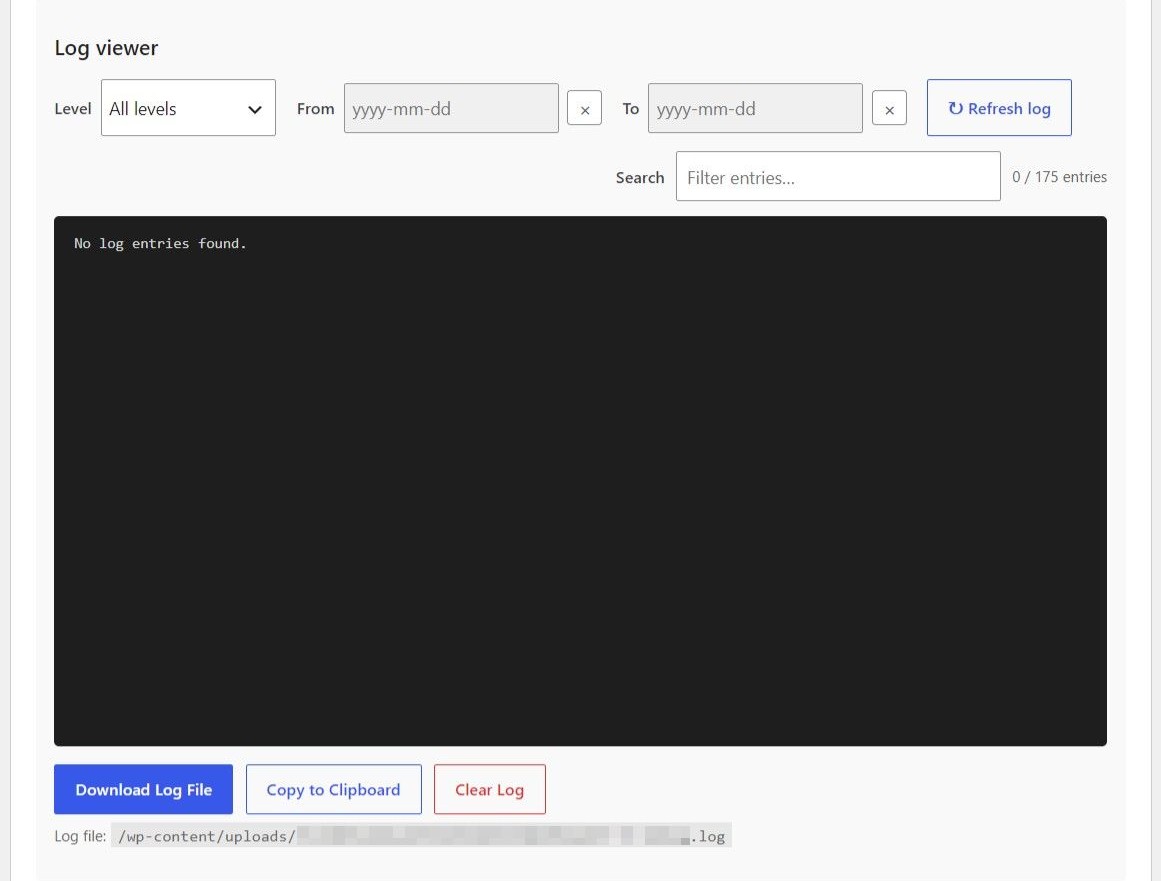
- Level: All levels, or ERROR / WARNING / INFO / DEBUG only.
- From / To: date range (yyyy-mm-dd).
- Refresh log: reload entries from the file.
- Search: filter the loaded entries by text; a counter shows how many match.
- Download Log File: download the full log file from the server.
- Copy to Clipboard: copy the currently displayed (filtered) entries.
- Clear Log: wipe the log file (use with care, this cannot be undone).
Support access
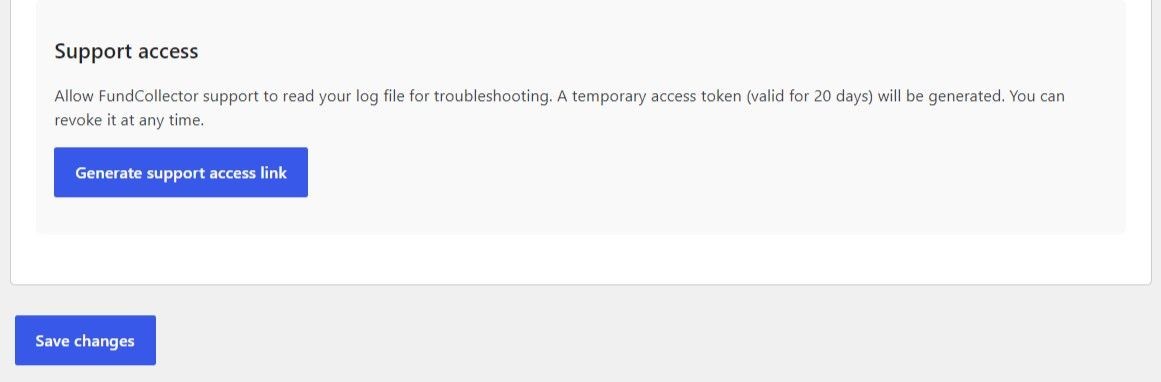
- Click Generate support access link.
- Copy the link and send it to support (for example via the support page).
- The token is valid for 20 days. You can click Revoke access at any time to invalidate it immediately.